
Fulfillment QC
Table of Contents
1. Use Cases
Quick links: Final check before shipping | Packing video for disputes | Block already-cancelled orders | Scan serials for serial-tracked items
Scenario 1: The final gate before shipping — keep wrong items in the warehouse
Situation: A multi-item fulfillment has been picked and arrives at the packing station. Before the shipping label goes on and it leaves, you need to confirm "the right items, in the right quantities, not one off." Wrong or missing items reaching the customer mean returns, complaints, and reshipping costs.
Use this feature: In Scan items one by one, scan every item's barcode. The system tallies the verified quantity per line in real time and only lets you print once every line is fully scanned; over-scanning or scanning the wrong item is rejected on the spot.
Result: Only after stock matches the order do you print the shipping label, keeping the wrong package in the warehouse rather than in a customer complaint.
Scenario 2: Keep the packing video to settle missing-item disputes
Situation: A customer reports "one item is missing" after receiving the package. The warehouse needs evidence to determine whether it was short at the moment of shipping or something went wrong in transit.
Use this feature: QC records video the entire time, with one segment per sealed box (see Recording for evidence); later you can pull this fulfillment's packing video and replay it to compare.
Result: Use the video as proof of what was actually packed at shipping time, responding to disputes with evidence rather than guesswork.
Scenario 3: Don't ship an order the customer cancelled on the platform
Situation: A customer cancels on a platform like Shopee or momo, but this fulfillment was already picked and is sitting at the packing station. Shipping it anyway means sending out a cancelled order, with return shipping and refunds to deal with afterward.
Use this feature: The moment you scan the fulfillment into QC, the system checks the source platform in real time to confirm whether the order has been cancelled (see Scan a fulfillment to load it); cancelled orders are blocked before entry.
Result: Cancelled orders are stopped before shipping, saving the cost of sending a package only to retrieve it.
Scenario 4: Serial-tracked items — scan each serial for full traceability
Situation: You sell high-value, warranty-tracked or anti-swap items such as electronics, each with its own serial number. If you don't record "which serials went out on this fulfillment," later warranty registration, complaint tracing, and swap disputes won't line up.
Use this feature: This requires that the products have serial-number management enabled in their settings (with "serials required per unit"). When QC scans such an item, a serial dialog pops up to scan each serial barcode one by one — for the steps, see Scan serials for serial-tracked items.
Result: Every fulfillment is recorded down to the serial level, so a serial number tells you exactly which fulfillment and which customer it shipped to.
2. Features
Fulfillment QC is the last gate before items ship. Here you scan a fulfillment to load what needs to go out, scan each item's barcode to confirm the items and quantities are correct, and pack as you verify. Once everything is fully scanned, scan the fulfillment once more and the system generates and prints the shipping label and marks the fulfillment as shipped. The whole process is recorded on video and serials are logged one by one, as evidence for any later shipping dispute.
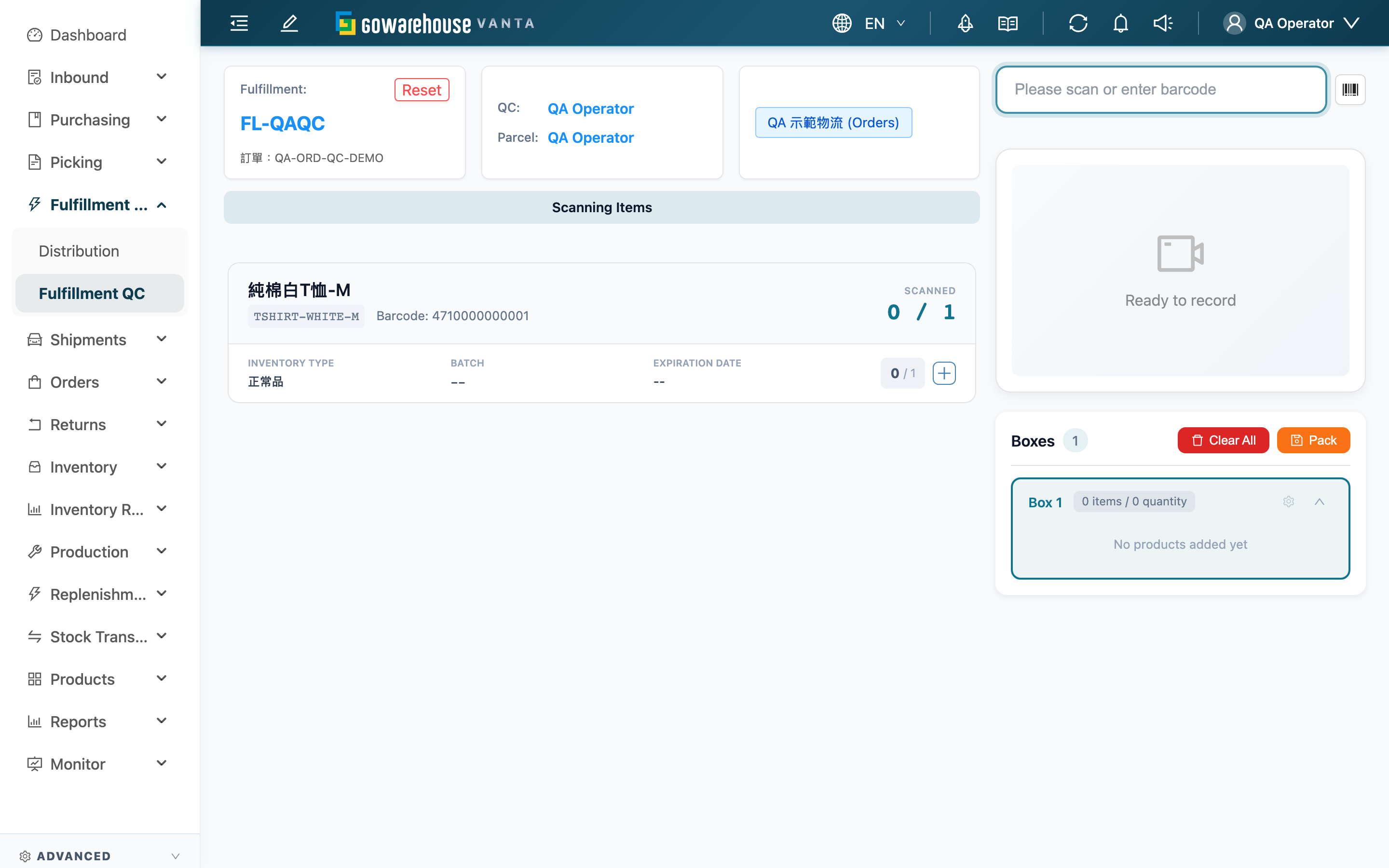
The left side is the fulfillment and item list (what to verify); the right side is the barcode input, video view, and box list (how to verify, and which box). A status bar across the top shows the current step, and scanning is routed automatically by status:
| Status | What it means | A scan now will |
|---|---|---|
| Awaiting Order Scan | No fulfillment loaded yet | Treat the barcode as a fulfillment number and load the order |
| Scanning Items | Loaded, verifying item by item | Match the item barcode and tally the verified quantity |
| Awaiting Order Rescan | All items fully scanned | Re-scan the fulfillment to enter printing |
| Printing Shipping Label | Generating and printing the shipping label | — |
| Process Complete | Shipped | Scan the next fulfillment to continue |
Quick jump: Assign operators | Scan a fulfillment to load it | Scan items one by one | Scan serials for serial-tracked items | Packing and box management | Print the label and complete shipping | Recording for evidence
2.1 Assign QC and packing operators
By default the page treats the currently logged-in operator as both the QC (QC) and Parcel operator, so you can start right away without any setup.
When someone else handles QC or packing at this station, click the operator block in the header to open the "Verify Operators" dialog, enter or scan the QC Operator Account and Parcel Operator Account, and click "Confirm Accounts".
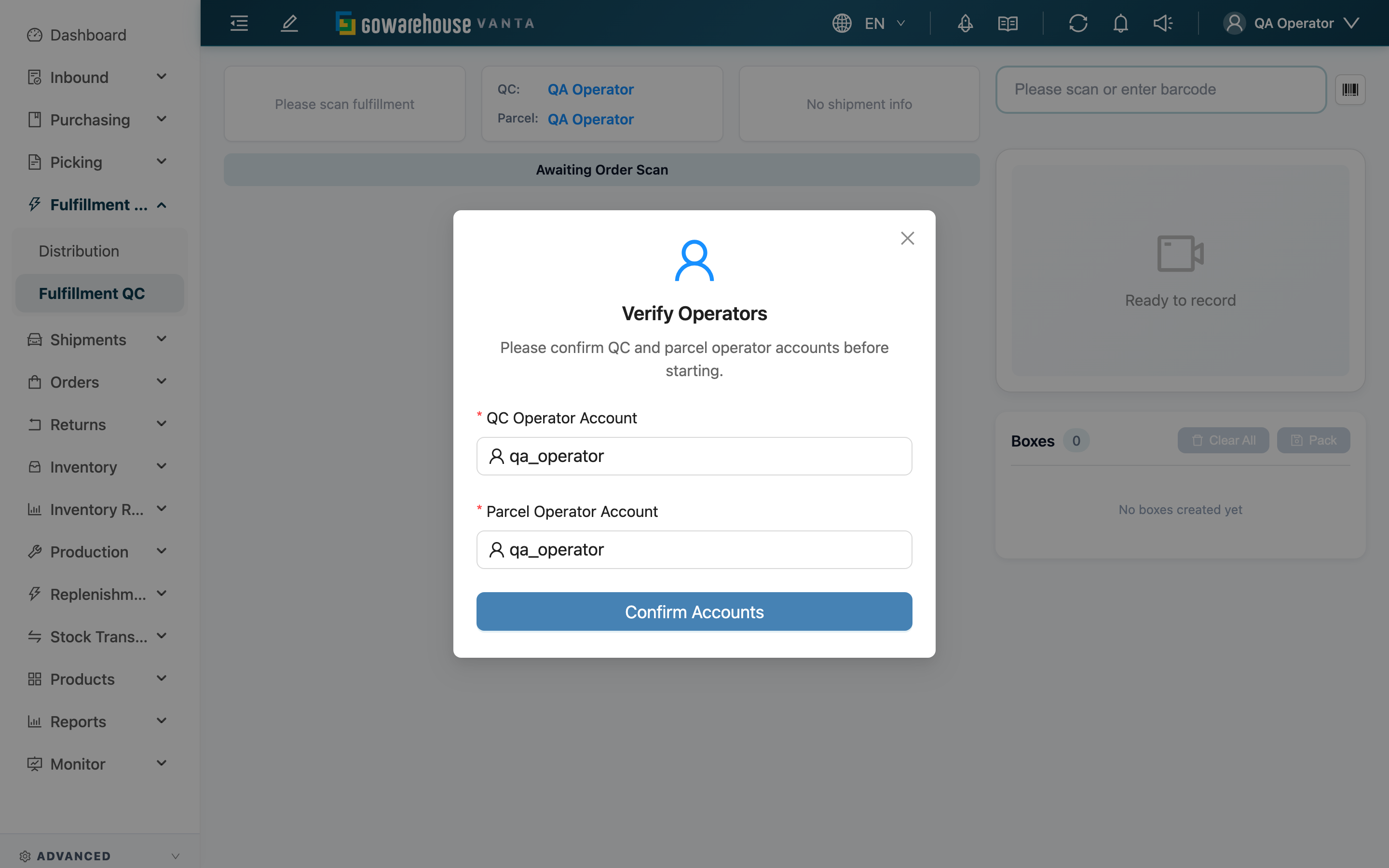
⚠️ The QC and packing operators must belong to the same warehouse, otherwise verification fails. When shipping is completed, both operators are recorded on the fulfillment.
2.2 Scan a fulfillment to load it
Scan a fulfillment in the right-side barcode box (Please scan or enter barcode) to load its items into the left-side list. You can scan the fulfillment number (system barcode), the fulfillment name, or an associated order number. If one name maps to multiple fulfillments, a list appears for you to pick the correct one.
While loading, the system runs checks; any one that fails blocks entry with a red message:
| Check | Why it's blocked |
|---|---|
| Order on hold | An associated order is on hold (e.g. awaiting an address fix). The message includes "Hold order to correct info" or a link to the order |
| Cancelled on platform | The source platform reports the order is cancelled; blocked before entry |
| Picking not done | This fulfillment's picking list isn't complete; stock isn't settled to a shippable state yet |
| Tote quantity insufficient | The picking tote's physical quantity isn't enough for this fulfillment |
| Wrong status | The fulfillment isn't in the "processing" state (e.g. not yet picked, or already shipped) |
Two cases ask you first rather than blocking outright:
- Platform status check failed: When the platform can't be reached to confirm cancellation, "Could not verify this order's cancellation status on the platform. Continue with QC anyway?" appears and you decide whether to "Continue anyway".
- Packing lock conflict: This fulfillment is being packed by someone else; a dialog asks whether to take over. After taking over, the QC lock moves to you.
2.3 Scan items one by one
After loading, scan each item's barcode. The "Scanned" count for the matching line goes up by one; reaching the required quantity completes that line. Item matching is tried in order: product barcode → secondary barcode → mid/large-unit barcode (one scan equals a full case/box quantity) → SKU → Batch.
- Over-scanning is blocked: When the scanned quantity would exceed what this fulfillment should ship, a "Quantity exceeded" prompt appears and the extra is not counted.
- Item not found: When the scanned barcode doesn't belong to this fulfillment or is wrong, "Product not found" appears. If the barcode matches a consumable, it's recorded as packing material for this box instead (see Consumables below).
- Batch verify: For a line with a large quantity, open "Batch Scan" from the list to enter the quantity at once instead of scanning each unit.
Packing materials (consumables) for this box
For consumables used in packing — cartons, cushioning, etc. — just scan the consumable barcode to record it under "Materials for this box", and adjust the quantity manually. Consumables are deducted together with the current box when it is packed.
If a consumable is marked "Use as Shipping Volume Basis" on its record, its length, width, and height are used directly as this box's shipping volume, instead of summing product dimensions. Only one such consumable is allowed per box: if the box already has one checked consumable and you scan another checked consumable, it is blocked on the spot with "This parcel already has another consumable set as the volume basis. Remove it before scanning a new one" — remove the original one before scanning the new one.
2.4 Scan serials for serial-tracked items
For items that require serial tracking (serial-number management enabled in product settings, with "serials required per unit" — e.g. electronics and high-value, traceable goods), scanning during QC doesn't just add one to the count; instead the "Scan Serial Number" dialog pops up and asks you to scan or enter each unit's serial barcode one by one. Serials are bound to the matching line on this fulfillment, so a serial number later tells you exactly which fulfillment it shipped on.
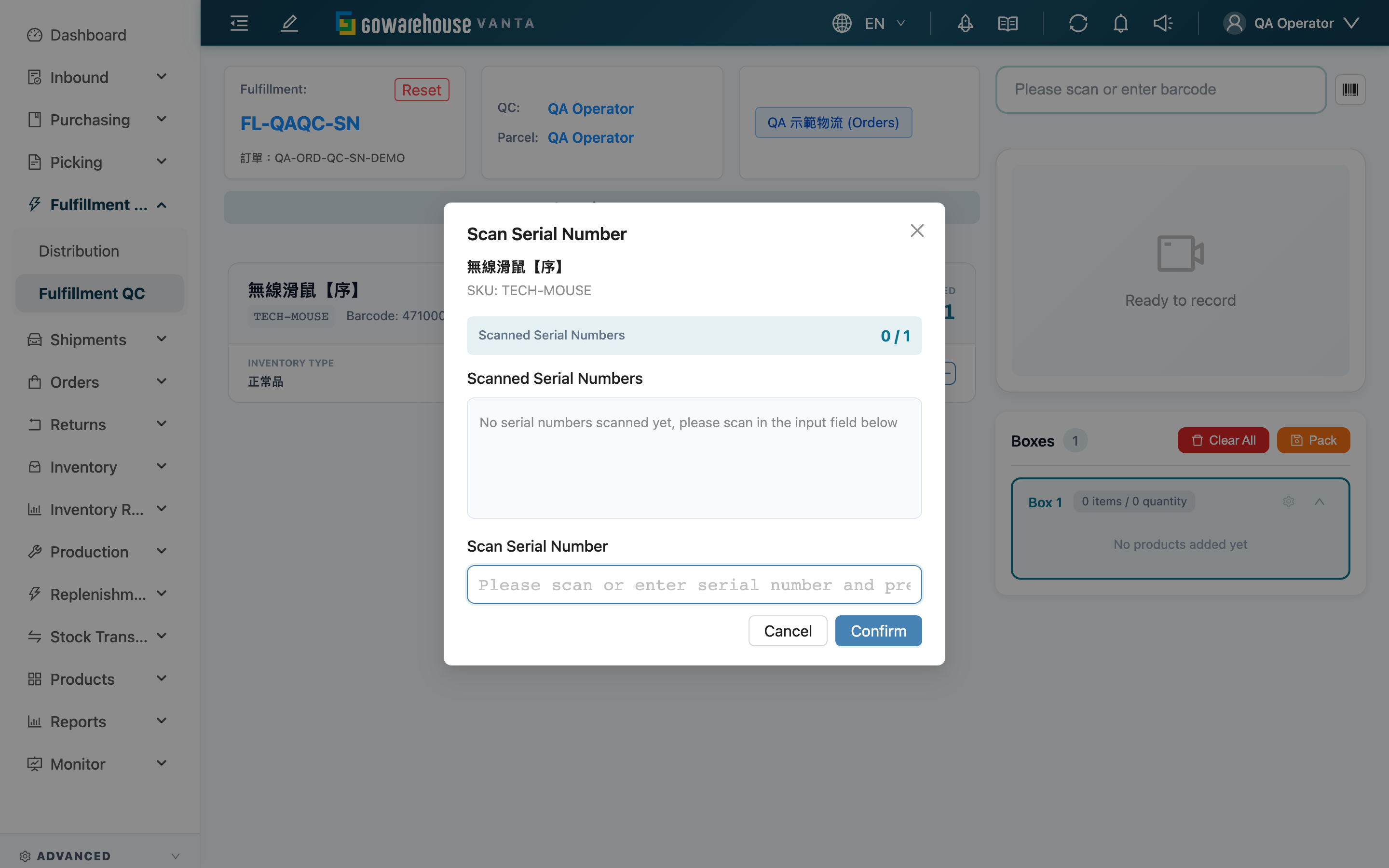
| Rule | Description |
|---|---|
| Serial count | The number of serials scanned must be a whole multiple of the item's "serials required per unit." E.g. 1 serial per unit means scanning 3 = 3 units; a crayon box needing 10 serials must total a multiple of 10. A non-multiple shows "Serial number count mismatch" |
| Full-box serial label | If the item carries a single label containing all the serials in a box, scan it once — the dialog converts it into the corresponding unit count |
| No duplicates | A serial already scanned for the same item is rejected on the spot, preventing the same serial from being recorded twice on one fulfillment |
| Bound to the line | Each serial is bound to the matching line on this fulfillment; in a merged fulfillment, the same product from different orders is recorded separately |
After scanning all required serials and the dialog shows "✓ Completed required serial number scanning", click "Confirm" and the batch is counted into the current box. If you scanned wrong, remove individual serials in Packing and box management under manage box, and the unit count recalculates from the remaining serials.
2.5 Packing and box management
The "Boxes" on the right records how many boxes this fulfillment is split into and what each box holds.
- Seal a box, open a new one: When a box is full, scan the
-DOPACKING-barcode or click the "Pack" button. The system seals the current box and opens a new one automatically; items scanned next go into the new box. A fulfillment can be split into multiple boxes with no limit. - Manage a single box: Click "Manage" on a box to adjust item quantities, remove serial numbers, or delete a misplaced item. If removing makes a line no longer fully packed, "complete shipping" locks again until you scan it back to full.
- Clear all boxes: "Clear All" deletes all boxes built for this fulfillment; you must type
clearin the dialog to confirm.
💡 Once all items are fully scanned you can no longer open a new box manually — at that point the system defers sealing to the moment you "re-scan the fulfillment to print," so consumables scanned right before printing still make it into the box.
2.6 Print the label and complete shipping
When every line is fully scanned, a green banner appears: "All items have been scanned — Please scan the order barcode again to enter the printing process". At this point, scan the fulfillment barcode once more (or scan the -CONFIRM- barcode) to trigger shipping:
Preconditions: every line is fully scanned (verified = required), at least one non-empty box exists, no associated order is on hold or cancelled on the platform, and the picking list is done.
What the system does: seals the current box → generates the shipping label and opens the print dialog → marks the fulfillment as "Shipped". At the same time stock is formally shipped out, the associated orders' rollup status updates, and this box's consumables are deducted.
Reversibility: once completed, this page can no longer modify boxes and the "Reset" button is disabled; to make changes you must go to the order page to place a hold, or use the returns flow.
If printing fails
If the shipping label fails to generate, "Label printing failed — complete shipment anyway?" appears, offering two paths:
- Hold order to correct info: Place the order on hold, fix the address or shipping info, and try again.
- Complete anyway: Force completion. This means there is no tracking number, so shipping status won't update automatically and you must track it yourself — use with care.
After shipping is completed, if the label needs another copy, a "Reprint Shipping Label" button appears in the header.
2.7 Recording for evidence
After a fulfillment loads, the recording area on the right starts recording automatically (shows "Recording"). Each sealed box becomes a separate video segment, and together with the serial-scanning footage serves as evidence of what shipped. Videos are queued in the "Video Upload Queue" for automatic upload, with progress shown on the right.
Use "Recording quality" above the recording area to match the quality to this computer's performance. The system remembers your choice. "Auto (recommended)" is suitable for normal work; if recording remains slow, a prompt appears and you can choose "Use power saver".
| Option | When to use it |
|---|---|
| Auto (recommended) | Starts at standard quality; if the browser determines before recording that it cannot handle this smoothly, it switches to power-saver quality |
| High (1080p) | When clearer detail is needed and the computer remains responsive while recording |
| Standard (720p) | A balance of quality and performance for routine QC |
| Power saver (540p) | When the video stutters or the computer has lower performance, prioritizing responsive operation |
The actual recording resolution and frame rate appear beside the selector. Changing quality during a recording does not interrupt the current segment; the new setting applies to the next recording segment.
⚠️ Do not close or leave the page before video upload finishes. If you leave while still working or with videos still uploading, the system warns you; forcing your way out may leave a video incomplete or lost.
3. FAQ
3.1 FAQ
▪ Nothing happens when I scan a fulfillment, or a red message appears — what now?
It means the fulfillment didn't pass entry checks; see the table in Scan a fulfillment to load it: order on hold, cancelled on platform, picking not done, tote quantity insufficient, or wrong status. Follow the message — hold-related ones include a "go to order" link so you can fix it.
▪ Scanning an item does nothing, or shows "Product not found"?
Check in order: did you scan a fulfillment to load the order first? Does this item belong to this fulfillment? Is the barcode correct? If the barcode is actually a consumable, the system records it under "Materials for this box" rather than as an item.
▪ What happens if I scan more than the required quantity?
The system shows "Quantity exceeded" and blocks it; the extra is not counted, preventing you from exceeding what this fulfillment should ship.
▪ A serial-numbered item shows "Serial number count mismatch"?
The serial count must be a whole multiple of the item's "serials required per unit" (e.g. 2 per unit means 2, 4, 6...). Make sure you haven't scanned too few, too many, or a duplicate — duplicate serials are rejected.
▪ The fulfillment shows it's being packed by someone else — can I take it over?
Yes. A takeover dialog appears, and after confirming, the QC lock moves to you so you can continue. Check with the other person first to avoid two people packing the same fulfillment.
▪ I packed the wrong box or item — how do I fix it?
Click "Manage" on the box to adjust quantities, remove serials, or delete items; to start over, use "Clear All" to clear all boxes (type clear to confirm) and re-scan. If removing leaves a line no longer fully packed, "complete shipping" locks again until you scan it back to full.
▪ The shipping label failed to print but the goods are already packed — what now?
The dialog offers two paths: place the order on hold to fix the info and try again, or — knowing that there will be "no tracking number and status won't update" — complete anyway to force shipping. Generally, fix the info and print first.
▪ Can I start this fulfillment's QC over?
Before shipping is completed, click "Reset" in the header to clear this fulfillment's current scanning and packing data and start over. A fulfillment that's already shipped cannot be reset (the button is disabled).
▪ What happens if I need to leave the page midway?
If you leave while still in QC, or with videos still uploading, the system shows a confirmation warning that data may be lost. A fulfillment that's shipped with all videos uploaded gives no prompt when you leave.
▪ What should I do if the recording stutters?
Choose "Power saver (540p)" under "Recording quality". If a recording is already in progress, the change takes effect on the next video segment and does not interrupt the current one. Use the displayed resolution and frame rate to confirm the result after the switch.
3.2 Notes
⚠️ Important reminders
- After shipping is completed, this page can no longer modify boxes or reset the fulfillment; to make changes you must place a hold on the order or use the returns flow.
- Choosing "Complete anyway" to force shipping means there is no tracking number, so shipping status won't update automatically and you must track it yourself.
- Closing or leaving the page before video upload finishes may leave that video incomplete or lost.
- The "Clear All" action that deletes all boxes cannot be undone.
💡 Tip: For a large quantity of the same item, use "Batch Scan" to enter it at once; scanning -DOPACKING- is the same as clicking "Pack", and scanning -CONFIRM- is the same as re-scanning the fulfillment to enter printing; after all items are scanned and before printing, you can still scan consumables into this box.
4. Related Features
| Feature | Description | Link |
|---|---|---|
| Distribution | The step before QC: distribute orders to slots by wave and generate picking | Go |
| Fulfillments | View fulfillment status, split and merge fulfillments | Go |
| Orders | View and hold orders, fix address and shipping info | Go |
| Shipments | View generated shipping labels, reprint or upload labels | Go |