
New Inventory Hold
Table of Contents
1. Features
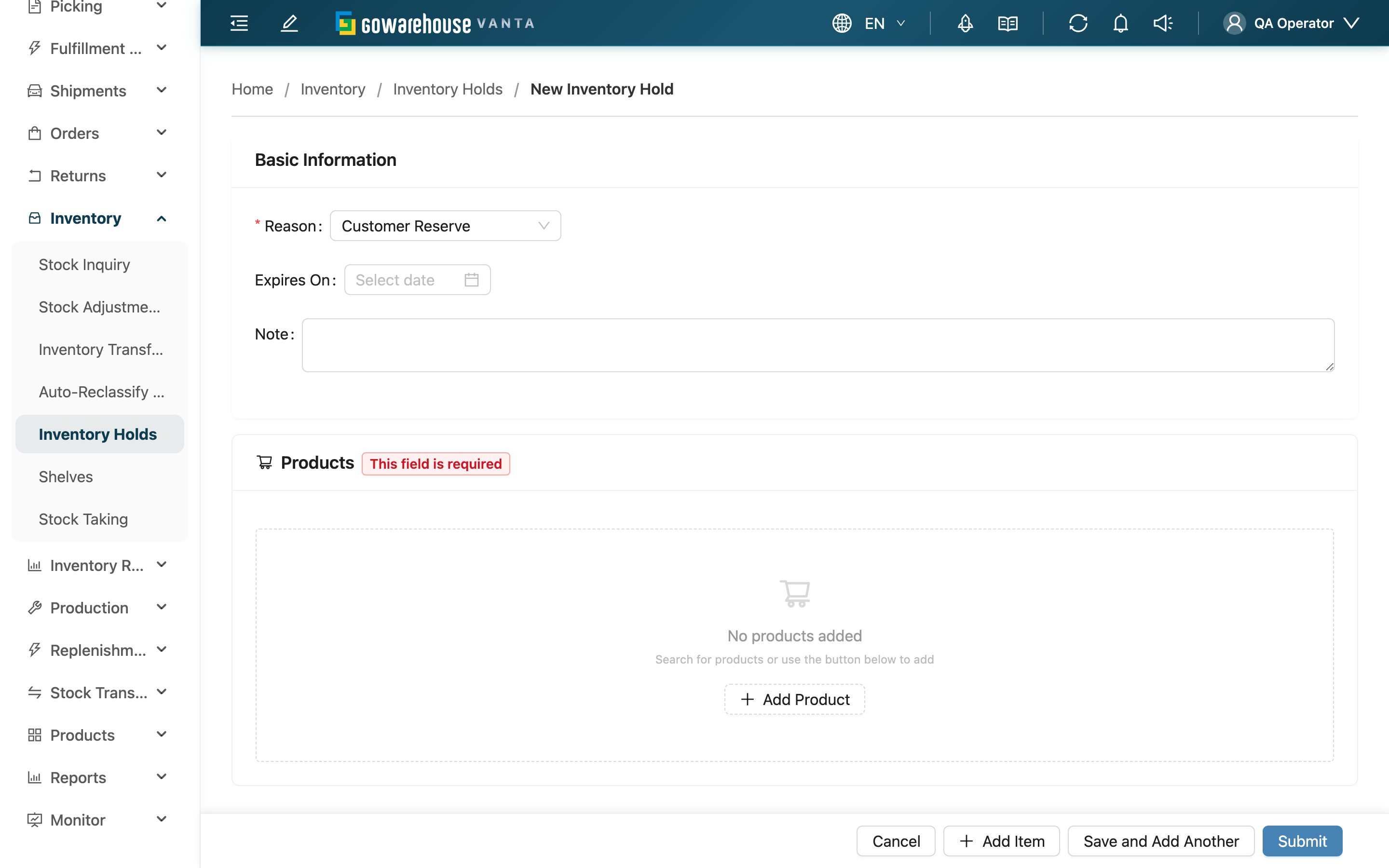
Create an inventory hold to lock specified stock and temporarily keep it from being allocated to new orders. A single hold can lock multiple stock items at once; after submitting, the held quantity is immediately deducted from available quantity until you release it manually or it expires automatically. You can only pick stock in your current warehouse, and all stock on one hold must belong to the same merchant.
Jump to: Basic Info | Hold Items | Submit
1.1 Basic Info
Fields marked with * are required.
| Field | How to fill | Notes |
|---|---|---|
| *Reason | Select a hold reason from the list: Customer Reserve, Quality Issue, Regulatory, Damage, Recall, Other | The reason is for recording and filtering only; it doesn't affect the hold's effect |
| Expires On | Pick an expiry date | Optional; only today or later can be selected. On that day the system auto-releases this hold; if left blank, it stays held until released manually |
| Note | Enter a note recording the details of this hold | Optional |
1.2 Hold Items
In the "Hold Items" section, add the stock to hold — at least one item is required. Each item needs:
| Field | How to fill | Notes |
|---|---|---|
| *Product & stock | Search for the product, then select the specific stock to hold (with inventory type, batch, expiration date, manufacturing date, custom attributes) | The same product in different batches / expiration dates is different stock — pick the exact one to lock |
| *Hold Quantity | Enter the quantity to hold | Must be greater than 0 and may not exceed the stock's current available quantity |
Click "Add Item" to add another row and hold multiple stock items.
1.3 Submit
After filling in, you can submit in two ways:
- Submit: Create the hold and open its Inventory Hold Detail.
- Save and Add Another: Create it, then clear the form for creating multiple holds in a row.
After submitting, the system immediately deducts the held quantity from available quantity, and this stock is no longer allocated to new orders.
2. FAQ
2.1 FAQ
▪ Can one hold cover multiple different products?
Yes. In the "Hold Items" section, click "Add Item" to add multiple rows, each with its own stock and quantity, all built into one hold. However, all stock on a single hold must belong to the same merchant; if you pick stock from different merchants, submission is blocked.
▪ Why can't I enter the quantity, or why does it say "Exceeds available quantity (available: {{available}})"?
The held quantity must be greater than 0 and may not exceed the stock's current available quantity. Available quantity already excludes what's allocated to other orders and locked by other holds; you can only hold what remains available.
▪ I can't find the stock I want to hold?
Confirm you picked the right product and its corresponding inventory type, batch, expiration date, and other attributes — the same product in different batches is different stock. Also, you can only pick stock in your current warehouse; to hold stock in another warehouse, switch warehouses first. If the stock's current available quantity is 0, it can't be held either.
▪ Is the expiry date required?
No. If left blank, the hold stays in effect until you release it manually. If you set an expiry date, the system auto-releases on that day — ideal for short-term reservations or time-limited locks.
▪ Can I change the quantity after creating it?
No. A hold can't be edited once created. To adjust the quantity, release the original first, then recreate a hold with the correct quantity.
▪ I can't see this page or can't submit — what should I do?
If you can't see "Inventory Holds" or can't create one, contact your administrator to confirm your permissions.
2.2 Notices
⚠️ Important
- The held quantity may not exceed the stock's current available quantity
- All stock on one hold must belong to the same merchant and must be in your current warehouse
- The expiry date can only be today or later; once set, it's auto-released on that day
- A hold can't be edited once created; to change it you must release and recreate
💡 Tip: Use "Save and Add Another" to create multiple holds in a row without re-entering this page each time.
3. Related Features
| Feature | Description | Link |
|---|---|---|
| Inventory Holds | View and manage all holds | Go |
| Inventory Hold Detail | View a single hold and release it | Go |
| Stock Inquiry | View a product's available and held quantities | Go |