
Flexible Products
Table of Contents
1. Use Cases
Quick Links: Random shipping, no preference | Fair rotation across sources | Clear near-expiry batches first
A Flexible Products is an item that you sell as a single SKU externally but can fulfill by picking one from a candidate list. It has its own Name and SKU, with several interchangeable real products underneath. When an order is created, the system uses the Allocation Mechanism you set to automatically pick which real products and quantities to ship, replacing the line item with concrete products. The three situations below are where it is used most.
Case 1: Customer doesn't care which variant — let the warehouse decide
Situation: The merchant listed "Random Color Socks" or "Surprise Bags" on a sales channel — items where the customer just wants the cheapest or any one, not caring whether they get red or blue. The merchant asks the warehouse not to manually decide each time.
Use this feature: Build the interchangeable real products (red, blue, green socks) into one flexible product and choose an Allocation Mechanism. From then on, any channel order matching the flexible product's SKU lets the system decide which variant to ship.
Result: The order is converted into real product line items the moment it is created, so pickers see concrete product names and quantities — no on-the-spot judgment needed.
Case 2: Same product from multiple sources, you want fair rotation
Situation: The same product comes from different suppliers or regions (e.g., organic rice from three regions) — identical spec but managed as separate products. The merchant wants shipments spread evenly so no single source is drained first.
Use this feature: Build these source products into one flexible product and set the Allocation Mechanism to Equal Distribution. At order time the system distributes the quantity across the candidate products in turn.
Result: Order demand is split evenly across the source products, achieving fair rotation without manual allocation.
Case 3: Multiple batches of the same product — clear near-expiry stock first
Situation: The same product has several batches. The merchant worries that low-stock, near-expiry batches will sit unsold and expire, and wants them cleared first.
Use this feature: Build the products for these batches into one flexible product and set the Allocation Mechanism to Least Stock First. The system consumes the lowest-stock candidate first, then moves on to higher-stock ones.
Result: Low-stock products are consumed first, lowering the risk of dead stock and expiry waste.
2. Features
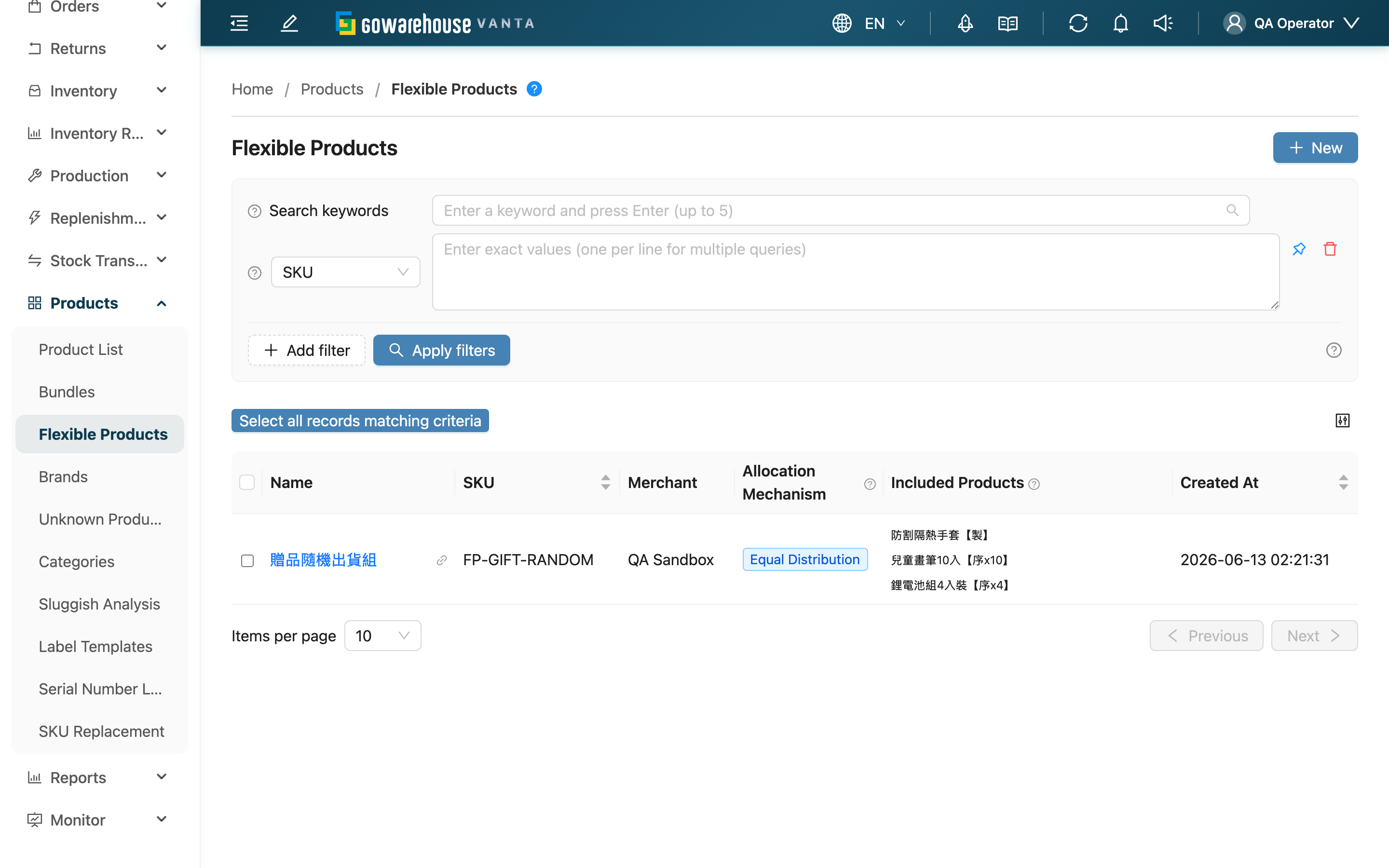
This is your entry point for managing flexible products. A flexible product lets "one external item be fulfilled by picking one of several real products," commonly used for no-preference items, random shipping, or stock juggling across multiple sources or batches. On this list page you can view existing flexible products, see which candidate products and allocation mechanism each has, and create, edit (via detail), or delete from here.
Quick Jump: Search & Filter | List Columns | Create & Delete
2.1 Search & Filter
The search box at the top matches the flexible product's own Name and SKU, as well as the name and SKU of its candidate products, so you can find a flexible product by "which product is inside it."
Advanced filters add the conditions below, each accepting multiple entries at once:
Fields marked with * are required.
| Filter | How to Fill |
|---|---|
| SKU | Enter flexible product SKUs, one per line |
| Name | Enter flexible product name keywords, one per line |
| Merchant | Appears when managing multiple merchants; multi-select to narrow scope |
2.2 List Columns
| Column | Description |
|---|---|
| Name | The flexible product's external name; click to open detail |
| SKU | The flexible product's SKU; orders match this flexible product by this SKU |
| Merchant | The merchant this flexible product belongs to (shown when managing multiple merchants) |
| Allocation Mechanism | Determines how the system picks products to ship; three options, see table below |
| Included Products | The list of interchangeable candidate real products |
| Created At | When this flexible product was created |
The three Allocation Mechanism rules decide how an order's quantity is split across candidate products:
| Mechanism | How the system allocates | Best for |
|---|---|---|
| Equal Distribution | Distributes quantity to candidates in turn (evenly when stock allows) | Fair rotation across sources |
| Most Stock First | Consumes the highest-stock candidate first, then the next | Balancing stock levels |
| Least Stock First | Consumes the lowest-stock candidate first, then higher-stock ones | Clearing near-expiry, low-stock batches first |
Available stock is judged per the inventory type specified on the order line item. If all candidates have insufficient stock, the remaining quantity falls on the highest-stock candidate, and a line item is still created.
2.3 Create & Delete
The New button in the top-right opens the Create Flexible Product page. To modify or delete a single flexible product, click its name to open the detail page.
The list also supports batch deletion: select multiple rows and choose Delete from the action bar, then confirm to remove the selected flexible products at once. Deletion only removes the flexible-product layer; the underlying real products are not deleted.
3. FAQ
3.1 FAQ
▪ What's the difference between a flexible product and a bundle?
A bundle means "ship them all" — every product under a bundle ships together (e.g., shampoo + body wash in a gift set). A flexible product means "pick one source to ship" — the system picks which to ship from the candidate list per the allocation mechanism, not all of them. Their purposes are opposite; choose based on "fixed pairing" versus "interchangeable substitution."
▪ When does the system decide which real product to ship?
The moment the order is created (or imported). The system converts the flexible product into real product line items by the allocation mechanism, so picking and shipping always see the already-converted concrete products — it does not wait until shipping time.
▪ How does an order match a flexible product?
By SKU. Only when an order line item's SKU matches a flexible product's SKU does the allocation flow kick in. So the flexible product's SKU must match the external SKU you give the channel.
▪ What happens when candidate stock is insufficient?
The system still allocates by the mechanism as far as it can, and any remaining quantity falls on the highest-stock candidate, with a line item created as usual — a single out-of-stock product won't block the whole order.
▪ If I delete all candidate products, can old orders still be created?
When a flexible product has no candidate products, an order matching this SKU cannot be converted into a real product, and that line item is treated as an unrecognizable product (shown as an unmatched item on the order) so you can spot the problem rather than have it silently disappear. Keep at least one candidate product.
▪ Does deleting a flexible product also delete the underlying real products?
No. Deletion only removes the link between the flexible product and its candidates; the real products and their stock are unaffected.
3.2 Notes
⚠️ Important
- A flexible product's allocation is completed and written into the order at order creation; later changes to its candidate list or mechanism do not retroactively change already-allocated items on existing orders.
- When the candidate list is empty, order line items matching this SKU become unrecognizable products. Keep at least one candidate product.
💡 Tip: To clear near-expiry, low-stock batches first, choose Least Stock First; to spread shipments evenly across sources, choose Equal Distribution.
4. Related Features
| Feature | Description | Link |
|---|---|---|
| Create Flexible Product | Create a new flexible product and attach candidates | Go |
| Product List | Candidates come from regular products; create products here first | Go |
| Bundles | Use bundles when you need "ship all together" | Go |
| Inventory | Allocation depends on each candidate's stock level | Go |