
Shelf Types
目錄
一、使用情境
快速連結:Categorize shelves by purpose | Create a shelf type for merchant billing
情境 1:Categorize shelves by purpose
狀況:Shelves in your warehouse serve different purposes — some hold ambient general goods, some are refrigerated racks, and some are pallet areas for bulky items. You want the system to make each shelf's category obvious at a glance, so putaway and stock taking can be matched to the right spot.
用這個功能:Set up your shelf types first — such as "Ambient Rack", "Refrigerated Rack", and "Pallet Area" (see Type list). Later, when you go to Batch create shelves or Shelves, each shelf can be assigned its matching type.
結果:Every shelf carries a clear type label, so when you look up shelves or arrange putaway and picking, you can tell them apart by type and keep the warehouse flow organized.
情境 2:Create a shelf type for merchant billing
狀況:Your warehouse stores goods for different merchants and charges storage fees by shelf type. You have just onboarded a merchant that needs cold-chain space, so you first need a shelf type that billing can hook onto.
用這個功能:Add a new shelf type here first, after which it can be referenced by a merchant's billing settings (the detail page's Billing Settings Count shows how many billing settings are currently attached to this type).
結果:With a dedicated type in place, the merchant's billing rules have something to bind to, so storage fees can be attributed correctly by shelf type.
二、功能介紹
Shelf Types is where you categorize your warehouse shelves. Each type is a classification label (for example Ambient Rack, Refrigerated Rack, or Pallet Area). When you create a shelf you can assign which type it belongs to, and a type can also be referenced by a merchant's billing settings as the basis for storage charges. This page lets you add custom types, review how many shelves and billing settings sit under each type, and delete a type when it is no longer needed.
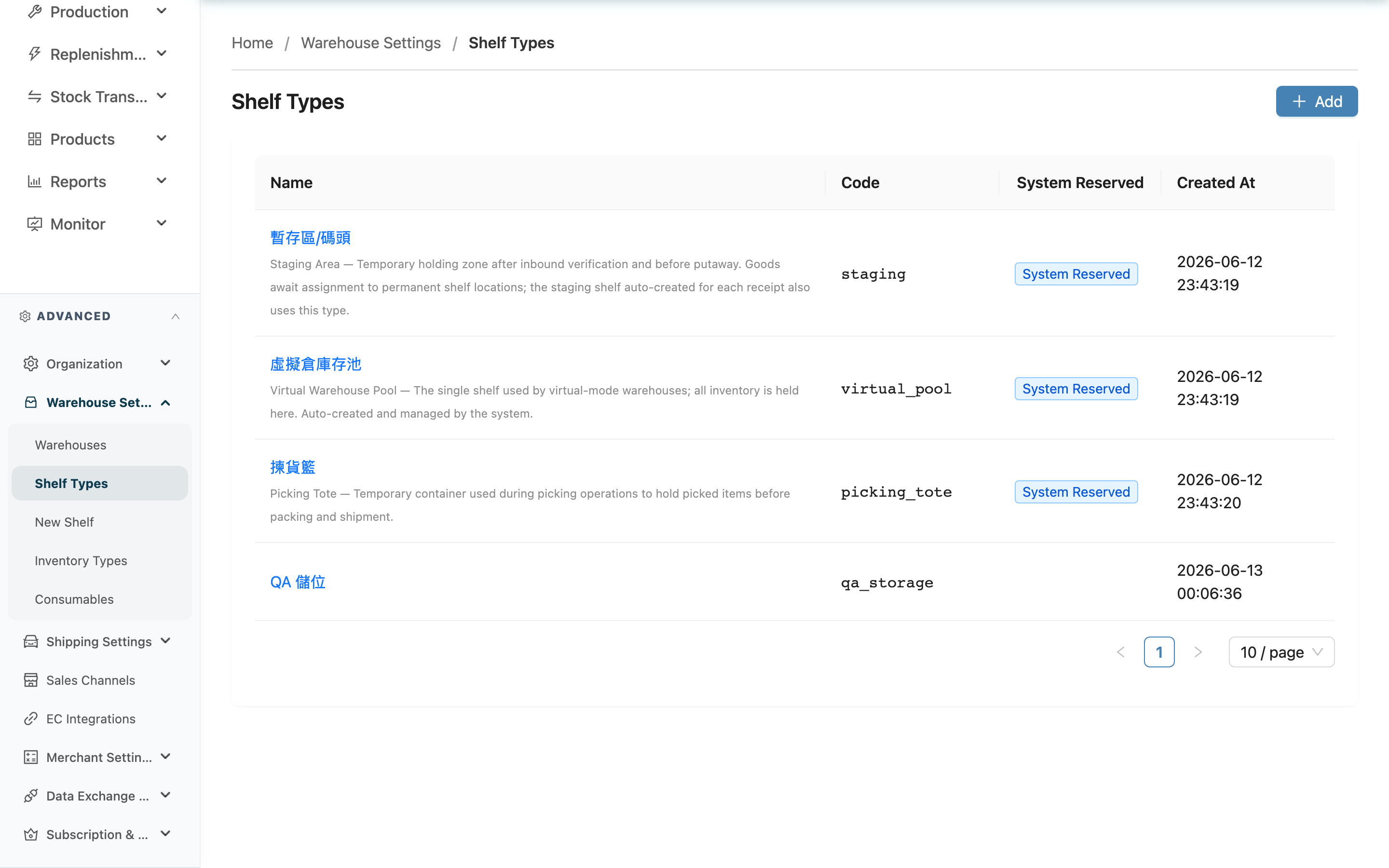
快速跳轉:Type list | Add a shelf type | System-reserved types | Details and deletion
2.1 Type list
The list shows every shelf type in your organization. Click a type name to open its detail page. Columns:
| 欄位名稱 | 說明 |
|---|---|
| Name | The type's display name; click to open the detail page. System-reserved types show a one-line purpose note below the name |
| Code | The type code, used by the system for identification; custom types may leave it blank, in which case it shows as "-" |
| System Reserved | Types showing this badge are created and maintained automatically by the system (see System-reserved types) |
| Created At | When this type was created |
2.2 Add a shelf type
Click "Add" in the top right to open the add dialog. Fill in the fields below and click "Save" to create it.
Fields marked with * are required
| 欄位名稱 | 如何填寫 | 注意事項 |
|---|---|---|
| *Name | Enter an easy-to-recognize type name, such as "Ambient Rack" or "Refrigerated Rack" | Required |
| Code | Optionally enter a code for the system to identify; must be unique within your organization | May be left blank; system-reserved codes are not allowed (see System-reserved types) |
After a successful create, the dialog closes and returns to the list, where the new type appears.
2.3 System-reserved types
Some shelf types are required for the system to operate and are created automatically with a "System Reserved" badge. There are three of them, and their purpose is shown next to the name and on the detail page:
| 類型用途 | 說明 |
|---|---|
| Staging area | A temporary holding area after inbound inspection and before putaway, where goods wait to be assigned to a formal shelf |
| Virtual warehouse stock pool | A single shelf dedicated to virtual warehouses, where all inventory is consolidated and managed automatically by the system |
| Picking tote | A temporary container used during picking, holding items that have been picked but not yet packed for shipment |
System-reserved types cannot be deleted, and their type codes cannot be modified (the name can still be edited). If you enter one of these reserved codes when adding a custom type, the system blocks it and shows an error.
2.4 Details and deletion
Click a type name to open its detail page, where you can review full information, edit the name and code, or delete the type. The detail page additionally shows Shelves Count (how many shelves belong to this type) and Billing Settings Count (how many merchant billing settings reference this type). For the full deletion rules and steps, see Shelf type details.
三、常見問題
3.1 FAQ
▪ Why can't I see "Shelf Types" in my menu?
Shelf types are only used by warehouses that use physical shelves. If your current warehouse is a virtual warehouse (it does not put away to physical shelves), this feature does not appear in the menu. If you are sure it is a physical warehouse but still cannot see it, contact your administrator to confirm your permissions.
▪ Can the type code be left blank?
Yes. The code for a custom type is optional. When left blank, the list shows "-", and it does not affect usage. The code is mainly for system identification; if filled in, it must be unique within your organization.
▪ Why are some codes blocked when I try to add a type?
Because the code you entered is a system-reserved code. Staging area, virtual warehouse stock pool, and picking tote are types created automatically by the system, and their codes are not available for custom types. Please use a different code.
▪ Can I change a type with the "System Reserved" badge?
The name of a system-reserved type can be edited, but its type code cannot be changed, and the type itself cannot be deleted, because they are required for warehouse inspection, virtual warehouse, and picking flows to operate.
▪ What does "Billing Settings Count" on the detail page mean?
It indicates how many merchant billing settings currently reference this shelf type. When the count is greater than 0, deleting this type requires you to specify a replacement type first (see Shelf type details).
▪ Can a type still in use be deleted directly?
No. If shelves belong to this type, or merchant billing settings reference it, the system asks you to specify a replacement type first, migrate the related shelves to it, and only then delete the type. See Shelf type details for the full flow.
3.2 注意事項
⚠️ 重要提醒
- When deleting a type that is in use, the system migrates all shelves belonging to that type to the replacement type you specify, and the original type's merchant billing settings are removed and cannot be recovered.
- System-reserved types (staging area, virtual warehouse stock pool, picking tote) cannot be deleted, and their type codes cannot be modified.
💡 提示:Set up all your commonly used shelf types at once so that when you go to Batch create shelves you can select them directly, without coming back to add them mid-way.
四、相關功能
| 功能 | 說明 | 連結 |
|---|---|---|
| Shelf type details | View a single type, edit its name and code, delete or migrate | 前往 |
| Batch create shelves | Create multiple shelves at once and assign their shelf type | 前往 |
| Shelves | View and manage all shelves in the warehouse | 前往 |