
Edit Address
Contents
1. Feature Guide
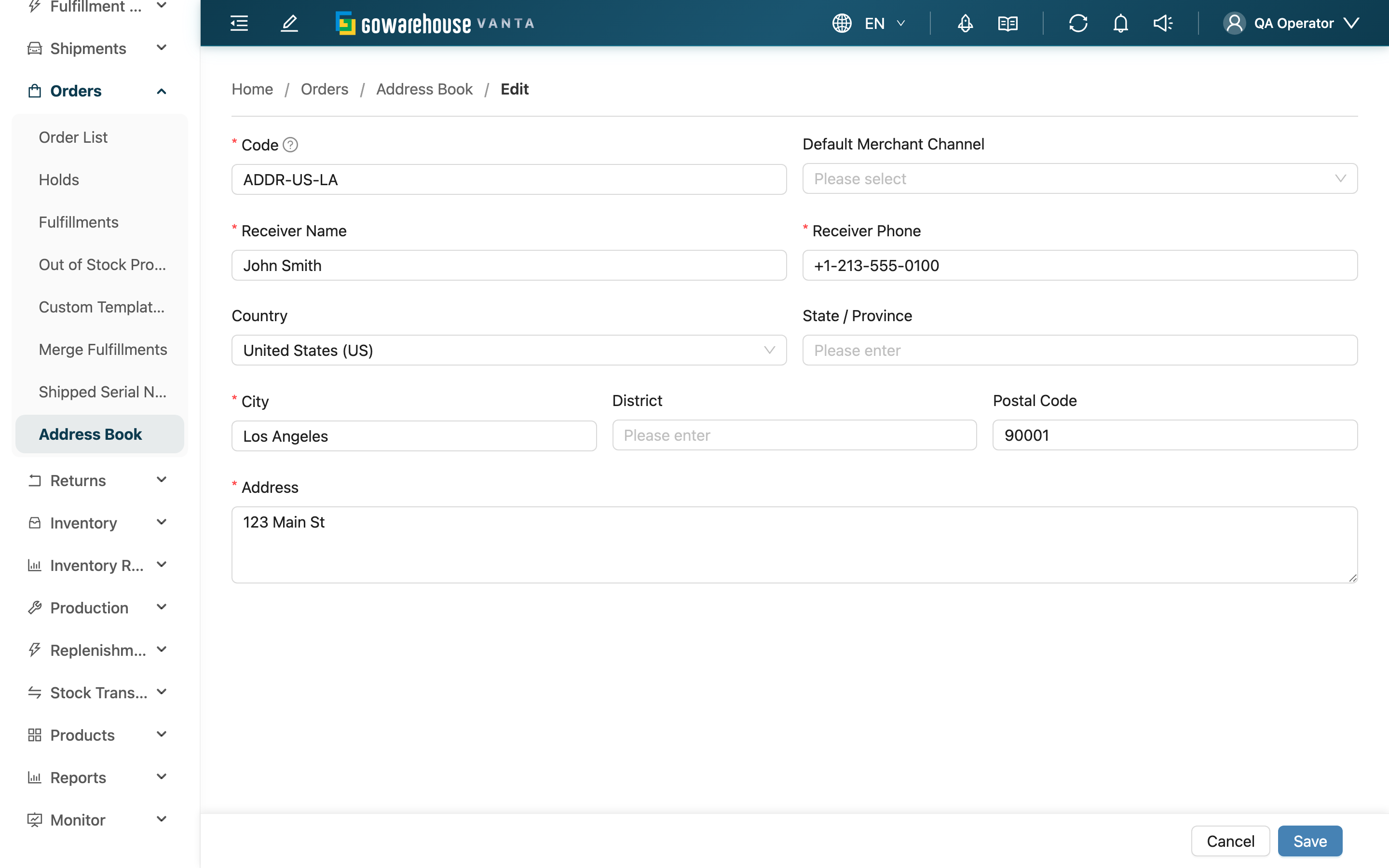
When the receiver's phone changes, the address has a typo, or you need to re-point the Default Merchant Channel to a different channel, edit it here. Updates only affect new orders created with this address afterward; existing orders are unaffected. The owning Merchant is fixed at creation and can't be changed on the edit page.
Quick Jump: Form Fields | After Saving
1.1 Form Fields
Fields marked with * are required
| Field | How to Fill | Notes |
|---|---|---|
| *Code | The identification code can be modified | Max 50 characters, unique within the same merchant |
| Default Merchant Channel | Select from the dropdown, or click the clear icon on the right to remove | Options are limited to this address's merchant's channels |
| *Receiver Name | Enter the contact person for delivery | Max 100 characters |
| *Receiver Phone | Enter a reachable phone number | Max 20 characters |
| Country | Select from the dropdown | Treated as a Taiwan address when left blank |
| State / Province | Enter the state or province for overseas addresses | Max 50 characters; can be left blank for Taiwan addresses |
| *City | For Taiwan addresses, select from the dropdown; for overseas, type directly | Max 50 characters |
| District | For Taiwan addresses, select from the dropdown; for overseas, type directly | Max 50 characters |
| Postal Code | For Taiwan addresses, auto-filled after selecting city and district and can't be edited by hand; for overseas, enter it yourself | Max 10 characters |
| *Address | Enter the street, number, floor, etc. | Max 500 characters |
📌 Note: The owning Merchant is fixed at creation; the edit page neither shows nor allows changing it.
1.2 After Saving
Once the data is correct, click "Save" and the page jumps to the address's detail page. To discard your changes, click "Cancel" and unsaved edits are dropped.
Saving usually fails when a required field is empty, a field exceeds its character limit, or the Code duplicates another address of the same merchant — fix it according to the error message and save again.
2. FAQ
2.1 FAQ
▪ If I change the address, do already-created orders change too?
No. An order copies the address contents in at creation time, so this edit only affects new orders created with this address afterward; existing orders stay as they were.
▪ Can I change the Code?
Yes, but it must stay unique within the same merchant. The code is how colleagues search for this address when creating orders, so after changing it, let the people who use it know — otherwise they won't find it.
▪ Can I change the Merchant the address belongs to?
No. The merchant is the ownership set at creation and can't be changed on the edit page. To move it to a different merchant, create a new entry under that merchant.
▪ How do I clear the Default Merchant Channel?
Hover over the Default Merchant Channel field and click the clear icon that appears on the right to remove the association; the address is then no longer tied to any channel.
▪ What if an error appears when saving?
Follow the error message: fill in any empty required field (Code, Receiver Name, Receiver Phone, City, Address), shorten any over-length field, or change a duplicate Code to an unused one.
2.2 Notices
⚠️ Important Reminders
- Edits only affect future orders: They never go back and change already-created orders.
- Merchant cannot be changed: The owning merchant is fixed after creation.
- Notify colleagues when you change the Code: The code is how the address is searched when creating orders; changing it without telling anyone means they can't find it.
3. Related Features
| Feature | Description | Link |
|---|---|---|
| Address Book | View and manage all addresses | Go |
| Address Details | View the full contents of one address | Go |
| New Address | Create a new frequently used recipient address | Go |