
Edit Consumable
Table of Contents
1. Features
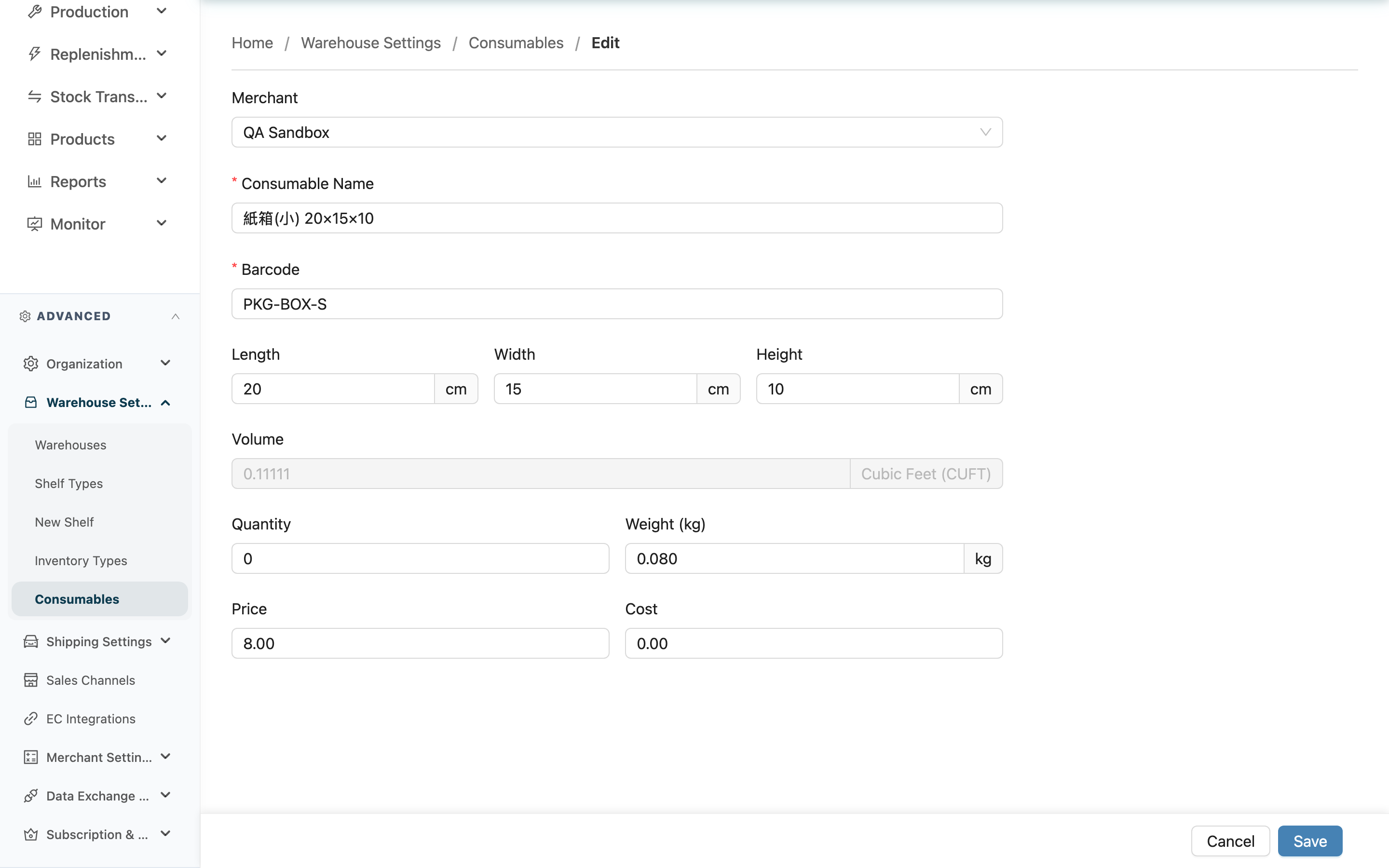
Modify the details of an already-registered packaging — for example, update the stock after restocking, adjust dimensions, or reassign it to a different merchant. Open it by clicking Edit on the consumable detail page. The most common case is having received a new batch of boxes and needing to update the stock quantity to the new total.
Quick jump: Editable Fields | Updating Stock
1.1 Editable Fields
Fields marked with * are required.
| Field | How to fill in | Notes |
|---|---|---|
| Merchant | Reselect the merchant this packaging belongs to, or change it to "Warehouse-owned" | Changing the assignment also changes the scanning scope during shipping |
| *Consumable Name | Modify the packaging name | Required |
| *Barcode | Modify the barcode | Required; cannot be duplicated under the same merchant (or both warehouse-owned) |
| Use as Shipping Volume Basis | Adjust whether this packaging is the outer carton used for shipping | Checking it makes Length / Width / Height required; unchecking it makes them optional again |
| Length / Width / Height | Adjust the box's outer dimensions, in centimeters (cm) | After editing, the Volume below is recalculated automatically; required when "Use as Shipping Volume Basis" is checked |
| Volume | Automatically calculated from length, width, and height; cannot be edited manually | The unit follows the warehouse's volume-unit setting |
| Quantity | Change it to the new total stock after restocking or adjustment | Shipping scans deduct it automatically; normally no manual change needed |
| Weight (kg) / Price / Cost | Modify weight, price, and cost | Optional |
1.2 Updating Stock
When a new batch of packaging arrives, change Quantity directly to the new total after restocking (for example, 20 left plus 100 received becomes 120). The amount used in daily shipping is deducted automatically by scanning; you only update it here when restocking or adjusting after a physical count.
2. FAQ
2.1 Questions
▪ How do I update stock after restocking?
Change Quantity to the new total after restocking. This field is "how many there are in total now", not "how many were added", so enter the total after restocking.
▪ If I change the length, width, or height, does the volume update too?
Yes. After modifying any side length, the Volume is immediately recalculated according to the warehouse's volume-unit setting and cannot be edited manually.
▪ After unchecking "Use as Shipping Volume Basis", do I have to clear the dimensions?
No. After unchecking it, Length / Width / Height become optional again — you can save whether you keep the original dimensions or clear them.
▪ Can I change the packaging to belong to a different merchant?
Yes. Just reselect in the Merchant field, or change it to "Warehouse-owned". After the change, the scanning scope during shipping changes accordingly — once assigned to a merchant, only that merchant's shipments can scan it.
▪ I get a "barcode duplicated" message when editing — what do I do?
It means another packaging under the same merchant (or both "Warehouse-owned") already uses this barcode. Use a different barcode. Different merchants may each use the same barcode independently.
▪ Does changing the stock quantity affect past shipping records?
No. Manually changing Quantity only adjusts the current stock; the usage records already deducted from past shipments are not affected.
2.2 Notices
⚠️ Important
- The stock quantity is automatically deducted as packaging is scanned during shipping. Do not change it manually in normal operation — only update it when restocking or adjusting after a physical count; arbitrary changes will make it inconsistent with the actual remaining stock and affect restocking decisions.
💡 Tip: Quantity is "how many there are in total now". When restocking, remember to enter the total after restocking, not the amount received this time.
3. Related Features
| Feature | Description | Link |
|---|---|---|
| Consumable Detail | Return to this consumable's full record | Go |
| Consumables | Return to the packaging list to view all consumables | Go |