
Serial Number Lookup
Contents
1. Use Cases
Quick links: Recall tracing | Customer return verification | Warranty & anti-counterfeit lookup
Case 1: A supplier flags a defective batch, and you need every affected unit
Situation: A supplier reports that one batch of a product has defective parts, and you must find every single unit from that batch individually—not just "how many in total." One serial number maps to one physical unit you can hold in your hand, which is exactly what a serial number answers: "Give me a serial number, and I'll tell you everything about this unit."
Use this feature: Use the product filter and batch column to narrow down to that product, then check each serial number's status—still in stock, already shipped to a customer, or returned. Click a serial number to open its event timeline and see when it came in and which order it was shipped on.
Result: In-stock units can be pulled immediately, shipped units can be matched to orders so you can notify customers, and the recall scope is precise down to each unit—nothing over-pulled, nothing missed.
Case 2: A customer returns a unit, and you need to confirm it's the one you shipped
Situation: A customer sends back a unit for return or repair, and you need to confirm whether its serial number is the exact unit the system shipped to this customer—to avoid wrong returns or swap fraud.
Use this feature: Use the serial number filter to enter the serial number the customer returned and look it up, then open its event timeline: which fulfillment, and which order, sent it out—all at a glance.
Result: If the serial number matches, it's the same unit you shipped and you can accept it safely; if it doesn't match, this unit wasn't shipped by you, and you can stop the dispute on the spot.
Case 3: A customer reports a repair or questions authenticity, and you need the unit's history
Situation: A customer brings in a unit for repair or suspects it's a counterfeit, asking you "did this ship from your warehouse, and when?"
Use this feature: Use the serial number filter to look up the unit, check whether its status is shipped, then review the receipt and fulfillment timeline in its event timeline. Not finding the serial number at all is itself a signal that "this wasn't shipped by us."
Result: You can tell the customer the unit's inbound and outbound dates and its origin, as a basis for warranty decisions and anti-counterfeit verification.
2. Feature Overview
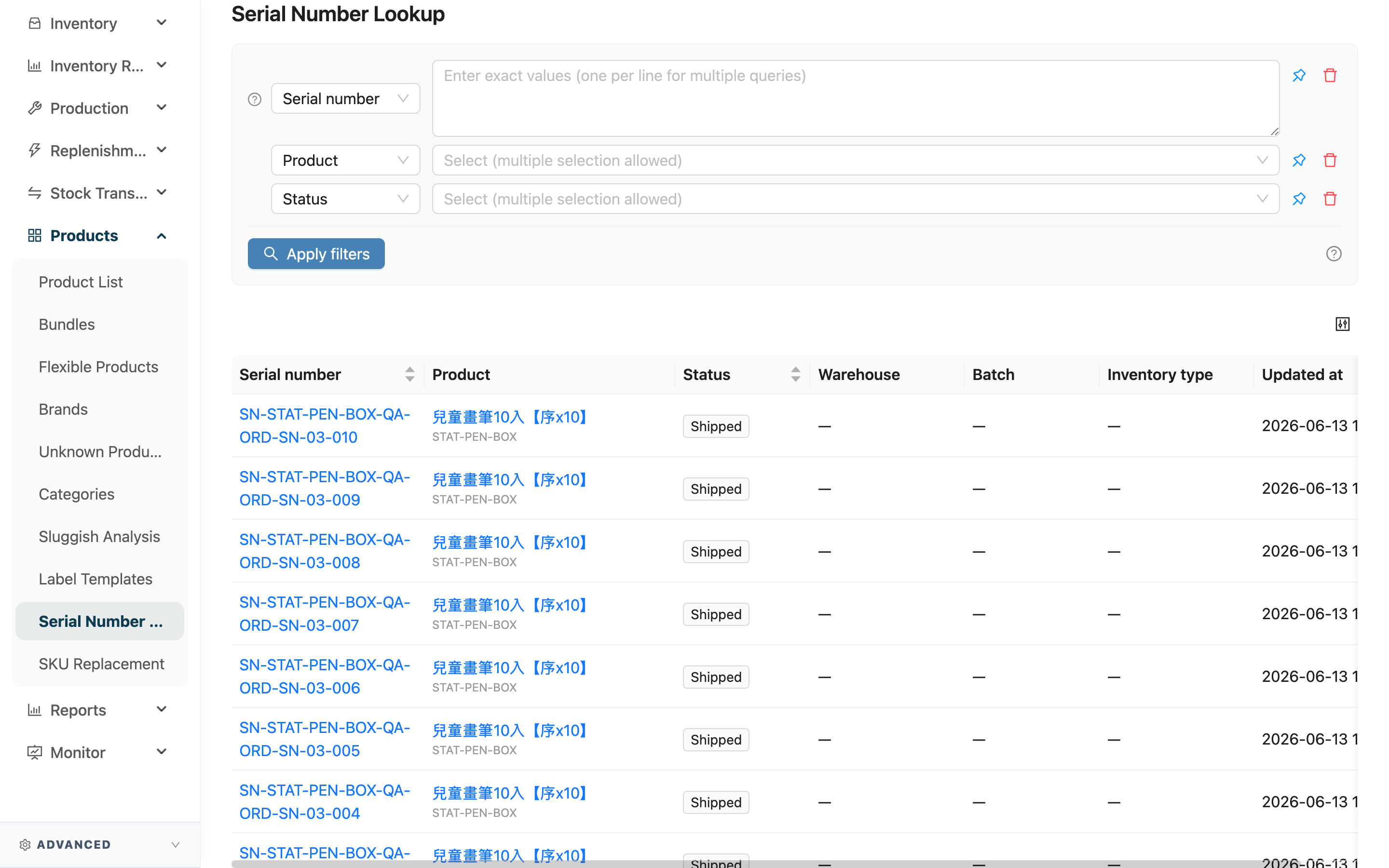
Every product unit that needs tracking has its own serial number in the warehouse, representing the unique identity of that one physical unit. This page is the entry point for looking up all serial numbers: enter a serial number, pick a product, pick a status, and find what each unit currently is, which warehouse it's in, and which documents it has passed through. It is for lookup and tracing only—serial numbers are created and updated automatically during inbound and outbound scanning, and are neither added nor edited here.
Jump to: Search & filter | List columns | Details & event timeline
2.1 Search & Filter
All fields are optional; use them alone or combine them to narrow the results.
| Filter | How to fill in | Notes |
|---|---|---|
| Serial number | One serial number per line, or comma-separated | Up to 200 entries per lookup; extras are ignored; leading/trailing spaces and duplicates are removed automatically |
| Product | Pick one or more products from the list to see only those products' serial numbers | Pick from the list; type a keyword to find a product quickly |
| Status | Tick one or more statuses | Options: In stock, Shipped, Pending return |
This page supports cross-warehouse lookup—no matter which warehouse a serial number is in, or whether it has already shipped out, it can be found regardless of the warehouse you are currently in.
2.2 List Columns
| Column | Description |
|---|---|
| Serial number | The unique serial number of this physical unit; click to open details |
| Product | Which product this serial number belongs to, showing the name and SKU |
| Status | What this unit currently is; see the status table below |
| Warehouse | The warehouse it's in while in stock; shows "—" when not in stock |
| Batch | The batch it belongs to while in stock; shows "—" when not in stock |
| Inventory type | The inventory type it belongs to while in stock; shows "—" when not in stock |
| Updated at | The last time this serial number changed status |
A serial number's three statuses indicate where this unit currently is:
| Status | Meaning |
|---|---|
| In stock | Still in the warehouse, available to be reserved, picked, and shipped; has a corresponding warehouse, batch, and inventory type |
| Shipped | Already shipped to a customer and out of the warehouse; warehouse, batch, and inventory type columns are all empty |
| Pending return | Returned by the customer but not yet decided whether to restock or scrap; warehouse, batch, and inventory type columns are all empty |
Click a column header (Serial number, Status, Updated at) to sort by that column; the default sort is Updated at, newest first.
2.3 Details & Event Timeline
Click any row's serial number to open the details on the right: the top is the unit's current Information (product, warehouse, batch, inventory type, updated at), and the bottom is the unit's Event timeline, listing in chronological order the inbound and outbound documents it has passed through.
Events that may appear in the timeline:
| Event | Meaning | Linked document |
|---|---|---|
| Receipt | Which inbound this unit was received on | The corresponding inbound |
| Fulfillment | Which fulfillment shipped this unit, also showing the corresponding order code | The corresponding fulfillment |
| Return | Which return this unit came back on | The corresponding return |
| Restocked | The returned unit was decided to be restocked | No linked document |
| Scrapped | The returned unit was decided to be scrapped | No linked document |
For products that are only tracked starting at shipping (not scanned on inbound, scanned only on outbound), the serial number will have no receipt event and appears directly with a shipped status.
3. FAQ
3.1 FAQ
▪ Can I add or edit serial numbers on this page?
No. This is a lookup-only page. Serial numbers are created and updated automatically during inbound scanning, outbound scanning, and return scanning. To track a product's serial numbers, first enable the serial number requirement in that product's settings; subsequent inbound and outbound operations will then require serial number scanning.
▪ In the details opened from a serial number, can I see who this unit was shipped to?
Yes. After opening the details, look at the Event timeline at the bottom; the fulfillment event shows the corresponding fulfillment and order code, and you can click the fulfillment to jump to that fulfillment.
▪ Why are the warehouse, batch, and inventory type empty for some serial numbers?
Only serial numbers with the In stock status sit in a warehouse and a batch. Shipped and Pending return serial numbers are no longer in the warehouse, so there is no "which warehouse" to speak of, and these columns show "—".
▪ I'm in one warehouse—can I look up serial numbers in other warehouses or already shipped?
Yes. This is a cross-warehouse lookup page, not limited by the warehouse you are currently in; no matter which warehouse a serial number is in, or whether it has shipped out, as long as it belongs to a merchant you can access, you can look it up.
▪ How many serial numbers can I look up at once?
The Serial number field looks up at most 200 entries per query, one per line or comma-separated. Anything beyond that is ignored; look them up in batches.
▪ When does a returned serial number go back to in stock?
A returned serial number first sits at Pending return. Only when someone decides to restock it does the status return to In stock and get re-attached to a warehouse's stock; if it is decided to be scrapped, it leaves stock permanently. Whether to restock or scrap is a human decision and does not happen automatically.
▪ What if I can't find the serial number a customer returned?
Not finding it usually means this unit didn't ship from your warehouse (it may not be your goods, or the serial number provided is wrong). First confirm the serial number wasn't entered incorrectly; if it's correct and still not found, that itself is the basis for determining "not shipped from this warehouse," and can serve as evidence for a return dispute or anti-counterfeit verification.
3.2 Notes
⚠️ Important
- The Serial number lookup is capped at 200 entries per query; extras are skipped silently with no error—look up large lists in batches.
- Within the same product, one serial number string always points to exactly one physical unit. If inbound scanning hits a duplicate serial number, it means the labels collide, and you must re-label with a new serial number on the spot to receive it—never let two units share the same serial number.
💡 Tip: If you want to manage many units of the same batch under "one code for a group," that's what batches are for, not serial numbers; a serial number is one code per unit. For batch management, enable the batch feature in the product settings.
4. Related Features
| Feature | Description | Link |
|---|---|---|
| Products | Enable the serial number requirement in product settings so inbound and outbound will scan serial numbers | Go |
| Inbound | Serial numbers are created during inbound scanning; jump in from the receipt event in the details | Go |
| Orders | Serial numbers are bound to orders at shipping; cross-check from the fulfillment event in the details | Go |