
Edit Stock Transfer Order
Table of Contents
1. Feature Overview
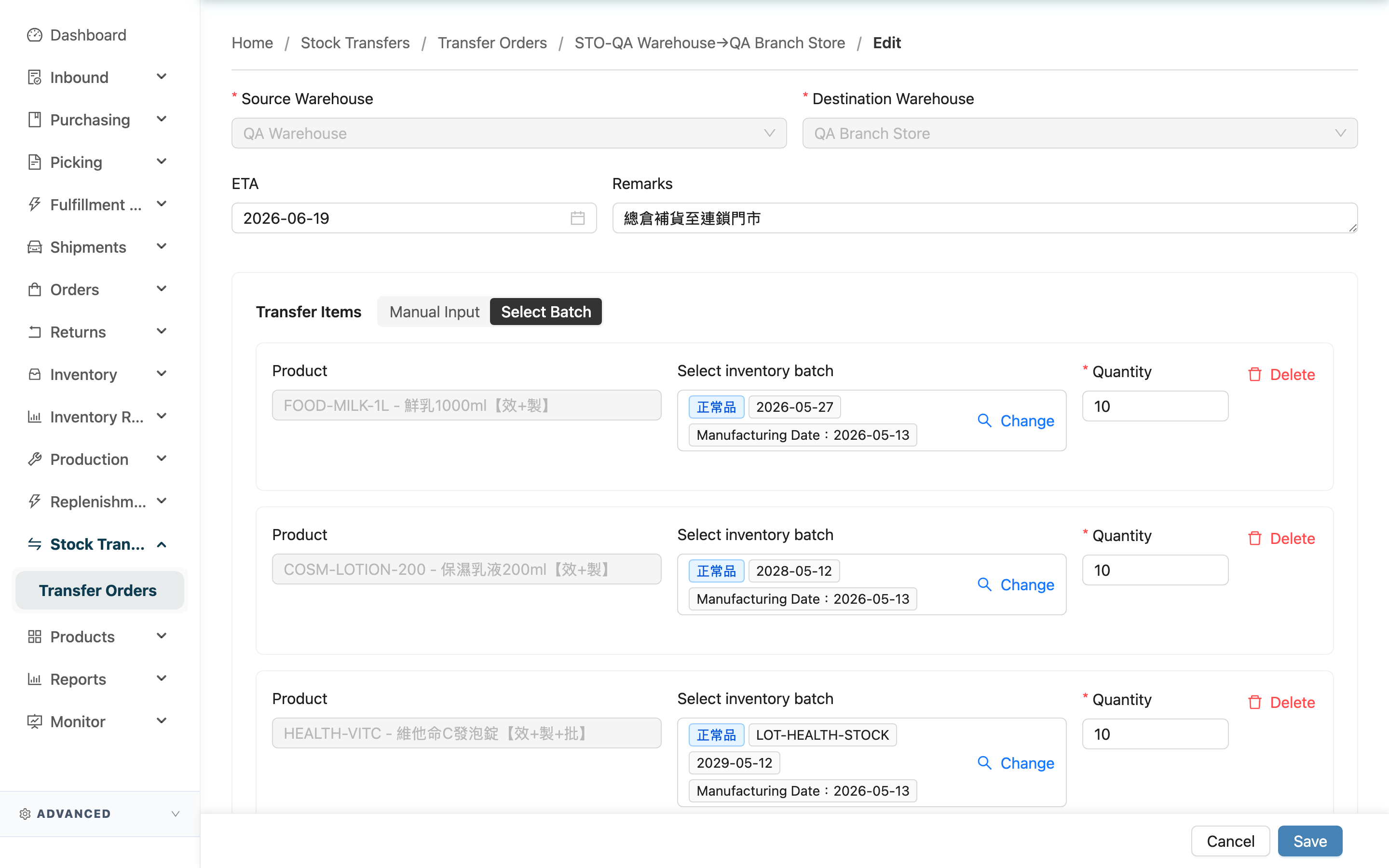
Once a transfer order is created, it can only be edited while in the "Allocated" stage (before picking starts). You can adjust which items to transfer and how many of each; the source and destination warehouses cannot be changed. On save, the system first releases the originally locked stock, then re-locks source-warehouse stock based on the new content.
Jump to: What you can edit | Changing items | After you save
1.1 What you can edit
- Editable: transfer items (add, remove), each item's quantity, ETA, and Remarks.
- Not editable: Source Warehouse and Destination Warehouse (the fields are locked, greyed out). To change warehouses, cancel the order and create a new one.
- Precondition: only transfer orders in the "Allocated" status show the "Edit" button; other statuses cannot be edited.
1.2 Changing items
- For an existing item you can change the quantity directly, or click "Change" to re-pick a batch from the source warehouse's available stock.
- You can also "Add Item" to add, or remove existing items.
- The same two stock-picking modes apply — "Manual Input" and "Select Batch" — working the same as when creating (see Transfer items in Create Stock Transfer Order).
1.3 After you save
- After saving you return to this transfer order's detail page.
- The system first releases the originally locked stock, then re-locks source-warehouse stock based on the new item quantities.
- If a revised quantity exceeds the source warehouse's available stock, it shows an insufficient-stock message and cannot be saved.
2. FAQ
2.1 FAQ
▪ Why can't I find the "Edit" button?
Only transfer orders in the "Allocated" status can be edited. Once picking starts (after "Picking"), the detail page no longer shows the edit button.
▪ Can I change the source or destination warehouse?
No. These two fields are locked on the edit page and cannot be changed. To change warehouses, you must cancel this transfer order and create a new one.
▪ Will stock be re-locked after I change a quantity?
Yes. On save the system first releases the originally locked stock, then re-locks source-warehouse stock based on the new item quantities.
▪ What does the "Change" button do?
It swaps this item for a different stock batch from the source warehouse. Clicking it lists the source warehouse's available batches for you to re-pick.
▪ What happens if a quantity exceeds available stock while editing?
It can't be saved, and the system shows an insufficient-stock message. Lower the quantity to within the source warehouse's available amount, then save.
2.2 Notes
⚠️ Important
- Only the "Allocated" status can be edited; once picking starts it can no longer be changed.
- The source and destination warehouses cannot be changed.
- On save, if a quantity exceeds the source warehouse's available stock it cannot be saved.
💡 Tip: If what you want to change is the warehouse rather than the items, cancel this transfer order and create a new one (the cancel action is on Stock Transfer Order Detail).
3. Related Features
| Feature | Description | Link |
|---|---|---|
| Stock Transfer Order Detail | View the order and status; cancel or reopen | Go |
| Stock Transfer Order List | Entry point for all transfer orders | Go |
| Inventory | Check the source warehouse's available stock | Go |