
Import Bundles
Table of Contents
1. Feature Overview
The import feature lets you create or update many bundles at once with Excel, instead of adding them one by one on the page. A bundle may be made up of several single items, so the import file uses a "one bundle spans several rows" format: the first row holds the bundle's own information plus its first single item, and each additional item adds another row. It is ideal for creating gift-set kits in bulk, swapping bundle contents in batches, or migrating bundle data from another system.
Jump to: Import steps | File format | Updating existing bundles
1.1 Import steps
▸ Download and fill in the template
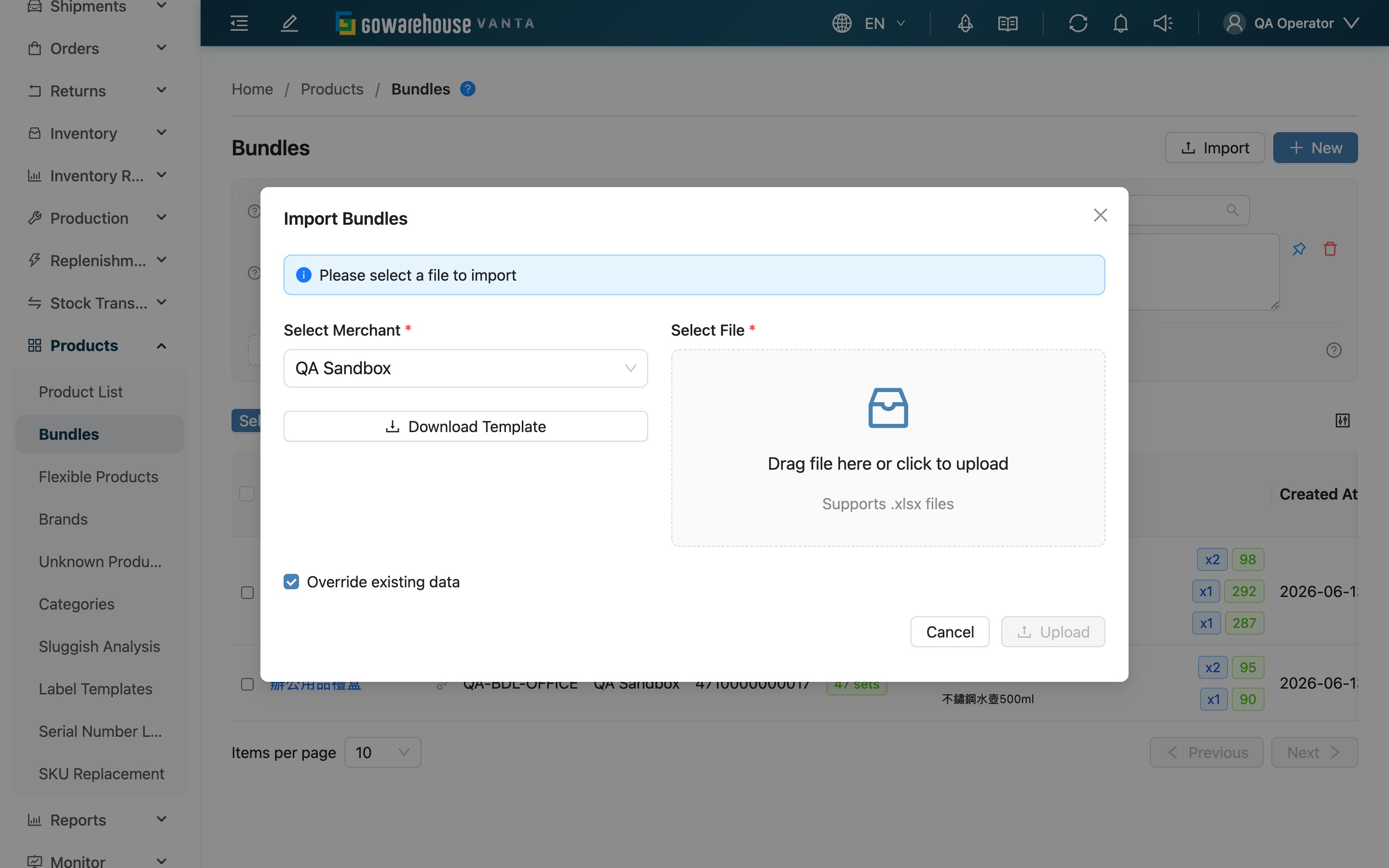
In the import dialog, first choose which merchant to import into, download the matching template, and fill in the bundles and their single items according to the field descriptions.
▸ Upload the file and choose a mode
Back in the import dialog, select the file you filled in. If this import is meant to update existing bundles, check "Override existing" (see Updating existing bundles).
▸ Check the import result
After submitting, check the result under "Import Records", including the counts of created, updated, and failed rows. If anything failed, the record explains the reason row by row; fix it and re-import.
1.2 File format
A bundle's first row must include both the bundle name and SKU, marking the start of a new bundle; any following rows that fill in only the item fields and leave the bundle name and SKU blank are grouped under the previous bundle.
| Field | How to fill | Notes |
|---|---|---|
| *Bundle name | Fill in on each bundle's first row | Required on the first row of a new bundle |
| *Bundle SKU | Fill in on each bundle's first row | Required on the first row of a new bundle; cannot repeat within the same file |
| Barcode | The bundle's barcode | Optional |
| Activated | Enter yes/no to decide whether the bundle is enabled | Optional |
| *Product SKU | The SKU of the single item to include on this row | Required on every row, and must match an item already on file under that merchant |
| *Inventory type | Which inventory type this item should be picked from | Required on every row, must match an inventory type enabled under that merchant |
| *Quantity | How many of this item each set needs | Required on every row; must be greater than 0 |
1.3 Updating existing bundles
Whether you check "Override existing" decides how an existing SKU is handled:
| Setting | When the SKU already exists |
|---|---|
| Unchecked | The bundle is flagged as an error and not updated, to avoid accidentally changing existing bundles |
| Checked | The bundle is overwritten with the file's contents: the original contents are cleared first, then rebuilt from the file |
An override update only affects orders placed after the update; orders already placed recorded the recipe in effect at the moment they were created and are unaffected.
2. FAQ
2.1 FAQ
▪ How do I enter a bundle with several single items?
The first row holds the bundle info plus the first item; for each additional item, add another row, leaving the bundle name and SKU blank on those rows — the system groups consecutive blank-SKU rows under the previous bundle.
▪ What are the most common reasons an import fails?
Mainly a few types: a new bundle's first row missing the bundle name or SKU, a product SKU not found under that merchant, an inventory type not found, a blank or non-positive quantity, a bundle SKU repeated within the same file, and importing an existing SKU without checking override. The import record flags which type applies, row by row.
▪ How do I import to update bundle contents?
Fill in the bundles to update with their new contents and check "Override existing" when importing. The system replaces the original contents entirely with the file's contents. When unchecked, existing bundles are treated as errors and are not updated.
▪ Does an override update affect orders already placed?
No. An order records the bundle recipe in effect at the moment it is placed, so an override update only affects newly placed orders.
▪ What goes in the inventory type field?
The inventory type this item should be picked from in the bundle (e.g. the code for good stock or near-expiry), and it must be an inventory type enabled under that merchant; after the order expands, the picking list marks it accordingly.
▪ How long does an import take?
The import is handled by the system; after submitting, check the result and any failure reasons under "Import Records" — there is no need to stay on this page.
2.2 Notes
⚠️ Important reminders
- When "Override existing" is checked, a bundle's contents are entirely replaced by the file — the original item setup is cleared first and rebuilt, so make sure the file's contents are complete.
- A bundle SKU cannot repeat within the same file, otherwise that bundle fails to import.
- Both the product SKU and the inventory type must be items on file / enabled under the target merchant, otherwise that row fails.
💡 Tip: Before your first import, download the template and follow its format so the columns line up.
3. Related Features
| Feature | Description | Link |
|---|---|---|
| Bundles | Back to the bundle list | Go |
| New Bundle | Create a single bundle one at a time | Go |
| Product List | Confirm the single items a bundle will use are on file | Go |