
Stock Transfer Order Detail
Table of Contents
1. Feature Overview
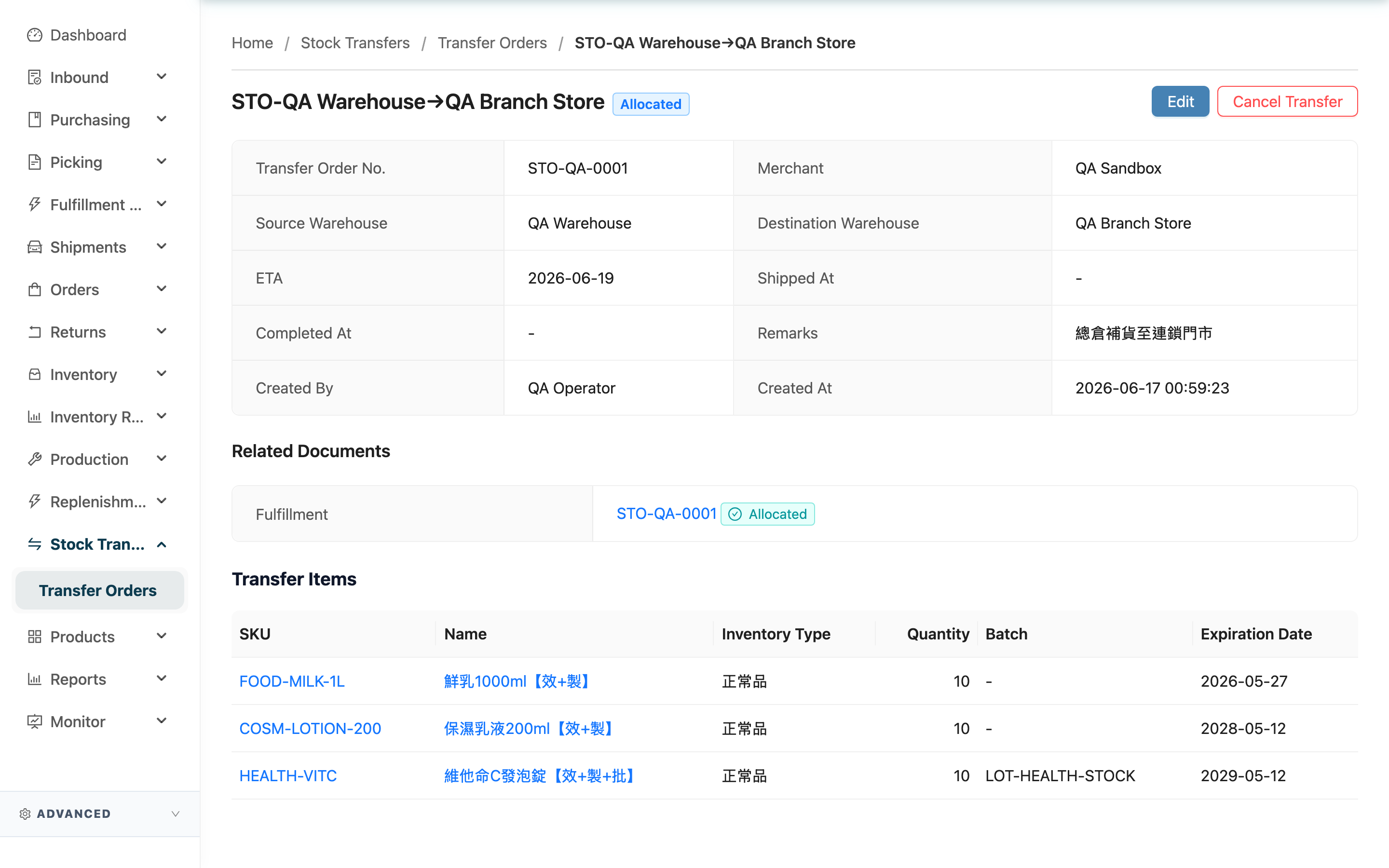
The detail page shows a transfer order's full content: its basic information, the linked fulfillment and inbound, which goods are being transferred, and the actions available for its current status (edit, complete shipment, cancel, reopen). Most statuses advance automatically — you only act on the hands-on steps; the tag next to the title reflects the current progress in real time.
Jump to: Order information | Linked documents | Transfer items | Available actions
1.1 Order information
| Field | Description |
|---|---|
| Shipped At | When the goods left the source warehouse; only set once it reaches "In Transit" |
| Completed At | When the destination warehouse finished receiving and shelving everything; only set once "Done" |
The remaining fields (Transfer Order No., Merchant, Source Warehouse, Destination Warehouse, ETA, Remarks, Created By, Created At) are self-explanatory by name.
1.2 Linked documents
The transfer's shipping and receiving are linked automatically — you never create these documents yourself. This block only appears when the corresponding document exists:
- Fulfillment: created automatically when the transfer order is created, for the source warehouse to pick and ship. Click the link to open that fulfillment.
- Destination Inbound: created automatically only after the goods leave the source warehouse, for the destination warehouse to receive and shelve. Click the link to open that inbound.
1.3 Transfer items
Lists every item to be transferred out of the source warehouse, with columns SKU, Name, Inventory Type, Quantity, Batch, and Expiration Date. Batch and expiration date only have values for products that track them, otherwise they show "-".
1.4 Available actions
Action buttons appear depending on the transfer order's current status:
▸ Edit
Only appears in the "Allocated" status. Used to adjust the transfer items and quantities (the source and destination warehouses cannot be changed). See Edit Stock Transfer Order.
▸ Complete Shipment
- When it appears: when the order is in "Picking" and the source warehouse's fulfillment has finished picking and is waiting to ship.
- What it does: confirms the goods leave the source warehouse. After shipping, the order automatically moves to "In Transit" and an inbound is created automatically at the destination warehouse to signal receiving.
- Reversibility: once shipped it cannot return to the picking stage; to stop it you can only cancel later while in "In Transit" and before the destination warehouse starts receiving.
▸ Cancel Transfer
- When it can be canceled: "Allocated", "Out of Stock", "Picking", and "In Transit" can be canceled; but "Picking" cannot if goods have already been placed in a sorting tote, and "In Transit" cannot if the destination warehouse has started receiving. "Receiving" and "Done" can never be canceled.
- What it does: releases the locked source-warehouse stock; if already in transit, it also cancels the destination warehouse's inbound.
- Reversibility: a canceled order can be reopened ("Reopen", below), provided there is still enough stock.
▸ Reopen
- When it appears: only in the "Canceled" status.
- What it does: re-locks the stock and returns the order to "Allocated" to start over.
- Precondition: the source warehouse must still have enough stock; if the reserved stock has since been used by other orders, reopening fails with an insufficient-stock message.
2. FAQ
2.1 FAQ
▪ Why do some transfer orders have no "Edit" button?
Only transfer orders in the "Allocated" status can be edited. Once picking starts (after "Picking"), the edit button no longer appears.
▪ What happens when I click "Complete Shipment"?
It confirms the goods leave the source warehouse, moves the order to "In Transit", and automatically opens an inbound at the destination warehouse. See Available actions. Once shipped it cannot return to the picking stage.
▪ What if I cancel and then change my mind?
A canceled order can be reopened ("Reopen"); the system re-locks the stock and returns it to "Allocated". This requires the source warehouse to still have enough stock, otherwise reopening fails.
▪ Why does reopening fail with insufficient stock?
After cancellation the stock is released and may already have been used by other shipping orders. Reopening needs to re-lock the same quantity, and if the source warehouse's available amount is short it fails. Replenish stock first, then try again.
▪ Why can't I cancel even though it's in "Picking"?
If goods have already been placed in a sorting tote during picking, they have physically been picked, so it can't be canceled directly. Empty the sorting tote first, then cancel.
▪ Where do the linked fulfillment and inbound come from?
Both are created by the system: the fulfillment when the transfer order is created (for source-warehouse picking), and the inbound after the goods ship (for destination-warehouse receiving). See Linked documents.
2.2 Notes
⚠️ Important
- After completing shipment, it cannot return to the picking stage.
- Canceling an "In Transit" order also cancels the destination warehouse's inbound.
- Reopening requires the source warehouse to have enough stock, otherwise it fails.
💡 Tip: Most statuses advance automatically — you only act on the hands-on steps (picking, completing shipment, receiving); the status tag on the detail page reflects the current progress in real time.
3. Related Features
| Feature | Description | Link |
|---|---|---|
| Edit Stock Transfer Order | Adjust items and quantities (only in "Allocated") | Go |
| Stock Transfer Order List | Entry point for all transfer orders | Go |
| Fulfillment | The source warehouse's picking-and-shipping work order | Go |
| Inbound | The destination warehouse's receiving-and-shelving work order | Go |