
Progress Boards
Table of Contents
1. Use Cases
Quick links: Sale-day fulfillment sprint | Heavy receiving day staffing | Racing carrier cut-off times
Case 1: Sale-day fulfillment sprint, the whole team on one progress board
Situation: On Double 11, order volume is several times a normal day and a dozen people are packing at once. The supervisor can't ask each person "how far are you" one by one, and worries the team won't ship today's orders before end of shift, delaying handover to carriers.
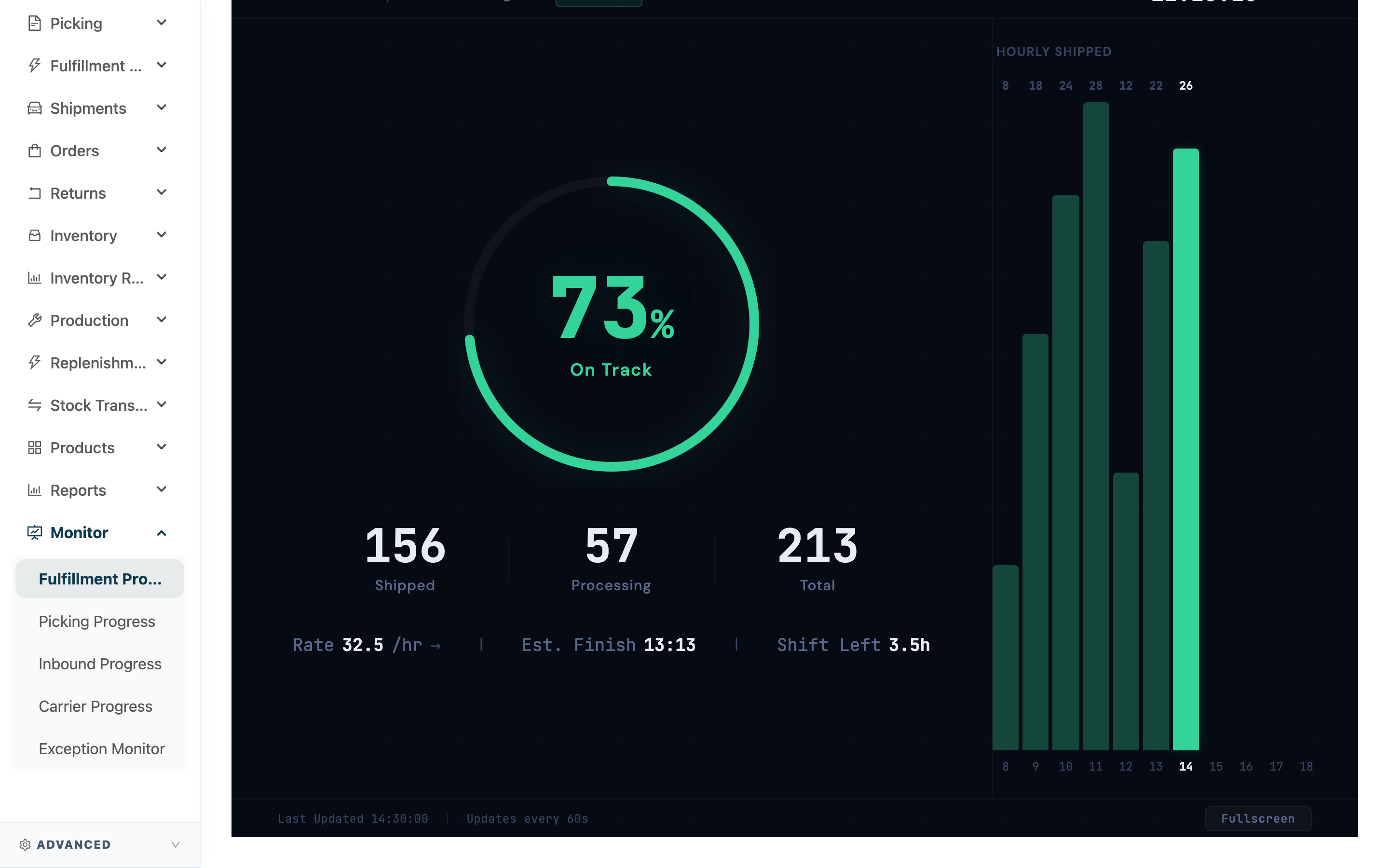
Use this feature: Put the Fulfillment Progress board on the big screen in the packing area (see Fulfillment Progress board) — completion rate, current rate and the traffic-light signal are visible at a glance.
Result: The moment the light turns yellow you know you're falling behind, and can add people or reorder shipments right then, instead of finding out at clock-out that it can't be finished.
Case 2: Heavy receiving day — deciding whether putaway is staffed enough
Situation: A supplier drops off a full truckload in the morning, and the receiving area piles up with goods waiting to be accepted and shelved. The supervisor must decide whether to pull people from other areas to help with putaway.
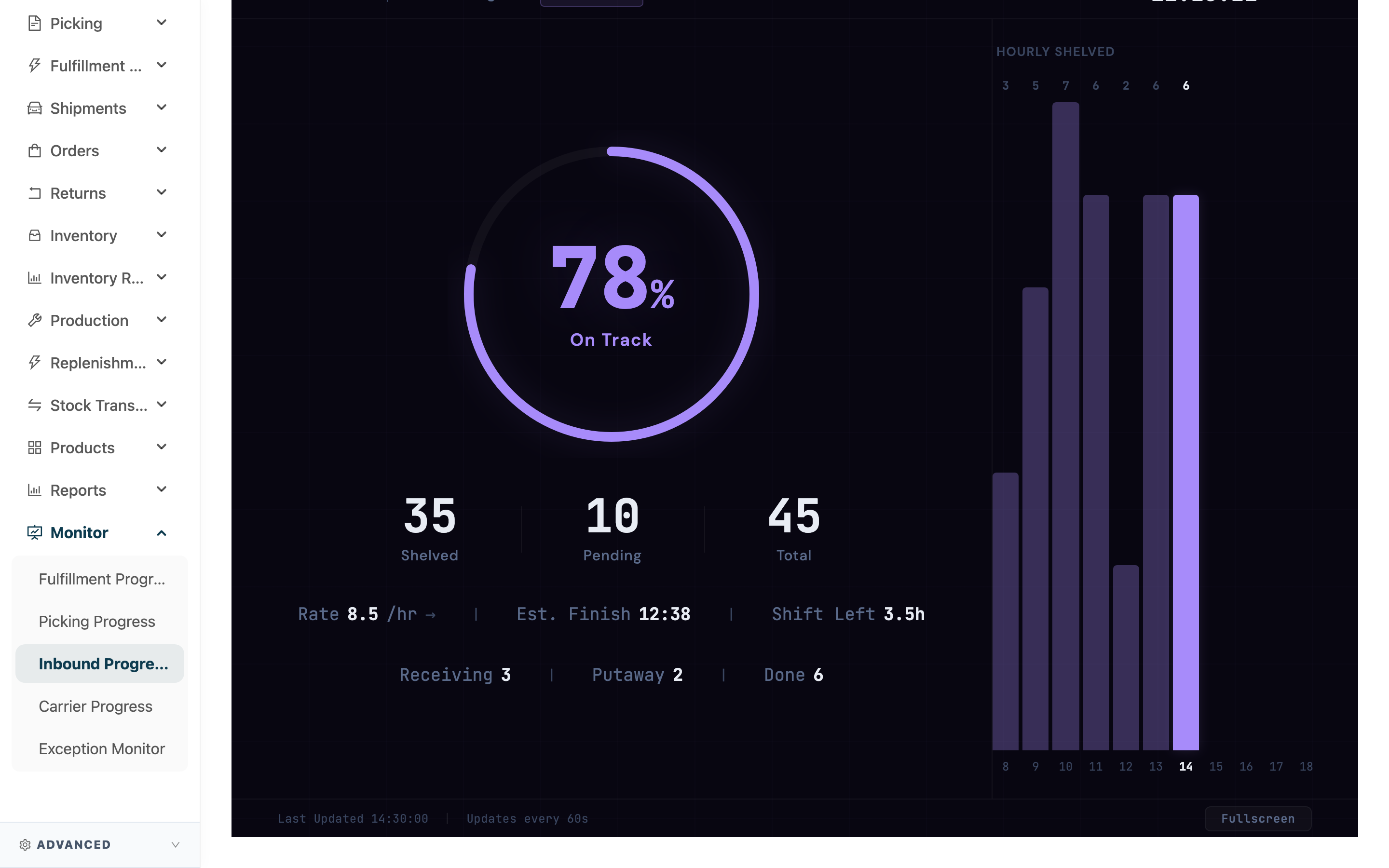
Use this feature: Open the Inbound Progress board (see Inbound Progress board) — see how much is pending putaway, the current putaway rate, and the estimated time it will all be cleared.
Result: Based on the rate and the time left before end of shift, decide whether it will spill over to the next day, reallocate people early, and avoid goods sitting in receiving overnight.
Case 3: Racing carrier cut-off times, watching which one isn't done yet
Situation: T-cat picks up in the afternoon and convenience-store handover has time windows, so the shipping lead must make sure every carrier's orders go out before its cut-off.
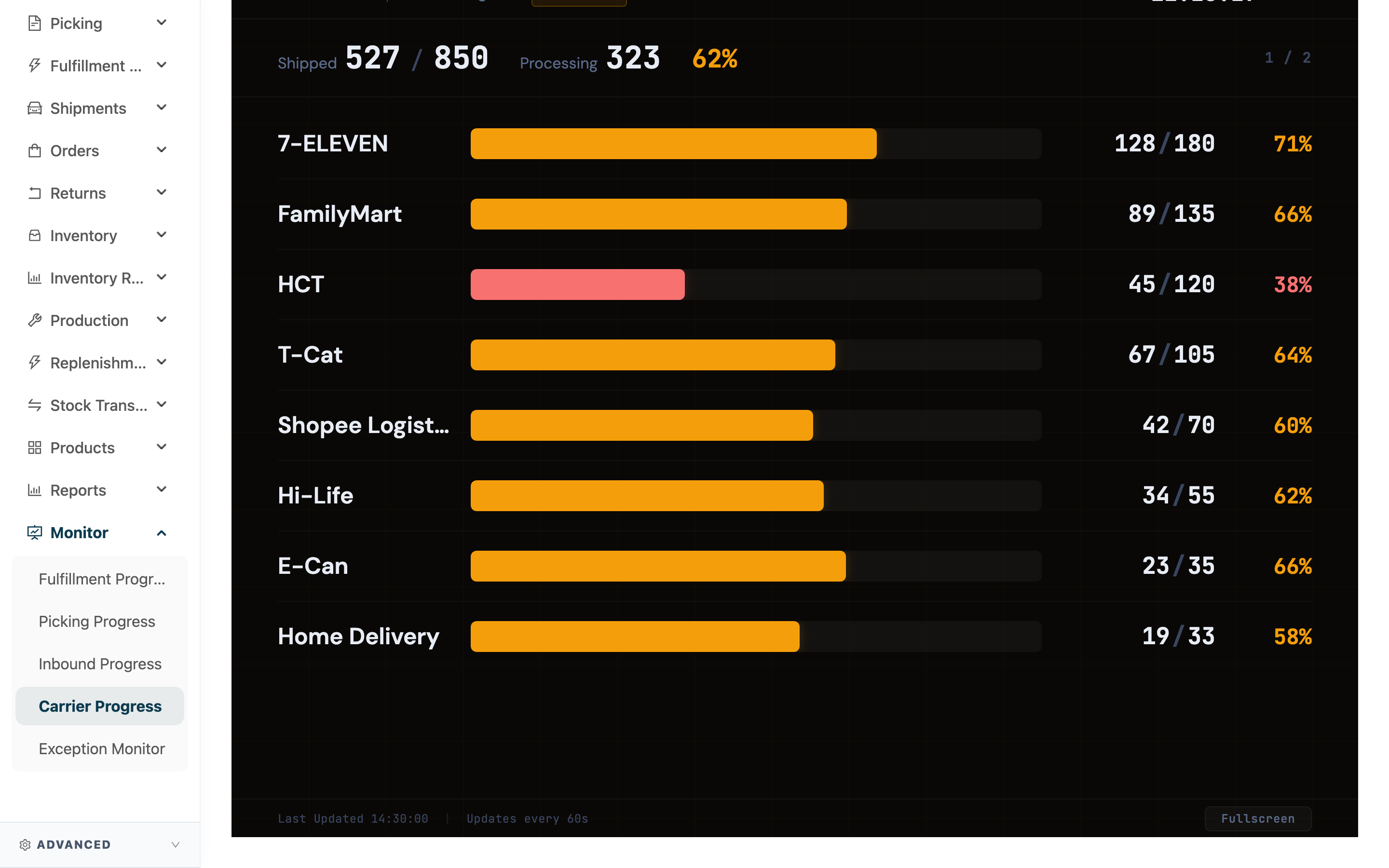
Use this feature: Open the Carrier Progress board (see Carrier Progress board) — each carrier is listed separately, highest volume first, each showing its own completion rate.
Result: Which carrier is lagging and how many orders are left is obvious, so you top up that one first and avoid missing a cut-off time.
2. Features
The Monitor boards are real-time progress screens for the warehouse big screen, covering the four key stages of the day: inbound putaway, picking, fulfillment, and carrier handover. The whole team and the supervisor don't have to ask each other — a glance shows today's completion rate, work rate, and the traffic-light signal for "will we finish before end of shift". When progress slips you can add people right away, instead of finding out at clock-out that shipments won't go out. Enter from the left menu "Monitor", which holds four boards: "Fulfillment Progress", "Picking Progress", "Inbound Progress", and "Carrier Progress".
Jump to: How the four boards work in common | Reading the progress signal | What each board shows
2.1 How the four boards work in common
All four boards share the same layout and operation; only the data they track differs. The shared traits:
- Auto-refresh every 60 seconds: each board pulls the latest data automatically (the refresh interval is shown at the bottom right), while the clock, estimated finish time and shift-remaining recompute every second — no manual refresh needed.
- Only "current warehouse + today": the figures cover the warehouse you are currently logged into, for today only; switch warehouse or start a new day and the numbers change to the new scope.
- Made for the big screen: click "Fullscreen" at the bottom right for full-screen on a large TV; while a board is open it requests the screen stay awake and won't sleep from idle.
- Connection loss is flagged: if a refresh fails to fetch data, the board shows "Data may be stale" to warn that what you see may not be current; it clears automatically on the next successful refresh.
2.2 Reading the progress signal
The Fulfillment, Picking and Inbound boards center on a completion-rate ring, and the ring color is the progress signal (the Carrier Progress board uses no signal — it shows each carrier's completion rate instead):
| Light | Meaning | When it shows |
|---|---|---|
| Green | On Track | At the current rate it will finish at least one hour before end of shift; or the work is already done |
| Yellow | Falling Behind | At the current rate it will just make it by end of shift, with no margin left |
| Red | Won't Finish | At the current rate it won't finish before end of shift; or nothing has been completed in the last two hours (rate is 0) while work remains; or it is already past end of shift with work left |
Below the ring are three supporting figures:
- Rate: the per-hour speed derived from actual completions in the last two hours. The arrow beside it (↑ ↓ →) means faster, slower, or unchanged compared with the previous refresh.
- Estimated finish: at the current rate, roughly what time the remaining work will be done.
- Shift remaining: how many hours from now until 18:00 end of shift. The signal's "will it make it" is this end-of-shift time compared against the estimated finish.
2.3 What each board shows
The four boards map to the four stages of a warehouse day and share the same layout (common behavior in 2.1); they differ in what they count and how "done" is defined.
Fulfillment Progress board
Tracks today's fulfillment completion; the unit is fulfillment orders.
- Completion ring: fulfillment orders shipped today ÷ (shipped + in process).
- Shipped / Processing / Total: fulfillment orders shipped today, still in process now, and the sum of both.
- Hourly shipped: a bar chart of volume per slot from 8:00 to 18:00, with the current slot highlighted.
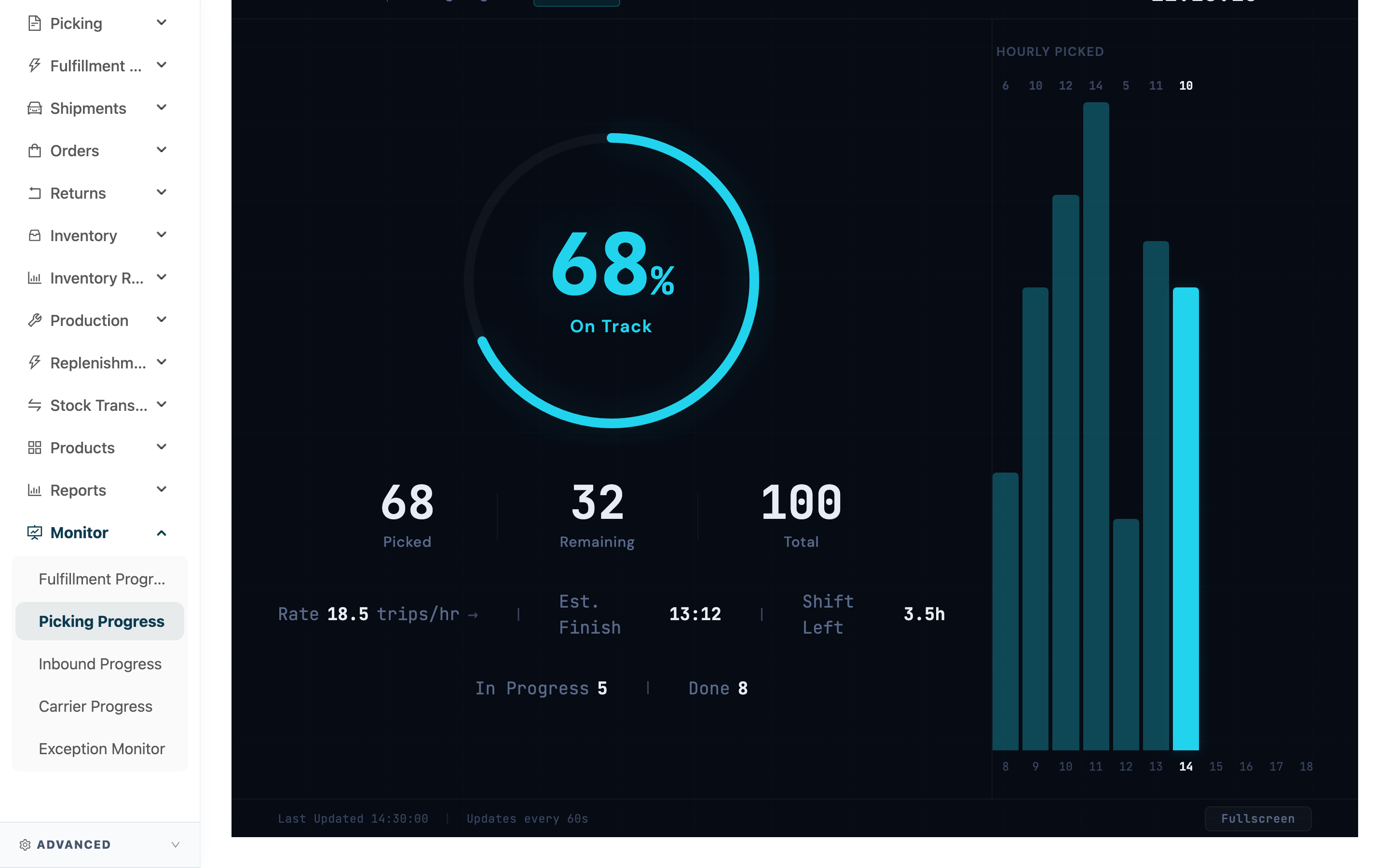
Picking Progress board
Tracks today's picking progress, counting only picking lists used for fulfillment.
- Completion ring: counted by picking item — Picked items ÷ total items.
- Picked / Remaining / Total: picking items picked, not yet picked, and the total across today's relevant picking lists.
- In Progress / Done: picking lists currently in process, and picking lists finished today.
- Hourly picking: a bar chart of picking trips completed per slot.
Inbound Progress board
Tracks today's putaway progress after receiving acceptance.
- Completion ring: among accepted inbound items, Shelved (shelved) items ÷ total.
- Shelved / Pending / Total: inbound items shelved, still pending putaway, and the sum.
- Receiving / Putaway / Done: inbound orders by status — not started or being accepted, accepted and being shelved, and finished today.
- Hourly putaway: a bar chart of items shelved per slot.
Carrier Progress board
Tracks today's fulfillment completion per carrier; it uses no completion ring.
- Top summary: today's Shipped / total, the Processing count, and the overall completion rate.
- One row per carrier: sorted by volume from most to least, each row showing that carrier's shipped / total progress bar and completion rate.
- Auto page-turn: when there are more than 8 carriers a single page can't fit them, so the board turns to the next page every 8 seconds to cycle through all carriers; 8 or fewer stay on one page.
3. FAQ
Jump to: FAQ | Important notes
3.1 FAQ
▪ Which warehouse's data does a board show?
Only the workload of the warehouse you are currently logged into, for today. Switch to another warehouse and the board shows that warehouse's progress; once a new day starts, the previous day's numbers reset to zero.
▪ How often does a board update?
It pulls the latest data automatically every 60 seconds; the clock, estimated finish and shift-remaining recompute every second. No manual refresh is needed.
▪ Why don't the board numbers match the "Distribution", "Picking Lists" or "Inbounds" lists?
A board only counts "current warehouse + today", whereas the list pages usually span all warehouses and all dates; and each board defines "done" differently — the fulfillment board counts fulfillment orders shipped today, the inbound board counts items finished putaway, and the picking board counts items picked — so the two will naturally differ.
▪ How are "Estimated finish" and "Shift remaining" calculated, and why 18:00?
End of shift is fixed at 18:00 for the day, so "Shift remaining" is how many hours from now until 18:00; "Estimated finish" uses the actual rate of the last two hours to project roughly when the remaining work will be done. How the signal is read is described in Reading the progress signal.
▪ Why is the signal stuck on red?
Three situations turn it red: at the current rate it won't finish before 18:00; nothing has been completed in the last two hours (rate is 0) while work remains; or it is already past 18:00 with work left. Compare the "Rate" figure and the "Hourly" bar chart to see where it is stuck.
▪ Why does the Carrier Progress board turn pages on its own?
When more than 8 carriers have shipments, they don't fit on one page, so the board turns to the next page every 8 seconds to cycle through all carriers; with 8 or fewer it stays on one page.
▪ How do I put a board on the big screen, and will the screen sleep?
Click "Fullscreen" at the bottom right for full-screen on a large TV. While a board is open it requests the screen stay awake, so under normal conditions it won't turn off from idle.
▪ What does "Data may be stale" mean?
It means the most recent auto-refresh failed to fetch data (usually a temporary network issue), so what's shown may not be current. It disappears automatically once the next refresh succeeds; if it persists, refresh the page.
3.2 Important Notes
⚠️ Important reminders
- A board is a live monitoring screen reflecting only "current warehouse + today" progress, not a historical report; for cross-day or cross-warehouse statistics use the Reports center.
- "Shift remaining", "Estimated finish" and the signal are all calculated against an 18:00 end of shift; if your actual shift doesn't end at 18:00, treat the signal's "will it make it" as a reference only.
- A board is for monitoring only and can't operate documents; do the actual shipping, putaway and picking on the corresponding feature pages.
💡 Tip: Put the relevant board on the big screen in the packing or receiving area and switch to full-screen so the whole team sees progress and the signal in real time, without having to keep asking. When the light turns yellow or red, use the "Hourly" bar chart to see which time slot started slowing down, and decide whether to add people or reorder work.
4. Related Features
| Feature | Description | Link |
|---|---|---|
| Workbench | View multi-day trend charts and custom stat cards | Go |
| Distribution | The entry point for distribution, picking and shipping operations | Go |
| Inbound Acceptance | The actual receiving acceptance and putaway operations | Go |
| Shipments | Look up each carrier's shipment documents and delivery status | Go |