
New Merchant
Table of Contents
1. Features
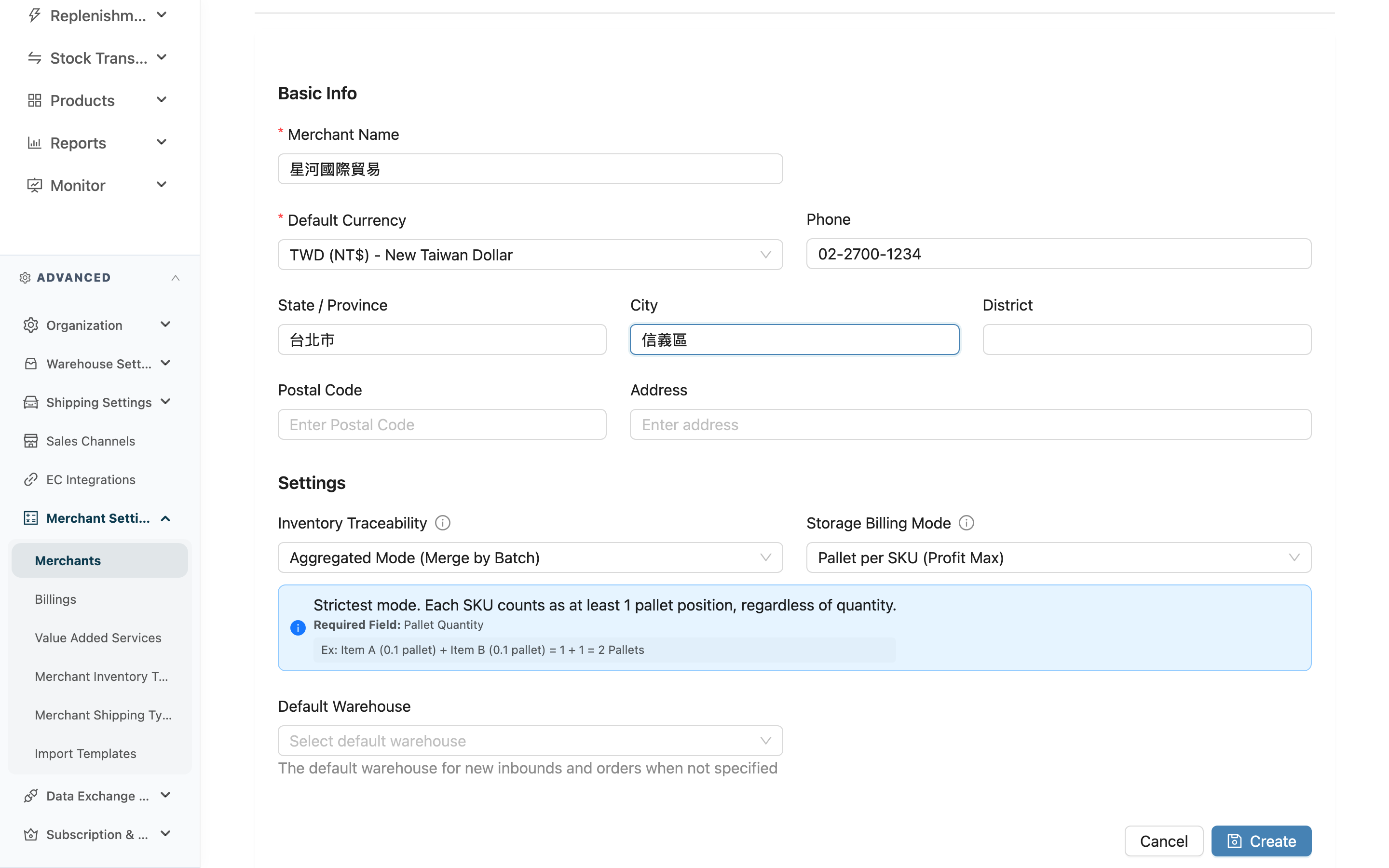
When your warehouse takes on a new brand client, create an independent 貨主 account for it here first. Once created, the client's products, inventory, inbounds, orders, and billing are all isolated under its own name, kept separate from other clients. Beyond the basics, this page also asks you to decide storage billing right away — choosing a billed mode requires a unit price at the same time, so you never end up with a merchant that has a billing mode but no price, silently billed $0 for storage every day until someone notices. After creation the system takes you to the client's detail page to configure the remaining advanced items such as shipping deadlines and sender info.
Quick Jump: Basic Info | Advanced Settings | Billing Settings | Create
1.1 Basic Info
Enter the client's name and contact details.
Fields marked with * are required
| Field | How to Fill | Notes |
|---|---|---|
| *Merchant Name | Enter the client (brand) name | Required; must be unique among clients within the same organization |
| *Default Currency | Select the currency used for this client's settlement and quotes | Required; pre-filled with the organization's default currency |
| Phone / State / Province / City / District / Postal Code / Address | Enter the client's contact info by field name | Optional; can be filled later on the detail page |
1.2 Advanced Settings
Set the inventory traceability mode and default warehouse. These are starter settings and can still be adjusted on the detail page after creation.
| Field | How to Fill | Notes |
|---|---|---|
| Inventory Traceability | Choose Aggregated Mode (Merge by Batch) or Isolated Mode (Separate by Inbound) | In aggregated mode, products with the same batch and expiration merge; isolated mode keeps them separated by inbound document, suited to goods needing strict source traceability |
| Default Warehouse | Select this client's default warehouse from the list | New inbounds and orders land here when no warehouse is specified; auto-filled when there's only one warehouse |
1.3 Billing Settings
This is where you create the client's first rate card — deciding how storage is billed, and optionally setting inbound, outbound, and return handling fees at the same time.
| Field | How to Fill | Notes |
|---|---|---|
| Billing Cutoff Day | Select the monthly settlement cutoff day from the list | Optional; defaults to month-end when left unset — every future billing period is cut on this day |
| *Storage Billing Mode | Select how storage is calculated | Required, with no default anymore — if you truly don't want to bill storage, choose No Billing / Manual |
| Unit price (mode-dependent) | Choosing by-SKU pallet, total pallet, volume, or weight billing reveals the matching price field below; choosing by-shelf billing reveals a "shelf type × price" list instead | Every mode except "no billing" requires a price greater than 0; by-shelf billing needs at least one row, or the merchant can't be created |
| Operation Fee and other inbound/outbound/return handling fees | Enter an amount, or keep the system default of 0 | Optional; can still be adjusted later on the detail page's billing settings tab |
Choosing a billed storage mode without a price used to silently create a rate card priced at $0, billing storage for $0 every day until someone caught it during month-end reconciliation. The system now blocks this: a billed mode requires a matching price before the merchant can be created. See Merchant Details & Settings for how each mode is calculated.
1.4 Create
After filling in the required fields, click Create to submit. On success a confirmation message appears and you are taken to the client's detail page. What you created here is the first rate card version — to adjust prices or add rules later, create a new version on the detail page's billing settings tab. You can then also set assigned warehouses, SLA, sender info, and account invitations (see Merchant Details & Settings). To abandon, click Cancel to return to the client list.
When you create a client, the system automatically assigns this new client to you, so it appears immediately in your Merchants list.
2. FAQ
2.1 FAQ
▪ Why can't I create the merchant after choosing a Storage Billing Mode?
Every mode except No Billing / Manual requires a matching price (by-shelf billing needs at least one row); leaving the price blank or at 0 is blocked. This prevents creating a merchant that has a billing mode but no price, silently billed $0 for storage. Fill in a price, or switch to No Billing / Manual, to submit.
▪ Can the Merchant Name duplicate another client's?
No. Client names must be unique within the same organization. Entering an existing name will show an error on create — use a distinguishable name instead.
▪ What happens if I leave Default Warehouse blank?
You can create it blank. When left unspecified, the system uses your current warehouse as the default, and you can still adjust the assigned and default warehouses on the detail page later.
▪ Do I have to get the Storage Billing Mode and price exactly right at creation?
The mode and price must be filled in before you can submit, but that doesn't mean they're set in stone — you can still switch modes or create a new rate card version with a different price on the detail page's billing settings tab afterward. A new version only affects future storage estimates, not billing that has already run.
▪ What if I can't find the create page?
Creating a client requires merchant management permission. If you can't reach this page or don't see the entry, ask your administrator to confirm your permissions.
2.2 Notices
⚠️ Important
- The Merchant Name must be unique within the same organization. It can be changed after creation, but the bound products and documents all belong to this client, so name it carefully.
- There is no delete after a client is created. If created by mistake, open the detail page and switch the status to Inactive.
💡 Tip: The storage billing mode and its price (when applicable) must be filled in at creation; other fees like inbound/outbound/return handling can keep the system default of 0, and advanced items like assigned warehouses, SLA, and sender info can wait until the detail page — no need to fill everything on the create page at once.
3. Related Features
| Feature | Description | Link |
|---|---|---|
| Merchants | Back to the client list | Go |
| Merchant Details & Settings | Adjust storage prices, add rate card versions, configure SLA, sender info, and invitations after creation | Go |
| Billings | Generate client invoices based on the billing mode | Go |