
Shelf Details
Table of Contents
1. Features
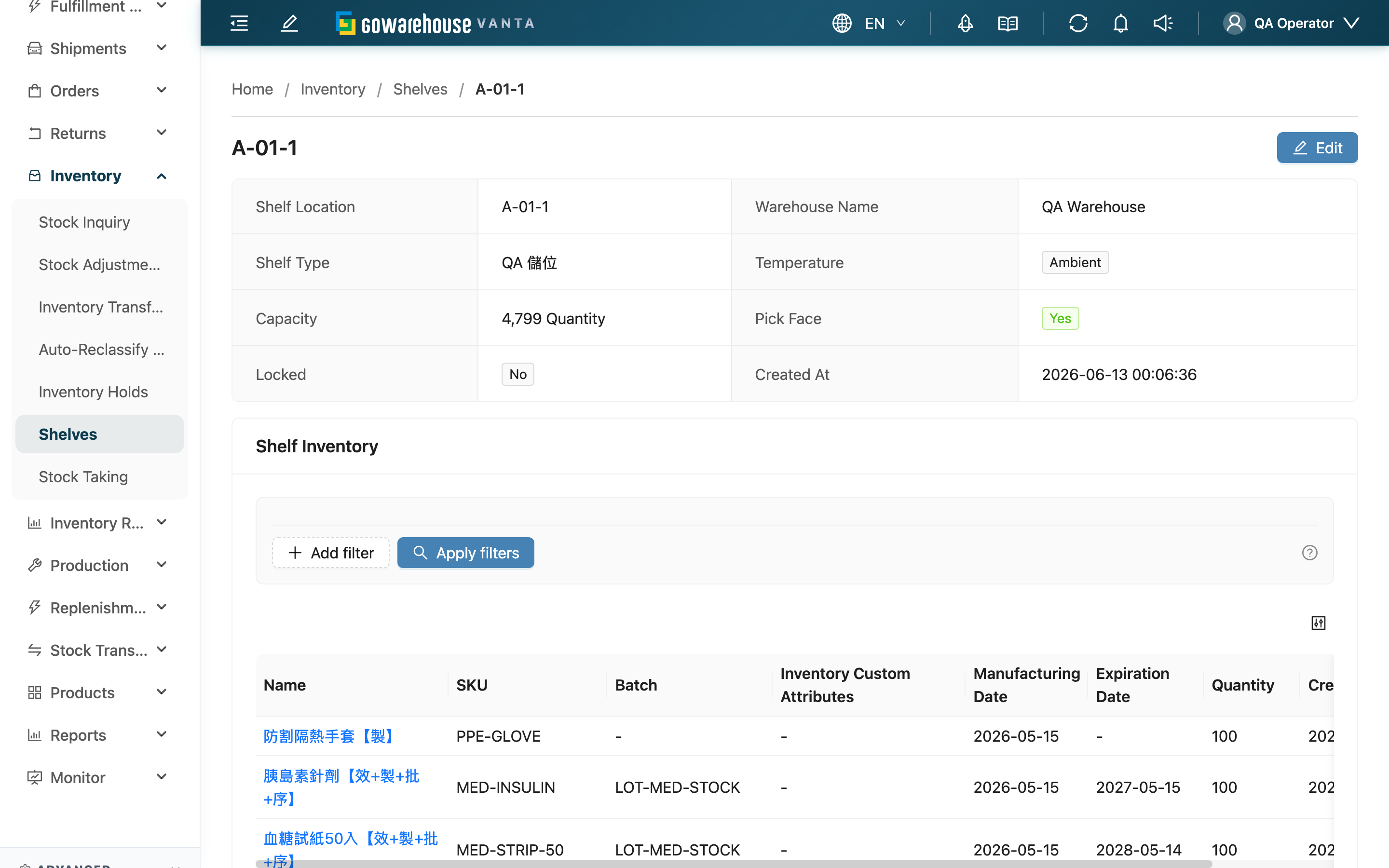
Open this page by clicking any "Shelf Location" in the Shelf List. The upper half shows the spot's basic info and edit entry; the lower half, "Shelf Inventory", lists every piece of goods currently held in this cell. Use it for stock-count reconciliation, checking what a cell holds, or fixing the spot's settings.
Quick jump: Shelf Info | Edit & Delete | Shelf Inventory | Change History
1.1 Shelf Info
The upper half shows the shelf's basic data:
| Field | Description |
|---|---|
| Location | The shelf's identifying code |
| Warehouse name | The warehouse this spot is in |
| Shelf type | The classification set for this spot by the warehouse |
| Temperature | The storage temperature condition of the spot |
| Warehouse zone | The warehouse zone this spot belongs to (shows "-" when not set) |
| Capacity | How much this cell currently holds (sum of all inventory quantities); not the spot's upper limit |
| Pick face | Whether it's marked as a pick face; picking suggestions prioritize pick faces |
| Lock shelf | Whether it's in a locked state |
| Created at | When the shelf was created |
1.2 Edit & Delete
▸ Edit a shelf
Click "Edit" at the top right to enter edit mode, where you can change "Shelf Location", "Shelf Type", "Temperature", "Warehouse Zone", whether it's a "Pick Face" and whether it's "Locked", then click "Save".
- The "Edit" button appears only for Storage shelves; Staging and Carrier are system-managed and cannot be edited.
- "Shelf Location" must be unique within a warehouse; changing it to an existing code is blocked.
▸ Delete a shelf
Click "Delete" at the top right and confirm to remove the spot.
- The "Delete" button appears only when this spot holds no inventory at all; if it still holds goods, transfer or pick them out first.
- Deletion runs in the background; check the result in the "Background Tasks" panel when done. It cannot be undone — recreate it if needed.
1.3 Shelf Inventory
The lower half, "Shelf Inventory", lists the inventory currently held in this cell that belongs to the merchants you are authorized for. A single cell can hold stock from several merchants at once; merchants you are not authorized for do not appear in the list:
| Column | Description |
|---|---|
| Product name | Product name; click to open the product detail page |
| SKU | The product's SKU |
| Batch | The batch of this inventory record |
| Merchant | The merchant this inventory record belongs to. A single shelf can hold inventory from multiple merchants at once, so this column tells you which merchant each row belongs to |
| Inventory custom attributes | The custom-attribute tags of this inventory record |
| Manufacturing date | The manufacturing date of this inventory record |
| Expiration date | The expiration date of this inventory record |
| Quantity | The quantity of this inventory record in this cell |
| Created at | When this inventory was placed in this cell |
To see only a certain product or batch within this cell, narrow the range with the filters above:
Example: Select "Product SKU" and enter SKU-001, then select "Batch" and enter the batch number to find matching inventory in this shelf.
1.4 Change History
The "History" section at the bottom of the page lists changes to this shelf's own settings: who changed "Warehouse Zone", "Temperature", "Locked" or "Pick Face", when, and from which value to which. Edits made here one at a time and bulk changes made from the shelf list both land in the same history.
Only those four fields are recorded, and only when the value actually changes (submitting the same value again leaves no noise). If what you need is "how goods moved in and out of this cell" rather than "who changed this cell's settings", see "Shelf Movements" instead.
2. FAQ
2.1 FAQ
▪ Why is the same product listed multiple times in this cell?
Because inventory is distinguished by "product + batch + expiration date + manufacturing date + inventory custom attributes" together. As long as any one of the batch, expiration date or custom attributes differs, the same product becomes a separate line, listed and counted separately.
▪ Why don't "Current Stock" and the inventory list below add up?
"Current Stock" is the sum of all inventory quantities in this cell; the list below itemizes them line by line. If the list is paginated or a filter is applied, the rows you see and the total will naturally differ — clear the filter and page through everything to match the full detail.
▪ Why does this spot have no "Edit" or "Delete" button?
"Edit" appears only on Storage shelves; the system-managed Staging and Carrier cannot be changed. "Delete" appears only when this cell holds no inventory at all; if it still holds goods the button is hidden until the cell is emptied.
▪ Can I move goods from this cell to another here?
No. This page only views and adjusts the spot's own settings. Moving inventory is done through the warehouse's transfer / put-away / picking operations; after a move, the "Shelf Inventory" here reflects it live.
▪ If I change "Temperature", will the goods in this cell move automatically?
No. Changing the temperature only updates the spot's label; it does not move the goods on it. If the goods in this cell actually belong in a different temperature zone, do a separate transfer to move them to a spot with the correct temperature.
2.2 Notes
⚠️ Important Notes
- A deleted shelf cannot be restored; only empty spots can be deleted.
- "Shelf Location" must be unique within a warehouse.
- "Shelf Inventory" is a live state that changes with put-away, picking and transfers; it is not a snapshot of one moment.
💡 Tip: To find "which spots a product is spread across", go back to the Shelf List and filter by "SKU" — far faster than opening cells one by one.
3. Related Features
| Feature | Description | Link |
|---|---|---|
| Shelves | View all shelves and filter by product, temperature and inventory status | Go |
| Shelf Movements | View how goods move between this cell and other spots | Go |
| Inventory List | View live inventory and available quantity per product | Go |