
Merge Fulfillments
Table of Contents
1. Features
When the same customer places several orders in a row to the exact same address, shipping them separately means several parcels, several shipping fees, and several deliveries for the customer. This page automatically groups together fulfillments that "match and can ship together" so you can merge them group by group, or batch-merge in one click — the merged-in orders then ship in a single parcel. Merging is a modifying operation and cannot be undone in one click, so before you start, read the Merge Conditions and Notes below.
Jump to: Merge Conditions | Page Guide | Steps
⚠️ Important: After opening the page, select a Merchant first — only then does the system list that merchant's mergeable fulfillment groups.
1.1 Merge Conditions
The system only puts fulfillments that fully match all of the conditions below into the same mergeable group. Any single difference splits them into different groups that cannot be merged together:
| Condition | Description |
|---|---|
| Same Receiver Name | Receiver name, phone, and address all identical |
| Same Sales Channel | From the same sales channel |
| Same Shipping Type | Using the same shipping method |
| Same Warehouse | Fulfillments belong to the same warehouse |
| Same currency and convenience store | Order currency identical; convenience-store pickup must be the same store |
| Mergeable status | Fulfillment must be "Allocated" or "Out of Stock", and the status must be the same within one group |
| Recipient not masked | Receiver name, phone, and address contain no masking symbol (*, *, O, ○, ●, X) |
| Order status also mergeable | Besides the fulfillment itself, the order it belongs to must also be "Allocated" or "Out of Stock" — see the note below |
⚠️ Watch out when one order is split into several fulfillments: if the same order has both an "Allocated" and an "Out of Stock" fulfillment, that order's status becomes "Partial Allocated" and none of its fulfillments are listed for merge — even the one that shows "Allocated" on screen. This is the most confusing reason for a fulfillment to go missing: its own status looks fine, yet it never appears in a group. Once the out-of-stock part is restocked and the order returns to "Allocated", it can be merged normally.
📌 Fulfillments that are never listed for merge: cash-on-delivery (COD) orders, orders using e-commerce platform logistics, material picking, and stock transfers — their logistics number or settlement is bound to the original document, so merging would confuse reconciliation and shipment reporting; fulfillments already in picking or already shipped cannot be merged either. Fulfillments whose receiver name, phone, or address contains a masking symbol (e.g. "Wang○○", "0912***678") are likewise not listed — when the data is masked there is no way to confirm it is the same person, so merging risks shipping to the wrong address. Up to 20 groups are listed at a time; after handling a batch, use "Load More" to load the next.
1.2 Page Guide
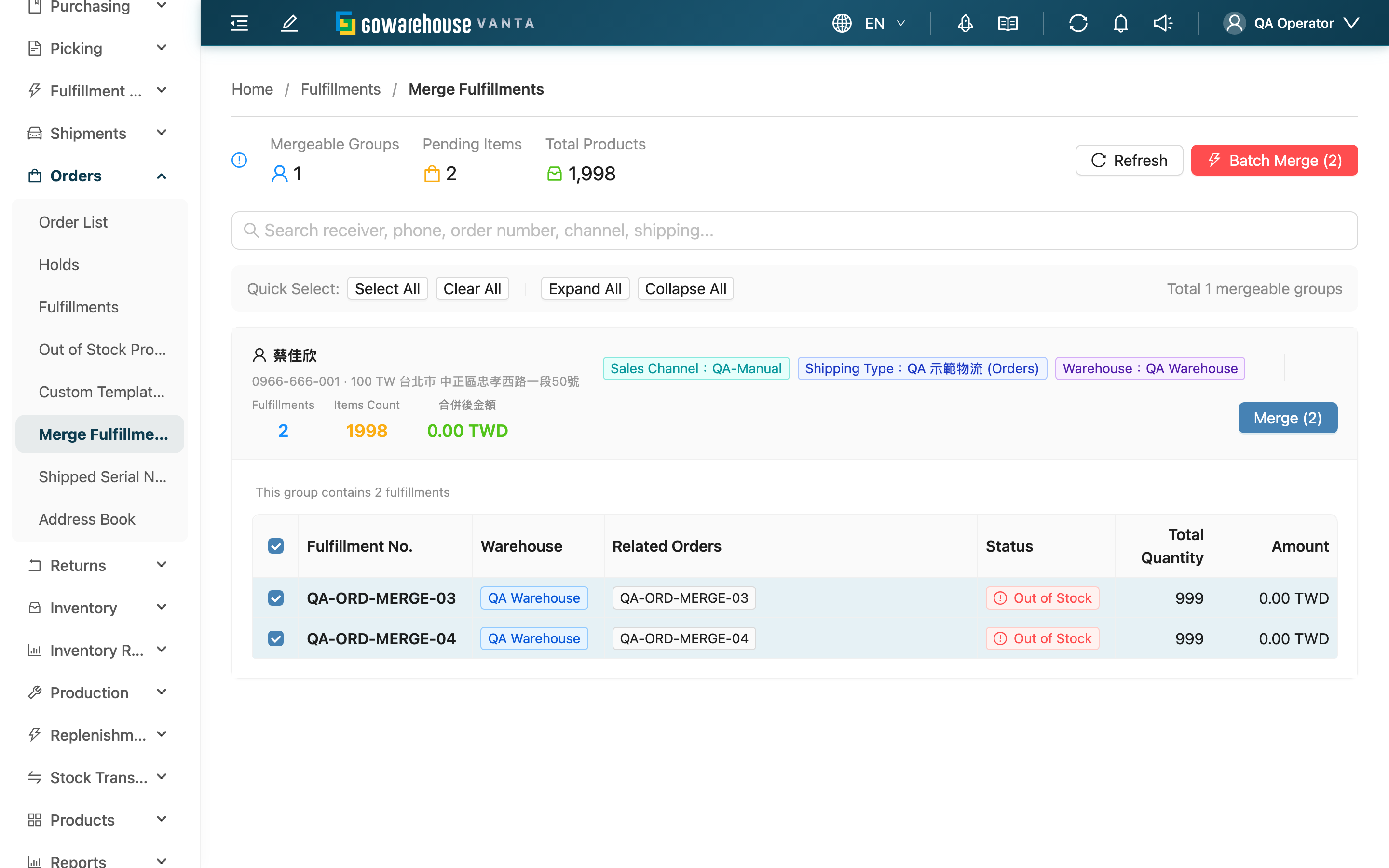
Statistics: The top of the page shows three numbers — "Mergeable Groups", "Pending Items", and "Total Products" — so you can gauge the mergeable volume at a glance.
Search: Type a receiver, phone, order number, channel, or shipping keyword in the search box to quickly narrow down to a specific group.
Group cards: Each mergeable group is a card. The header row shows the receiver info and the group's shared conditions (Sales Channel, Shipping Type, Warehouse), plus "Fulfillments" and "Items Count". When 2 or more are selected, a merged-amount preview also appears. Click the card to expand a detail table showing, per row, the Fulfillment No., Warehouse, Related Orders, Status, Total Quantity, and amount — and you can tick each one to include or exclude it (all selected by default).
1.3 Steps
▸ Merge a single group
- Find the group to merge and click the card header to expand the details
- Tick the fulfillments to include (at least 2, all selected by default; untick any you don't want)
- Click the "Merge" button on the right of the card
- Review the fulfillments to merge in the confirmation dialog and press "Confirm"
▸ Batch merge
- Use "Select All" or tick group by group to confirm which fulfillments to merge in each group
- Click the "Batch Merge" (red) button at the top right
- Confirm the number of groups to batch-merge in the dialog and press "Confirm"
- The system processes each group in turn and shows progress; you can "Cancel Merge" at any time during processing, and groups already done are unaffected
- When finished, check the success and failure counts, and press "Load More" to load the next batch of mergeable groups
2. FAQ
2.1 FAQ
▪ Can a merge be undone?
Not in one click, so always confirm the contents before you start (see Notes). If you still need to ship separately after merging, the only way is to use "Split Fulfillment" on the order detail page to split again.
▪ Which fulfillments can be merged and which can't?
The prerequisites for merging are: it's a regular "Order Fulfillment", its status is "Allocated" or "Out of Stock" with the same status across the group, and it matches the receiver, channel, shipping, warehouse, and currency in the Merge Conditions. Those that cannot be merged include: COD orders, e-commerce platform logistics orders, material picking and stock transfers, fulfillments already in picking or already shipped, and fulfillments whose receiver name / phone / address contains a masking symbol. The system only lists mergeable fulfillments — non-eligible ones never appear in a group.
▪ Why don't some fulfillments appear in a group?
Most often the receiver info differs slightly (any difference in name, phone, or address counts as a different person); next is a different shipping method, sales channel, currency, or warehouse; and then the fulfillment is already in picking or shipped, or is a non-mergeable type such as COD, platform logistics, material picking, or stock transfer. One more case that is easy to miss: the receiver name or address was masked by the channel (e.g. "Wang○○", "0912***678"). The system cannot confirm it is the same person, so it never merges these — restore the full receiver information on the order first if you need to merge.
If you have ruled all of that out and the fulfillment's own status looks fine, check the status of the order it belongs to: as soon as any one fulfillment under that order is out of stock, the whole order becomes "Partial Allocated" and none of its fulfillments are listed for merge (see the note under Merge Conditions).
▪ What happens to stock and item quantities after a merge?
For each merged-in fulfillment, its items all move to the resulting fulfillment, and quantities are added up automatically (e.g., 3 of product X in fulfillment A plus 2 of product X in fulfillment B becomes 5 after merging). Stock allocation is realigned to the warehouse of the resulting fulfillment: stock reserved by each source fulfillment is released first, then re-reserved from the target warehouse, so the reserved stock stays consistent with the warehouse the merged fulfillment will actually ship from.
▪ Does the fulfillment number change after a merge? Does it affect the original orders?
The system keeps the first fulfillment in the group as the main one and merges the others' items into it; the merged-in fulfillments are then removed from the system, and no brand-new number is generated. The original orders' contents stay unchanged, but every affected order's history records this merge (who merged which fulfillment into which, and when).
▪ What if a few groups fail during batch merge?
The system processes group by group; successful ones are already merged and unaffected, while failed ones are listed with a reason. Failures usually happen because someone else was touching the same fulfillment at the same time, or its stock status changed. After checking, retry that group individually, or refresh the list to get the latest status.
▪ Why do I see at most 20 groups at a time?
Mergeable groups are listed up to 20 at a time to avoid loading too many and slowing the page. After handling the current batch, press "Load More" to load the next.
2.2 Notes
⚠️ Important
- A merge cannot be undone in one click. To split again you can only use "Split Fulfillment", so confirm the contents before merging.
- A merge removes the merged-in fulfillments from the system and realigns stock reservation; once a fulfillment has entered picking it can no longer be merged.
- COD, e-commerce platform logistics, material picking, and stock transfer fulfillments — and fulfillments with a masked receiver — never appear in the merge list. Don't try to bypass this.
💡 Tip: Consolidate merges before "Generate Picking List" — once a fulfillment enters picking it can no longer be merged. Merging saves shipping, but also watch whether the combined parcel's weight and dimensions still fall within the carrier's limits.
3. Related Features
| Feature | Description | Link |
|---|---|---|
| Fulfillments | View and track all fulfillments | Go |
| Order List | View orders; the entry point for splitting fulfillments | Go |
| Generate Picking List | Turn fulfillments into picking tasks after merging | Go |