
Custom Templates
Table of Contents
1. Use Cases
Quick Links: Different Channels Need Different Layouts | Adjust a Channel's Print Layout
Scenario 1: Different Channels Need Different Order Document Layouts
Situation: The warehouse handles orders from several channels at once — Shopee shipping slips need certain fields, your own website's orders need a different layout, and laying them out by hand means reprinting whenever the wrong format is used.
Use this feature: Create one Custom Templates per channel and bind each layout to its Applicable Channels (see Channel Binding Rules and Create Custom Template).
Result: When you print a channel's orders, the system automatically applies the bound layout — no manual format picking each time.
Scenario 2: A Channel's Print Layout Needs Adjusting
Situation: A channel asks for a "total item count" line on the shipping slip, or to mask the recipient's phone number, and the current layout no longer meets the requirement.
Use this feature: Use the filters to find that channel's template, open the detail page to edit its content, or rebind the channel to another existing template (see Channel Binding Rules).
Result: The next time you print that channel's orders, the adjusted layout applies; documents already printed are unaffected.
2. Features
Each channel's shipping slip can have its own print layout — this is where you manage them. A Custom Templates holds the layout content of an order document. Once created, you bind it to one or more Applicable Channels; when printing that channel's orders, the system looks up the matching template by the order's channel and applies it. Channels without a template use the system's built-in default layout.
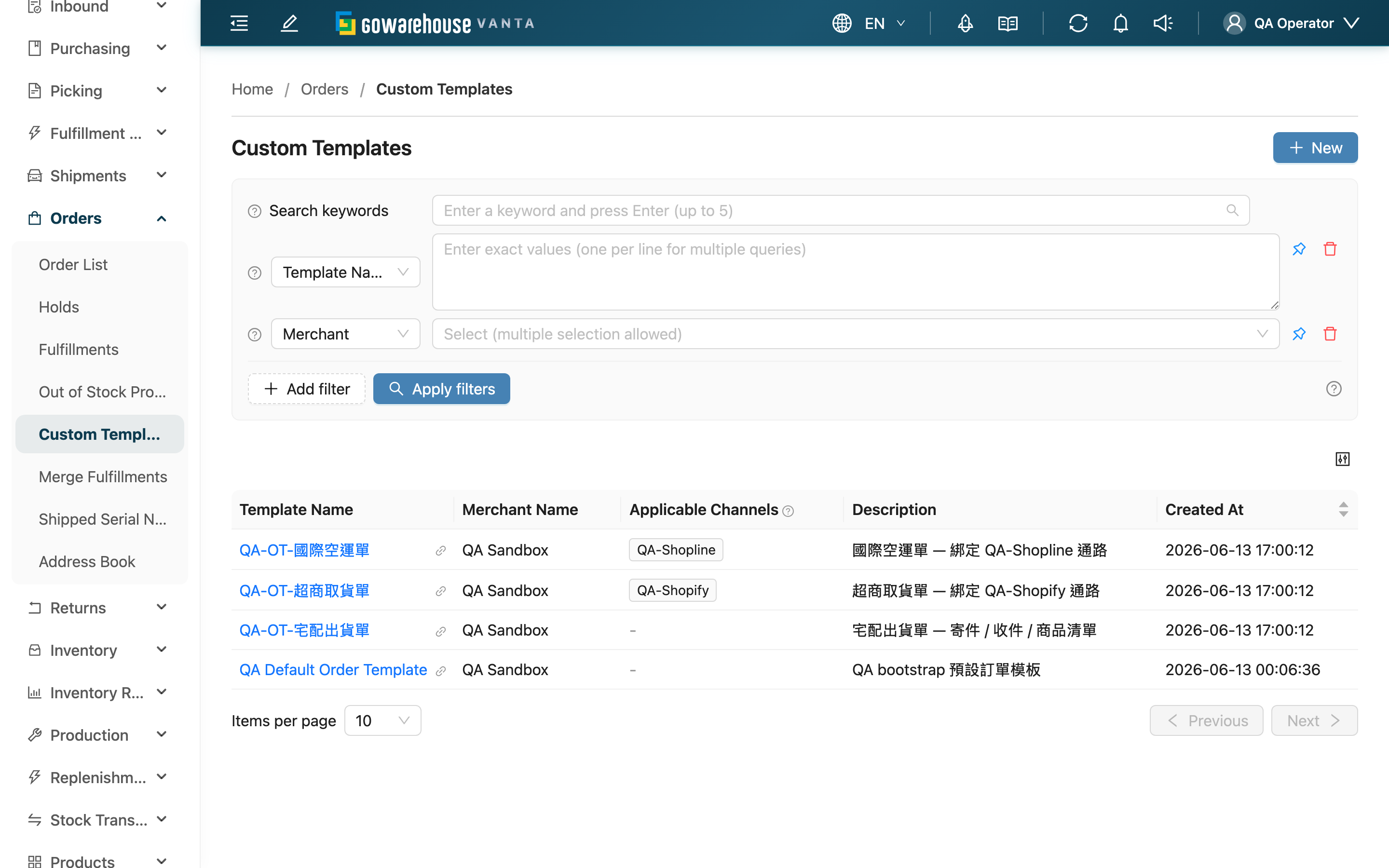
Quick Links: List Columns | Channel Binding Rules | Filters | Steps
2.1 List Columns
| Column | Description |
|---|---|
| Template Name | Click to open the detail page to view or edit |
| Merchant Name | Each merchant manages its own templates |
| Applicable Channels | Channels bound to this template; shows "-" when none |
The remaining columns (Description, Created At) display by their names; Created At can be used for sorting.
2.2 Channel Binding Rules
The template-to-channel mapping decides which layout is applied when printing. The rules are:
- One template can be bound to multiple channels, so several channels share the same layout.
- A channel applies only one template at a time; rebinding a channel to a new template automatically removes it from the previous one.
- A channel without any template uses the system's built-in default layout when its orders are printed.
Why it stays one template per channel: when printing, the system looks up the template by the order's channel. If a channel mapped to multiple templates, the system couldn't decide which one to print, so channel-to-template application stays one-to-one.
2.3 Filters
| Filter | Description |
|---|---|
| Template Name | Search by name keyword; multiple values supported |
| 貨主 | Select merchants from the list; multi-select |
| Merchant Channel | Select a channel to list templates bound to it; multi-select |
2.4 Steps
▸ Create a Template
- Click "New" at the top right of the list
- Fill in the Template Name, choose the Applicable Channels and the Paper Size
- Edit the template content and save (see Create Custom Template)
▸ Edit a Template
- Find the target template in the list and click the Template Name to open the detail page
- Click "Edit"
- Modify the content and save
3. FAQ
3.1 FAQ
▪ Must a template be bound to channels?
Yes. At least one Applicable Channels must be selected when creating a template. Once bound, orders from that channel print with this template.
▪ What layout do channels without a template print with?
When a channel has no dedicated template, its printed orders use the system's built-in default layout.
▪ Can multiple channels share one template?
Yes. When creating or editing a template, select multiple channels under Applicable Channels; those channels share the same layout. See Channel Binding Rules.
▪ Does modifying a template affect already-printed documents?
No. Changes only affect documents printed afterwards; files already printed do not change.
▪ How do I know which channel uses which template?
The Applicable Channels column shows the channels bound to each template, and the "Merchant Channel" filter finds a specific channel's template.
▪ Can templates be deleted? What happens to the channels afterwards?
Yes. Open the template detail page and click delete. Channels previously bound to it fall back to the system's built-in default layout; if those channels still need a dedicated layout, assign them another template before deleting.
3.2 Notices
⚠️ Important
- After a template is deleted, its bound channels immediately fall back to the system default layout, and the binding cannot be restored — confirm those channels' layout arrangement before deleting.
- When a channel is rebound to a new template, it is automatically removed from the previous template, which no longer applies to that channel.
💡 Tip: When a new channel goes live, remember to create or bind a template for it so its orders are not printed with the default layout.
4. Related Features
| Feature | Description | Link |
|---|---|---|
| Create Custom Template | Create a new shipping slip print layout | Go |
| Order List | View and print orders | Go |