
Inventory Holds
Table of Contents
1. Scenarios
Quick links: Scenario 1: Reserve stock for a large order | Scenario 2: Freeze stock with quality concerns | Scenario 3: Lock down a recall or removal
Scenario 1: Reserve stock for a large order
Situation: Sales tells you a large bulk purchase is confirmed. The order isn't placed yet, but this on-hand stock must be kept for that customer and can't be allocated to other incoming orders first.
Use this feature: Create a hold for this stock (see New Inventory Hold) and choose reason "Customer Reserve".
Result: The held quantity is deducted from available quantity, so later orders won't be allocated this stock. Once the large order is officially placed and picked, release the hold and the stock returns to available.
Scenario 2: Freeze stock with quality concerns
Situation: You receive a quality alert that a certain batch may be defective. Until a supervisor or QC clears it, this stock absolutely must not be picked and shipped to customers.
Use this feature: Create a hold for that batch's stock and choose reason "Quality Issue" or "Damage".
Result: The stock is frozen immediately and won't be allocated to any order. Release it once cleared; if a problem is confirmed, proceed to scrapping or return.
Scenario 3: Lock down a recall or removal
Situation: A recall or regulatory removal notice arrives — a product must stop shipping entirely. You need to block this stock in the warehouse immediately so it isn't picked while you handle it.
Use this feature: Create a hold for the recalled / controlled stock and choose reason "Recall" or "Regulatory".
Result: The stock is locked out of available quantity and won't be allocated. Release it once handled and confirmed safe to resume.
2. Features
Inventory holds let you "lock" specified stock so it can't be allocated to new orders for now — commonly used to reserve stock for a large order, freeze a batch over quality concerns, or block a recall/removal. The held quantity is deducted directly from available quantity; the physical count in the warehouse is unchanged, just marked as held. A hold stays in effect until you release it manually, or until its expiry date triggers an automatic release, at which point the stock returns to available. This page is the overview of all holds, where you can view active and released holds, create new holds, and release in batch.
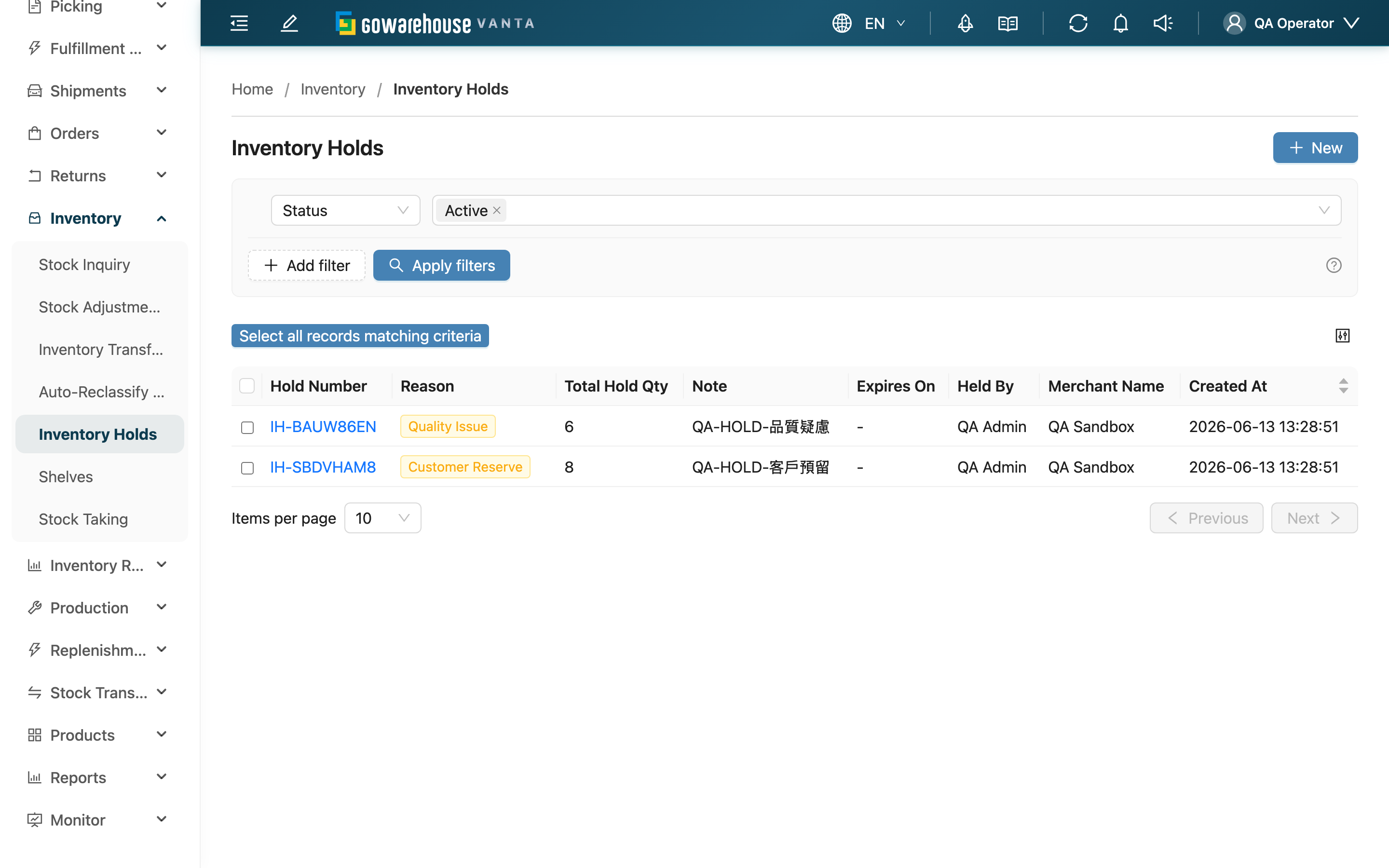
Jump to: Search & Filter | List Columns | Batch Release
2.1 Search & Filter
"Status" defaults to showing only "Active" holds; to view released ones, switch to "Released". Other available filters:
| Filter | Description |
|---|---|
| Status | "Active" (not yet released, stock still locked) or "Released" (released, stock back to available) |
| Reason | Filter by reason, six in total: Customer Reserve, Quality Issue, Regulatory, Damage, Recall, Other |
| Product SKU | Enter a product SKU to find holds that include that product |
Other filters (Merchant Name, Created At) are selected by name. Merchant Name only appears when you can operate more than one merchant.
2.2 List Columns
| Column | Description |
|---|---|
| Hold Number | System-generated hold number; click to open Inventory Hold Detail |
| Total Hold Qty | Total quantity locked by this hold |
| Expires On | Expiry date; on that day the system auto-releases this hold; if unset, it stays in effect until released manually |
Other columns (Reason, Note, Held By, Merchant Name, Created At) display by name; created time can be sorted by clicking the column header.
2.3 Batch Release
Releasing returns the locked quantity of all stock on the hold, bringing it back to available.
Prerequisite: Only "Active" holds can be released; released holds are excluded from the release scope.
How to do it: Select one or more holds, then the "Batch Release" button appears at the top; after clicking, you may fill in a "Release Note" (optional) and confirm. To release just one, you can also open its Inventory Hold Detail and click "Release".
Side effects & reversibility: After release, the available quantity of this stock is restored immediately and can be allocated to new orders. Release cannot be undone — the hold becomes "Released" and cannot be reactivated; if you still need to hold the stock, create a new hold.
3. FAQ
3.1 FAQ
▪ What happens to stock after I hold it?
The held quantity is deducted from available quantity: later orders won't be allocated this stock, the physical count in the warehouse is unchanged, it's just marked as held and temporarily unusable. Available quantity already excludes what's allocated to orders and locked by other holds; holding deducts the quantity you specify on top of that.
▪ Can I change the held quantity or add/remove products after holding?
No. A hold can't be edited once created. To adjust, release the original hold, then create a new hold with the correct quantity.
▪ What happens when the expiry date arrives?
On the "Expires On" date, the system automatically releases the hold and the locked stock returns to available — no manual action needed. A hold with no expiry date stays in effect until you release it manually.
▪ Can I undo a release?
No. Release cannot be undone; the hold becomes "Released". If you still need to hold the stock, create a new hold; see Batch Release.
▪ Can I still find a hold after it's released?
Yes. A released hold stays in the system and records the release time, who released it, and the release note. To see it in the list, switch "Status" to "Released".
▪ Do different hold reasons behave differently?
The reason only records why you locked the stock (reserved for a customer, quality issue, regulatory control, damage, recall, other), for later tracking and filtering. Whatever reason you pick, the effect on stock is the same — it locks the stock out of available quantity.
▪ Why can I only hold stock in my current warehouse?
When creating a hold, you can only pick stock in your current warehouse, so the locked target matches the physical stock at hand and avoids locking another warehouse's stock and causing a mismatch. To hold stock in another warehouse, switch to that warehouse first.
▪ I can't see "Inventory Holds" or can't create/release — what should I do?
If you can't see this feature, or there's no create or release button, contact your administrator to confirm your permissions.
3.2 Notices
⚠️ Important
- Release cannot be undone; a released hold can't be reactivated — create a new hold when needed
- A hold can't be edited once created; to change the quantity you must release and recreate
- A hold with an expiry date is auto-released on that day, and the stock automatically returns to available
💡 Tip: Setting an "Expires On" when creating a hold means you don't have to remember to release it manually — ideal for short-term reservations or time-limited locks.
4. Related Features
| Feature | Description | Link |
|---|---|---|
| New Inventory Hold | Create a new hold | Go |
| Inventory Hold Detail | View the full content of a single hold and release it | Go |
| Stock Inquiry | View current available and held quantities | Go |
| Inventory Ledger | View the reason and source of every stock change | Go |