
New BOM
Table of Contents
1. Features
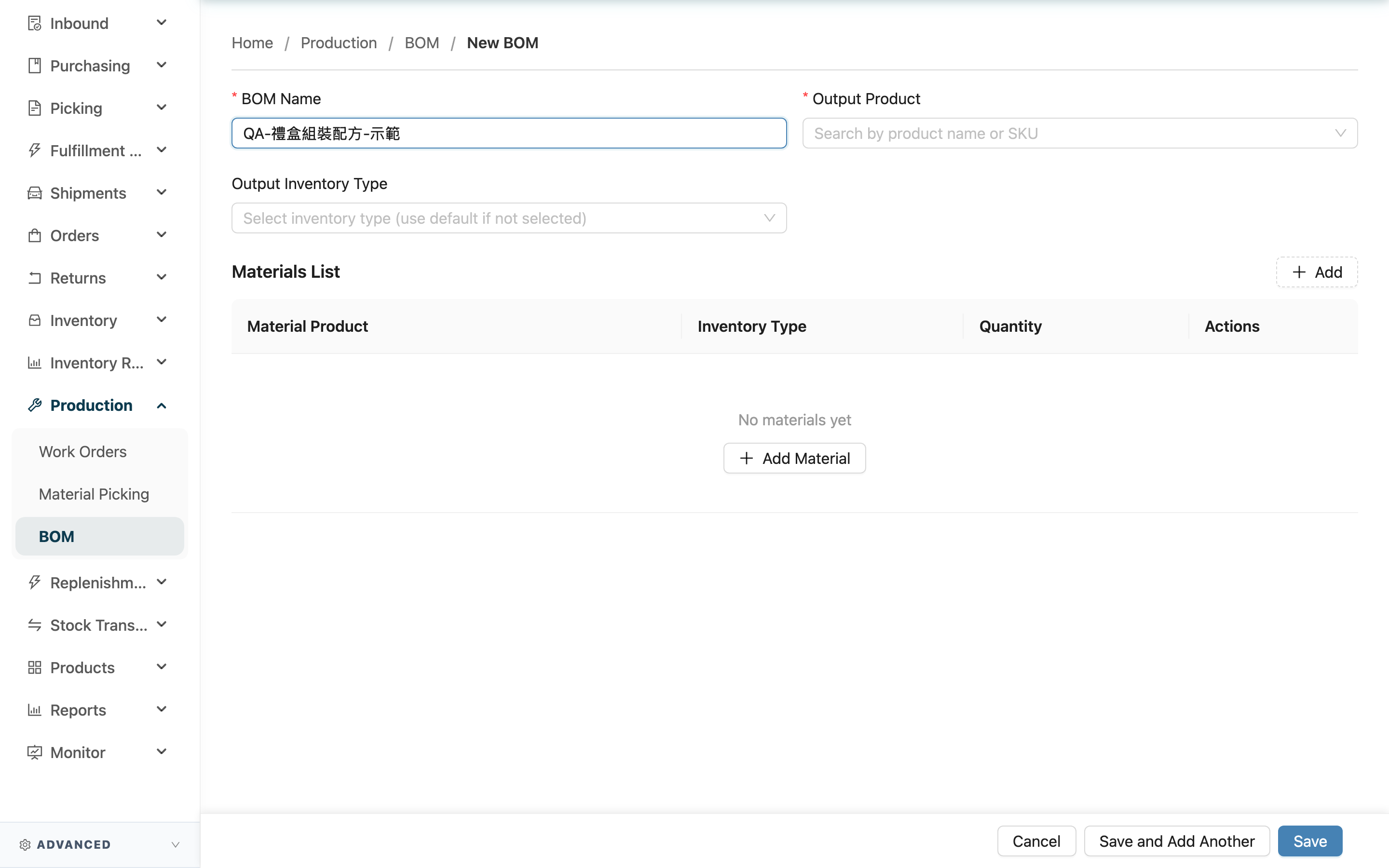
This page is for creating a new BOM recipe. A recipe has two parts: the upper part sets what finished good the recipe produces, and the lower part adds, item by item, the ingredients and per-set quantities needed to make it. Once created, the recipe can be reused on work orders, saving you from assembling ingredients by hand each time. The recipe itself never touches inventory — it is only a template for work orders to use.
Quick Jump: Basic Fields | Ingredient List | Saving
1.1 Basic Fields
Fields marked with * are required.
| Field | How to fill | Notes |
|---|---|---|
| *Recipe Name | Enter an identifying name for this recipe | Must not match an existing recipe under the same merchant; put the output product or style into the name, e.g. "Mooncake Gift Box Style A" |
| *Output Product | Search by product name or SKU, then select the finished good | Can only choose products belonging to the recipe's merchant |
| Output Inventory Type | Pick from the list the inventory type the finished good is stocked under | Leave blank to use the default; if the option is missing, check "Inventory Type Management" first |
As an operator, select the merchant at the top of the page before creating; the recipe's finished good and ingredients are limited to that merchant's products.
1.2 Ingredient List
The "Materials List" below is for adding, item by item, the ingredients needed to make one set of the finished good. Pressing "Add" adds a row; fill in each row:
Fields marked with * are required.
| Field | How to fill | Notes |
|---|---|---|
| *Material Product | Search by product name or SKU, then select the ingredient | Can only choose products of the recipe's merchant; the same ingredient and inventory type combination cannot be added twice |
| Inventory Type | Pick from the list which inventory type this ingredient is taken from | Leave blank to use the default |
| *Quantity | Enter how many are consumed to make one set of the finished good | Must be greater than 0 |
At least one ingredient is required to save; to remove an ingredient, press "Delete" on that row.
1.3 Saving
After filling in the form, press "Save"; on success you go to that recipe's detail page automatically. To create several recipes in a row, press "Save and Add Another" instead — after saving, the form clears and stays on this page so you can build the next one.
2. FAQ
Quick Jump: FAQ | Important Notes
2.1 FAQ
▪ What does "Quantity" expect?
The ingredient usage needed "per set of the finished good", not your current stock. For example, if one gift box needs 6 mooncakes, enter 6 here; later when you create a work order and enter how many sets, the system multiplies by the set count automatically.
▪ I can't find the finished good or ingredient to select?
Product search only lists products belonging to the recipe's merchant. Confirm the merchant selected at the top of the page is correct; if the product is not created yet, add it in "Product List" first, then come back to select it.
▪ Are "Output Inventory Type" and the ingredient "Inventory Type" required?
Both are optional. Output inventory type decides which type the finished good is stocked under, and ingredient inventory type decides which type each ingredient is taken from; left blank, both use the default. Set them only when the finished good must go into a specific type, or when an ingredient (such as near-expiry stock) should be consumed first.
▪ Can I add the same ingredient as two rows?
No. The same ingredient with the same inventory type can only appear once, and a duplicate is blocked on save. Only when you want the same ingredient with two different inventory types do you split it into two rows and set each one's inventory type.
▪ After creating the recipe, can I still change ingredient quantities?
Yes, adjust them in Edit BOM. Edits only affect work orders created afterward; work orders that already applied this recipe keep their copied content and are unaffected.
▪ How do I use a created recipe?
On the work order, press "Apply BOM", select this recipe, and enter how many sets to make; the system brings in ingredients and output at once based on the recipe (see Create Work Order).
2.2 Important Notes
⚠️ Important Reminders
- Recipe names cannot repeat an existing recipe under the same merchant: A duplicate name is blocked and cannot be saved; use a distinguishable name.
- Cannot save without ingredients: At least one ingredient is required, and every ingredient must have a product selected with a quantity greater than 0, or it cannot be saved.
- Both finished good and ingredients are limited to the merchant's products: Cross-merchant products cannot be added to the same recipe.
💡 Tip: Build a few fixed-pairing ingredients into one recipe, and the same combination can be applied directly next time — much faster than adding them by hand each time.
3. Related Features
| Feature | Description | Link |
|---|---|---|
| BOM | Return to the recipe list to find and review existing recipes | Go |
| Work Orders | Apply a created recipe to run the actual processing job | Go |
| Product List | Add the ingredient and finished-good products used by recipes | Go |