
Sluggish Products Query
Table of Contents
1. Use Cases
Quick links: Help a merchant clear stock and cut rent | Clear dead stock before expiry | Adjust purchasing for your own brand
Case 1: A merchant wants lower storage fees and asks you to find slow-moving dead stock
Situation: At month-end storage billing, a merchant complains the fee is too high and wants to clear out items that "sit on a huge pile of stock yet barely sell" to free up shelf space and lower rent, but doesn't know which items to start with.
Use this feature: In Query Conditions, set the query period (e.g. the past 3 months), maximum sales, and minimum stock, then run the query to pull out a list of products that "sold little but still have plenty of stock" during that period. Results are limited to the warehouse you are currently in, so the merchant's stock in other warehouses is not counted.
Result: You get a list of sluggish products sorted by total stock from high to low, shown together with sales quantity, total stock, and available stock, ready to discuss with the merchant which items to promote, return, or write off.
Case 2: Clear dead stock before it expires and has to be scrapped
Situation: During a stock count you find some products haven't shipped in a long time yet have high stock, and as the expiry date approaches day by day, failing to act means the whole batch must be scrapped at a loss.
Use this feature: Set Maximum Sales low and Minimum Stock high to pinpoint items that "hold large stock yet barely move," and prioritize them for clearance or promotion.
Result: You lock in the items most worth handling first before they expire, turning stock that might become waste into cash and reducing dead-stock losses.
Case 3: Running your own brand and adjusting the next purchase batch
Situation: Your own brand decides each quarter how much to order next, but some items were over-ordered last batch and sell slowly, sitting in the warehouse and taking up space, so you need to first identify which items were "ordered too much, sell too slow."
Use this feature: Use a longer query period (e.g. the past 6 months) to observe the real shipment volume over time, and use the Sales Quantity and Total Stock columns to judge which items should be ordered in smaller amounts or stopped from restocking.
Result: You make the next purchasing decision based on actual sales and stock data, avoiding repeatedly stockpiling products that don't sell.
2. Feature Overview
The Sluggish Products Query helps you pull out, in one go, the dead stock that "sold little but holds a lot of stock" from among all your products. You set three thresholds — query period, maximum sales, and minimum stock — and the system compares each product's actual shipment volume during that period against its current stock, then lists the products that meet both "sales below the threshold" and "stock above the threshold," as a basis for clearance, promotion, or purchasing decisions. The query only reads data and never changes any stock or documents.
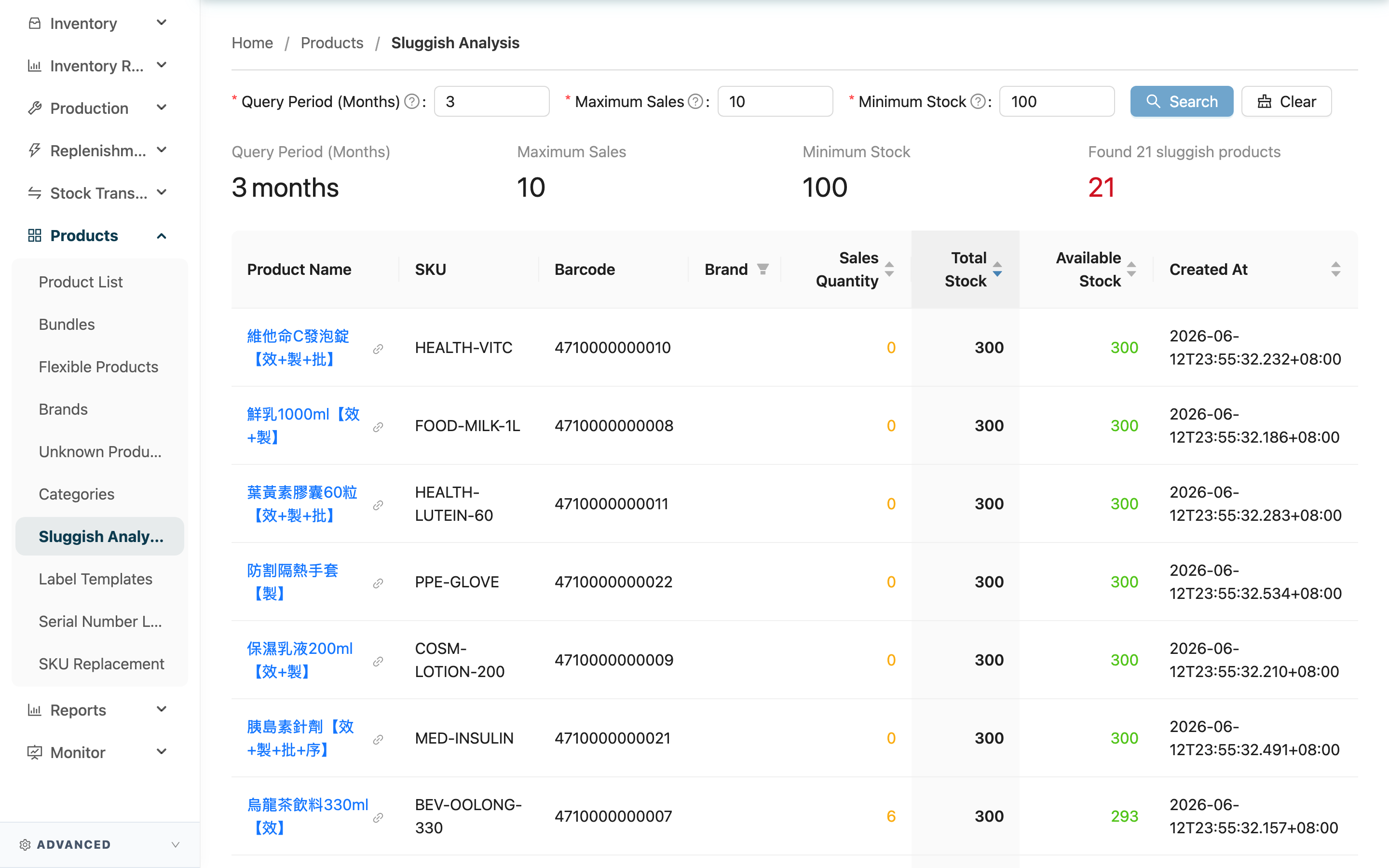
Quick jump: Query Conditions | Query Results | How "Sluggish" Is Defined
2.1 Query Conditions
Fields marked with * are required.
| Field | How to fill | Notes |
|---|---|---|
| *Query Period (Months) | Enter how many months of sales data to look back on; for example, 3 means the shipment volume over the past 3 months | Must be greater than 0; a longer period better reflects items that don't sell over the long run |
| *Maximum Sales | Enter the sales cap; the system only lists products whose shipment volume in this period is "less than or equal to" this value | Must be greater than or equal to 0; entering 0 finds only products with no shipments at all |
| *Minimum Stock | Enter the stock floor; the system only lists products whose total stock is "greater than or equal to" this value | Must be greater than or equal to 0; a higher value focuses more on items holding large stock |
The three fields default to a query period of 3 months, maximum sales of 10, and minimum stock of 100, which you can adjust as needed. Once set, press Search to start the query, or press Clear to clear the conditions and results and start over.
2.2 Query Results
After the query completes, the top shows summary cards with the query period, maximum sales, minimum stock used this time, and the total number of sluggish products found; below is the list of products that meet the criteria, sorted by total stock from high to low by default, so the items holding the most stock appear first.
| Field | Description |
|---|---|
| Product Name | Product name; click to open the product details |
| Sales Quantity | The product's cumulative shipment volume during the query period (excluding canceled orders) |
| Total Stock | The product's current total stock in this warehouse |
| Available Stock | The stock actually shippable, equal to total stock minus the quantity already reserved by orders |
The remaining columns (SKU, Barcode, Brand, Created At) are self-explanatory by name. The Brand column can filter for a specific brand, and each quantity column can be sorted by clicking the column header.
2.3 How "Sluggish" Is Defined
The system does not hardcode a fixed sluggishness standard; it judges entirely based on the three thresholds you enter. For a product to be listed as sluggish, it must meet both conditions at the same time:
- Its cumulative shipment volume during the query period is less than or equal to the maximum sales you set
- Its current total stock is greater than or equal to the minimum stock you set
In other words, "sells little" and "stocks a lot" must both hold true. Sales quantity counts shipment records only and excludes canceled orders; both stock and sales count only the warehouse you are currently in, so the same product may give different results across warehouses or under different thresholds.
3. FAQ
3.1 FAQ
▪ What makes a product count as sluggish?
It must both "sell little" and "stock a lot": shipment volume in the query period is less than or equal to maximum sales, and total stock is greater than or equal to minimum stock — neither condition can be missing. See How "Sluggish" Is Defined for the full definition.
▪ How is sales quantity calculated? Are canceled orders counted?
Sales quantity is the sum of shipment quantities across all of the product's orders during the query period; canceled orders are not counted. The period is calculated by counting back from today by the number of months you enter.
▪ Why does the same product show up for me but not in another warehouse?
The query counts sales and stock only for the warehouse you are currently in, to avoid mistakenly counting the merchant's stock in other warehouses. So the same product has different shipment volume and stock in different warehouses, and whether it is listed as sluggish can differ too.
▪ Why are my query results empty?
It means no product meets both "sells little" and "stocks a lot" under the thresholds set this time. You can raise the maximum sales, lower the minimum stock, or extend the query period and try again.
▪ Can I handle the sluggish products directly here?
This page only "finds" sluggish products and does not change any data. After finding them, you can click a product name to view details on the Product List, check the per-location distribution on the Inventory List, or use a Stock Adjustment to adjust quantities or write off.
▪ Why is there a wait after I press Query before results appear?
The system needs to compare each product's sales and stock data, which takes a little time when there are many products. The screen shows the processing progress and brings up results automatically when done; please stay on this page during that time.
3.2 Notices
⚠️ Important Notes
- Query results are a snapshot of stock "at this very moment" and shipments "within the query period," not a continuously updated live figure; after stock or shipments change, you must run the query again to see the latest numbers.
- This feature counts only the data of the warehouse you are currently in; to see the merchant's overall situation across warehouses, switch to each warehouse and query separately.
💡 Tip: For clearance decisions, look at available stock alongside total stock — available stock already excludes the portion reserved by orders, so it better reflects the quantity you can actually clear out.
4. Related Features
| Feature | Description | Link |
|---|---|---|
| Product List | View full product details; click into a single product from the sluggish list | Go |
| Inventory List | Check the per-location stock distribution and expiry of sluggish products | Go |
| Stock Adjustment | Adjust quantities or write off the dead stock you cleared out | Go |