
Broadcasts
Table of Contents
1. Use Cases
Quick links: Posting shift notices | Ad-hoc announcements and urgent alerts | Assigning a task and notifying the relevant merchants
Case 1: Posting shift notices
Situation: Before the morning shift starts, you need to remind every floor worker that aisle A is under maintenance and picking should detour through aisle B. With only paper notes or word of mouth, latecomers often miss the message.
Use this feature: In the Send Broadcast area, choose the Announcement type, enter the notice, and send. The message reaches every floor worker in the same warehouse on their phone and web screen in real time.
Result: Everyone on shift, including those who arrive late, sees the announcement on their own device, so you do not have to brief each person verbally.
Case 2: Ad-hoc announcements and urgent alerts
Situation: Midway through operations, a delivery truck arrives early, or an area needs to be cleared immediately. You need everyone to know right away and stop what they are doing.
Use this feature: Choose the Urgent type to send. Floor workers' phones pop up a red-marked real-time alert (see Broadcast Types), which stands out more than a regular announcement.
Result: The message arrives with maximum prominence, so floor workers react immediately and you do not have to run across the warehouse notifying people one by one.
Case 3: Assigning a task and notifying the relevant merchants
Situation: You want to assign an ad-hoc task (for example, a returned batch that needs priority counting) and let the staff handling the corresponding merchants know who owns it.
Use this feature: Choose the Task type, pick the relevant merchants in the Notify Merchants field, and send. The message is tagged with the assigned targets in the Broadcast Records.
Result: The task and its scope of responsibility are stated at once, so floor workers can open the records and see which merchants this broadcast relates to.
2. Features
Broadcasts lets you deliver operational notices, ad-hoc announcements, and urgent alerts to the whole warehouse's floor workers at once. After sending, the message is pushed in real time to every worker's warehouse handheld app and web screen in the same warehouse, and also triggers a mobile push notification. This is your unified channel beyond verbal briefings on the floor: send once, the whole warehouse receives it, avoiding missed handovers and repeated verbal notices.
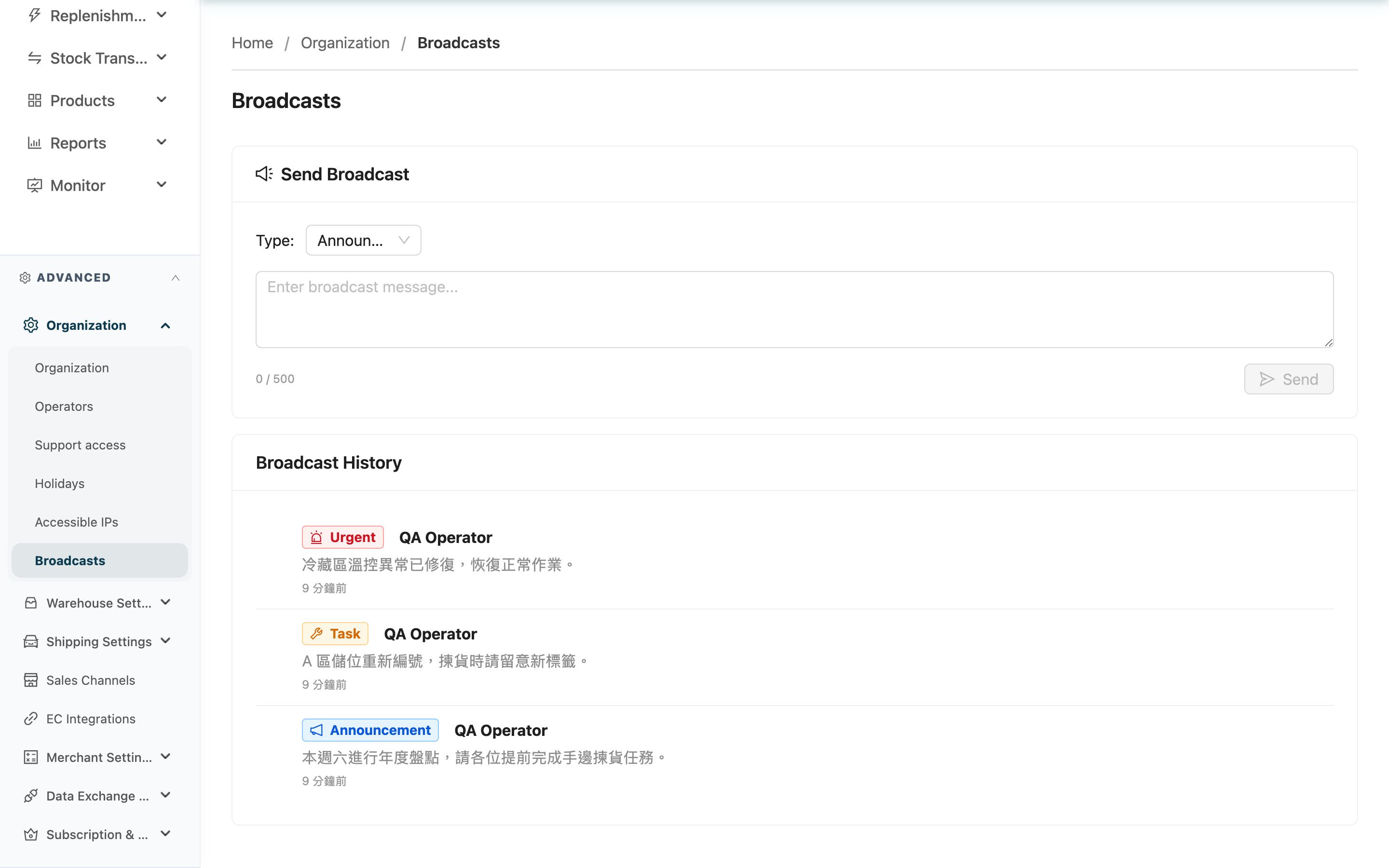
Jump to: Send Broadcast | Broadcast Types and Assignment | Broadcast Records
2.1 Send Broadcast
The Send Broadcast area at the top of the page is the sending entry point. Fill in the content and click Send, and the message goes out immediately.
Fields marked with * are required
| Field | How to Fill | Notes |
|---|---|---|
| Type | Choose Announcement, Task, or Urgent from the list | Each type shows a different marker color on floor workers' devices; see Broadcast Types |
| Notify Merchants | Appears only when the Task type is selected; you can pick one or more relevant merchants | Optional; this field does not appear for other types |
| *Content | Enter the message text to deliver | Required, up to 500 characters; blank content cannot be sent |
The broadcast's sending scope is fixed to "the warehouse you are currently in," filled in automatically by the system; you cannot manually choose another warehouse on this page. The recipients are all floor workers in that warehouse.
2.2 Broadcast Types and Assignment
The three types available when sending differ in how prominently floor workers see the notice and in their purpose:
| Type | Purpose | Marker workers see |
|---|---|---|
| Announcement | General operational reminders, routine notices | Blue |
| Task | Assign an ad-hoc task, can note relevant merchants | Orange |
| Urgent | Urgent situations needing immediate attention | Red |
When you select the Task type, an extra Notify Merchants field lets you pick the relevant merchants. Once picked, this broadcast also shows the assigned targets in the Broadcast Records, helping floor workers identify task ownership.
2.3 Broadcast Records
The Broadcast History area at the bottom of the page lists this warehouse's sent broadcasts, newest first. Each entry shows the type marker, sender, content, and send time; Task entries also list the assigned merchants. This list is for review only, shows up to the most recent 50 entries, and sent broadcasts cannot be edited or deleted here.
3. FAQ
3.1 FAQ
▪ Who receives a broadcast?
All floor workers in "the warehouse you are currently in." The sending scope is determined automatically by your current warehouse; you cannot pick individual workers, nor target another warehouse.
▪ Where do floor workers see the broadcast?
In two places at once: the warehouse handheld app pops up a real-time message and receives a mobile push notification; workers using the web back office also see a real-time pop-up on screen. Delivery is immediate after sending.
▪ Can a broadcast be recalled or deleted after sending?
No. Once sent, a broadcast is pushed immediately to everyone's devices and cannot be recalled, edited, or deleted. Confirm the type and content before sending, especially for the Urgent type.
▪ Is there a character limit on the content?
Yes, up to 500 characters. The current character count is shown live below the input box.
▪ Why is the Notify Merchants field sometimes hidden?
It only appears when the Task type is selected. Other types do not need assigned targets, so the field is not shown.
▪ Why can't I see the "Broadcasts" menu?
Warehouse broadcasts is an advanced-plan feature. If your plan does not enable it, the menu will not appear. To enable it, contact your administrator to confirm your plan.
▪ Why do I only see part of the broadcast records?
The records area shows only the most recent 50 broadcasts for this warehouse, and only lists records for the warehouse you are currently in; broadcasts from other warehouses do not appear here.
3.2 Notices
⚠️ Important Notes
- Once sent, a broadcast cannot be recalled, edited, or deleted, and is pushed immediately to all warehouse workers' devices. Always confirm the type and content before sending.
- The sending scope is always the warehouse you are currently in; you cannot target another warehouse. To broadcast to a different warehouse, switch to that warehouse first.
💡 Tip: Besides this page, you can also open the send panel quickly from the broadcast icon in the top toolbar of the back office, without entering this page. The Broadcast History on this page is best for reviewing what notices were recently sent.
4. Related Features
| Feature | Description | Link |
|---|---|---|
| Operators | Manage the floor worker accounts for this warehouse, who are the broadcast recipients | Go |
| Organization Settings | Set up the basic information for your organization and warehouses | Go |