
Create Stock Transfer Order
Table of Contents
1. Feature Overview
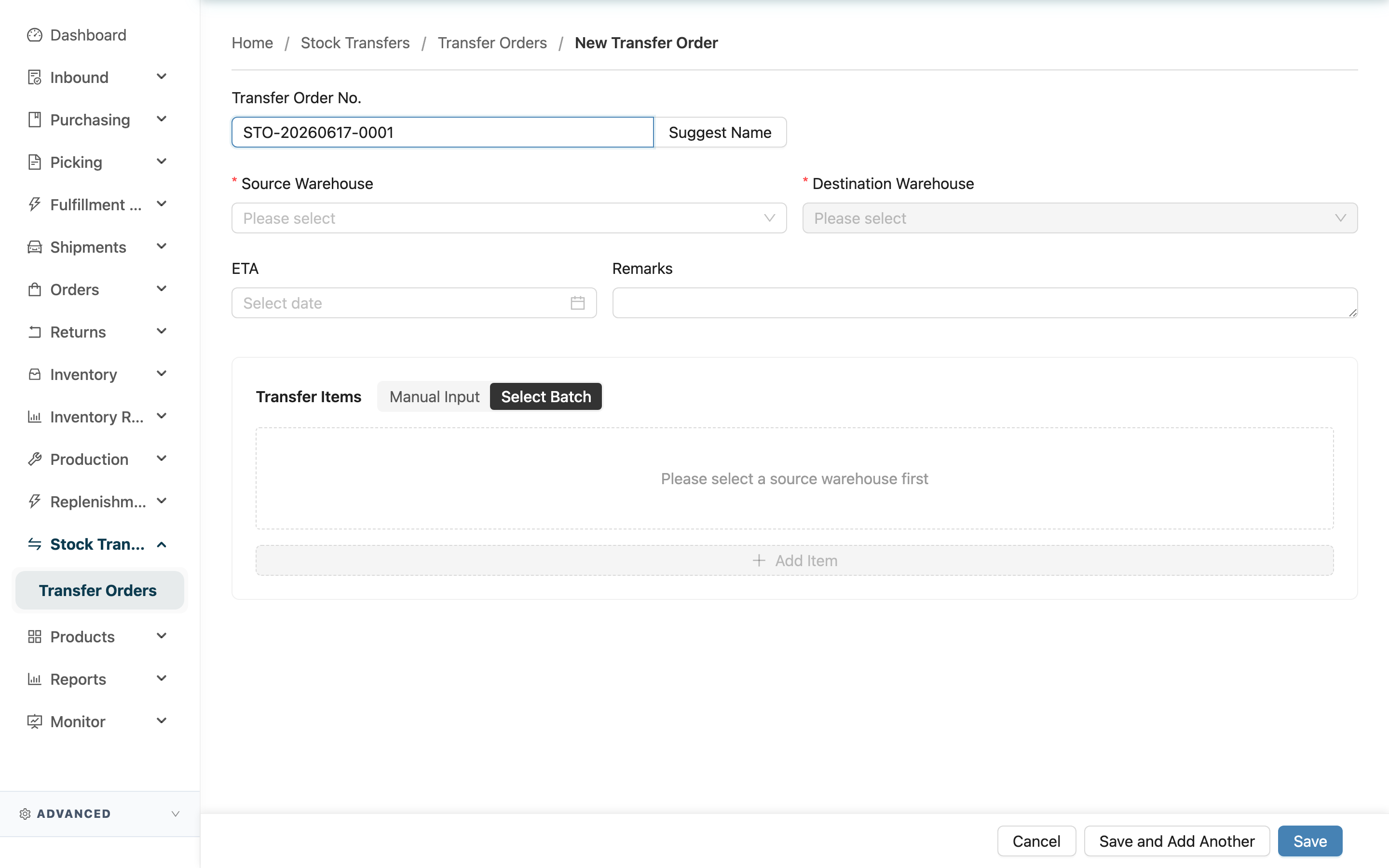
Create a transfer order to move goods from one warehouse to another. Choose the source and destination warehouses, list the items and quantities, and on submit the system immediately locks that batch of source-warehouse stock (status becomes "Allocated") and automatically opens a fulfillment at the source warehouse to pick.
Jump to: Basic information | Transfer items | After you submit
1.1 Basic information
Fields marked with * are required
| Field | How to fill it | Notes |
|---|---|---|
| Transfer Order No. | Enter your own, or leave blank to auto-generate | Click "Suggest Name" to fill in an "STO-date-sequence" format |
| *Source Warehouse | Choose the warehouse where the goods currently sit (the shipping end) | Required; items can only be added once it is selected |
| *Destination Warehouse | Choose the warehouse the goods move to (the receiving end) | Required; cannot be the same as the source — the list excludes the source warehouse automatically |
| ETA | Choose the expected arrival date at the destination | Cannot be a date before today |
| Remarks | Additional notes | Optional |
1.2 Transfer items
Which goods to transfer and how many of each — use the toggle above to choose how you pick stock:
- Manual Input: enter the product, inventory type, and quantity yourself; fill in batch and expiration date when needed. The system picks source-warehouse stock by First-Expiry-First-Out (FEFO).
- Select Batch: pick the exact batch directly from the source warehouse's available-stock list; you can select several at once.
Every item needs a quantity, and you need at least one item to submit. "Add Item" only works once a source warehouse is selected.
1.3 After you submit
- "Save" submits and takes you straight to the new transfer order's detail page.
- When creating, there is also "Save and Add Another", which submits and clears the form to stay on this page — handy for opening several in a row.
- On submit the system immediately locks that batch of source-warehouse stock and automatically creates the source warehouse's fulfillment.
- If the source warehouse's available stock is short, it shows an insufficient-stock message naming the SKU, how much is available, and how much is requested.
2. FAQ
2.1 FAQ
▪ Do I have to enter the transfer order number myself?
No. Leave it blank and submit, and the system generates one; or click "Suggest Name" to fill in a number first.
▪ What's the difference between "Manual Input" and "Select Batch"?
"Manual Input" means you only specify the product and quantity, and the system picks the batch by First-Expiry-First-Out; "Select Batch" means you pick the exact batch yourself from the source warehouse's available-stock list. Use the latter when you need a specific batch or expiration date. See Transfer items.
▪ Why can't I select a certain warehouse as the destination?
The destination cannot be the same as the source, so the list excludes the source warehouse automatically. Also, you must pick a source warehouse before the destination field becomes selectable.
▪ Is stock locked as soon as I submit?
Yes. On submit, that batch of source-warehouse stock is reserved for this transfer (status "Allocated"); no shipping order can use it until the transfer completes or is canceled.
▪ Can the quantity exceed the source warehouse's available stock?
No. On submit, if a quantity exceeds the source warehouse's available stock, it is blocked with an insufficient-stock message showing the shortfall.
▪ I picked the wrong source or destination warehouse — can I change it after submitting?
No. After submitting, only the items and quantities can be changed while in the "Allocated" stage (see Edit Stock Transfer Order); to change warehouses you must cancel the order and create a new one.
2.2 Notes
⚠️ Important
- Submitting immediately locks source-warehouse stock; no shipping order can use that stock.
- The source and destination warehouses cannot be changed after submitting — fix a mistake by canceling and creating a new order.
- The quantity cannot be 0, nor exceed the source warehouse's available stock.
💡 Tip: When opening many transfer orders in a row, use "Save and Add Another" to skip going back to the list each time.
3. Related Features
| Feature | Description | Link |
|---|---|---|
| Stock Transfer Order List | View all transfer orders | Go |
| Edit Stock Transfer Order | Adjust items and quantities after submitting | Go |
| Inventory | Check the source warehouse's available stock | Go |