
Import Templates
Table of Contents
1. Use Cases
Quick Links: A new merchant's Excel columns don't match the system | Recurring monthly import in a fixed format | Filling a batch with the same fixed value
Case 1: A new merchant's Excel columns don't match the system
Situation: The warehouse just onboarded a new merchant who sends an Excel file with every shipment. Their column headers read "Recipient Name", "Item Code", "Pieces", which don't match the headers in the system's standard template (Recipient, SKU, Quantity). Before every import you have to manually rename their columns to ones the system recognizes — a dozen columns per file, slow and easy to get wrong.
Use this feature: Build an Import Templates for this merchant, mapping each of their file headers (e.g. "Recipient Name") to a system field (e.g. Recipient) one by one (see Create Import Template). Once built, select this template at import time and the system reads their columns into the right places automatically.
Result: From then on this merchant's raw file can be imported as-is, with no per-column renaming, avoiding the mistakes that put data in the wrong place.
Case 2: Recurring monthly import in a fixed format
Situation: A merchant sends the same fixed-format order file at the end of every month for batch fulfillment — same column order, same naming each time. Without a template, every monthly import means re-confirming which column maps to which system field, repeating the same effort for nothing.
Use this feature: Before the first import, save this fixed format as an order-type import template (see Create Import Template). Each month, just select the same template when importing orders.
Result: The recurring import becomes two steps — "pick template, upload file". The column mapping is set once and reused long-term, so end-of-month batch fulfillment is no longer held up by prep work.
Case 3: Filling a batch with the same fixed value
Situation: A merchant's products all use the same inventory type, and the same warehouse is filled in on inbound, but their Excel doesn't even have these columns. After every import you have to open each record and fill them in by hand — hundreds of records, tedious.
Use this feature: Set these fields as "default values" in the template (see Set Default Values). Fields with a default value don't need to appear in the file; the system fills in the fixed value for every record at import.
Result: The merchant's file stays as-is with no added columns, and every record already carries the fixed value after import, saving the rework of filling fields one by one.
2. Features
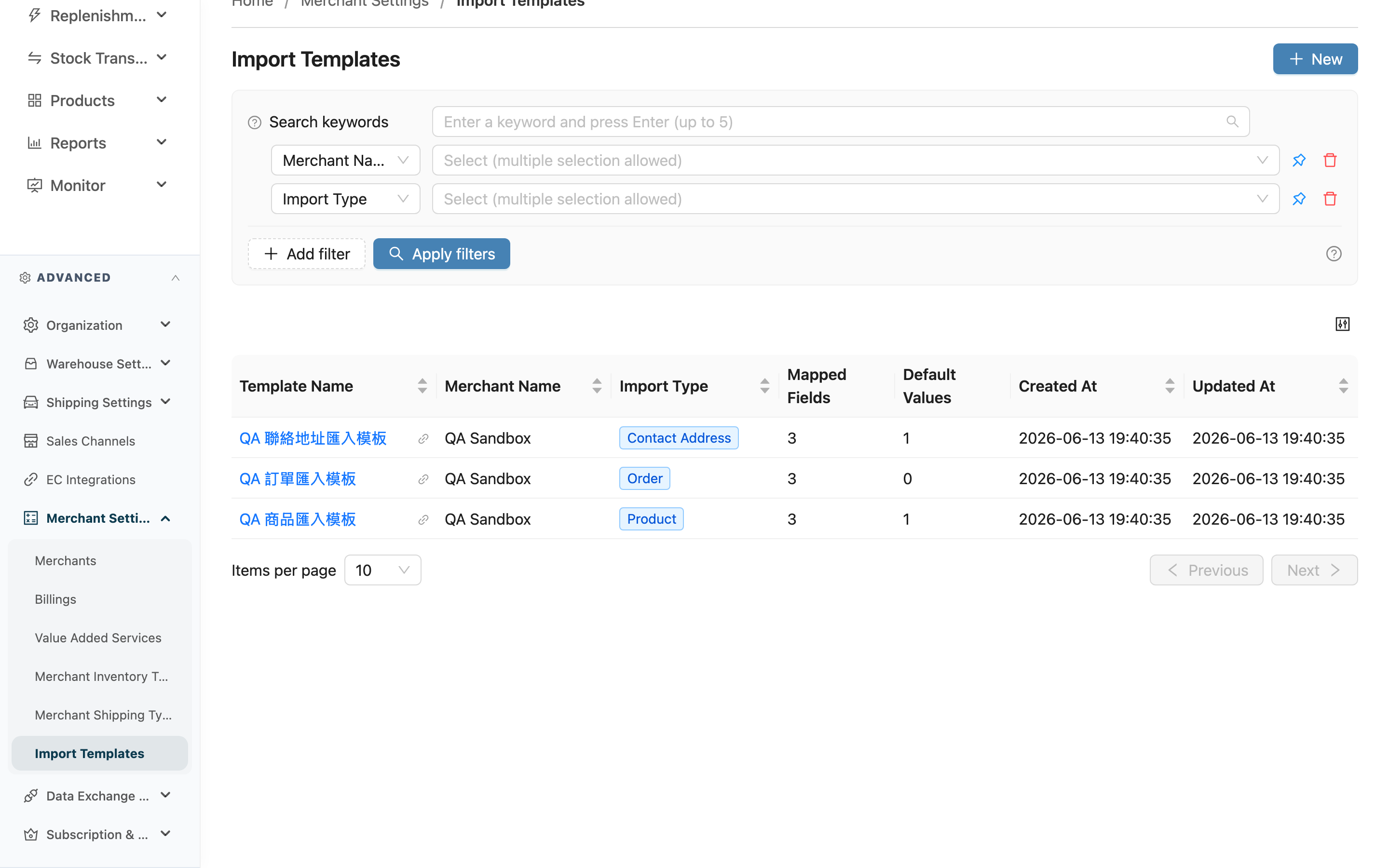
An import template is a saved "merchant column to system field" mapping table that you reuse. Different merchants name their Excel headers differently; the template maps their headers to system fields and can preset fixed values for some fields. At import, select the template and the system reads the data into the right places. This page is the entry point for all your import templates: view the templates built for each of your merchants, filter by merchant or import type, click in to view or edit, and create new templates from here.
Quick Jump: Search & Filter | List Columns
2.1 Search & Filter
The search box at the top finds templates by template name (matches from the start of the name). The filters below are available:
| Filter | How to use |
|---|---|
| Merchant Name | Show only templates under a specific merchant. When you have multiple assigned merchants, pick the merchant first to find templates faster |
| Import Type | Show only templates of a specific import type, e.g. only Order-related templates. Types you can build templates for: Order, Product, Inbound, Return Order, Contact Address, Bundle |
| Template Name | Filter by exact template name |
2.2 List Columns
| Column | Description |
|---|---|
| Template Name | Click to open the template detail page. Name it so you can tell which merchant and which import it's for, e.g. "Merchant A - Orders" |
| Merchant Name | Which merchant this template belongs to. A template is bound to a single merchant and can only be used for that merchant's imports |
| Import Type | The import type the template applies to, which determines which system fields it can map |
| Mapped Fields | How many "header to system field" mappings this template has |
| Default Values | How many fields this template auto-fills with a fixed value |
Other columns (Created At, Updated At) are self-explanatory by their names.
3. FAQ
3.1 FAQ
▪ Can one template be shared across multiple merchants?
No. Each template belongs only to the single merchant chosen when it was created, and can only be used for that merchant's imports. Even if two merchants have the same column format, each needs its own template.
▪ Why are only six import types selectable?
Only Order, Product, Inbound, Return Order, Contact Address, and Bundle provide a "select template at import" entry point. Other types can't apply a template even if you build one, so creating them is not allowed.
▪ Where do I use a template after building it?
On the matching import page (e.g. Import Products, Import Orders, Import Inbound), select the template when importing, and the system reads the uploaded file's columns into the right places per the template.
▪ I can't see a certain merchant's templates in the list?
Confirm that merchant is assigned to you. The list only shows templates of your assigned merchants; if a merchant filter is applied, clear it or select the correct merchant.
▪ What if I want to change an existing template's import type?
The import type is locked after creation and cannot be changed (the column mappings are built for that type's system fields, so changing the type would make existing mappings no longer match). To change the type, create a new template.
3.2 Notes
⚠️ Important
- Deleting a template cannot be undone. Data already imported using this template is unaffected, but the template itself must be rebuilt if deleted.
- A field with a "default value" is filled with the fixed value automatically and needs no — and cannot have — a header mapping; if a merchant's actual value for that field differs from the default, the import still uses the default. Default values only suit fields that are "the same across the whole batch".
💡 Tip: Name templates with the merchant and purpose (e.g. "Merchant A - Monthly Orders") so they're easy to tell apart in the list when you have many merchants.
4. Related Features
| Feature | Description | Link |
|---|---|---|
| Create Import Template | Add a new column mapping template | Go |
| Merchant Settings | Manage your assigned merchants' basic info and settings | Go |
| Import Products | Select a template when importing products | Go |
| Import Orders | Select a template when importing orders | Go |
| Import Inbound | Select a template when importing inbounds | Go |