
Return Order Detail
Table of Contents
1. Features
The return order detail page is your hub for tracking a return from arrival to put-away. Before the parcel arrives, you confirm here which items are expected back and in what quantities; after the parcel arrives and is checked in, this page totals the received quantity from every batch so you can see at a glance which items are complete and which are short or over received, then decide when to close it. Every cancel, resume, finalize, and unfinalize action also happens on this page.
Quick jump: Basic Info | Returned Items | Verified Actual Inventory | Verification Videos & Serial Numbers | Status Actions
1.1 Basic Info
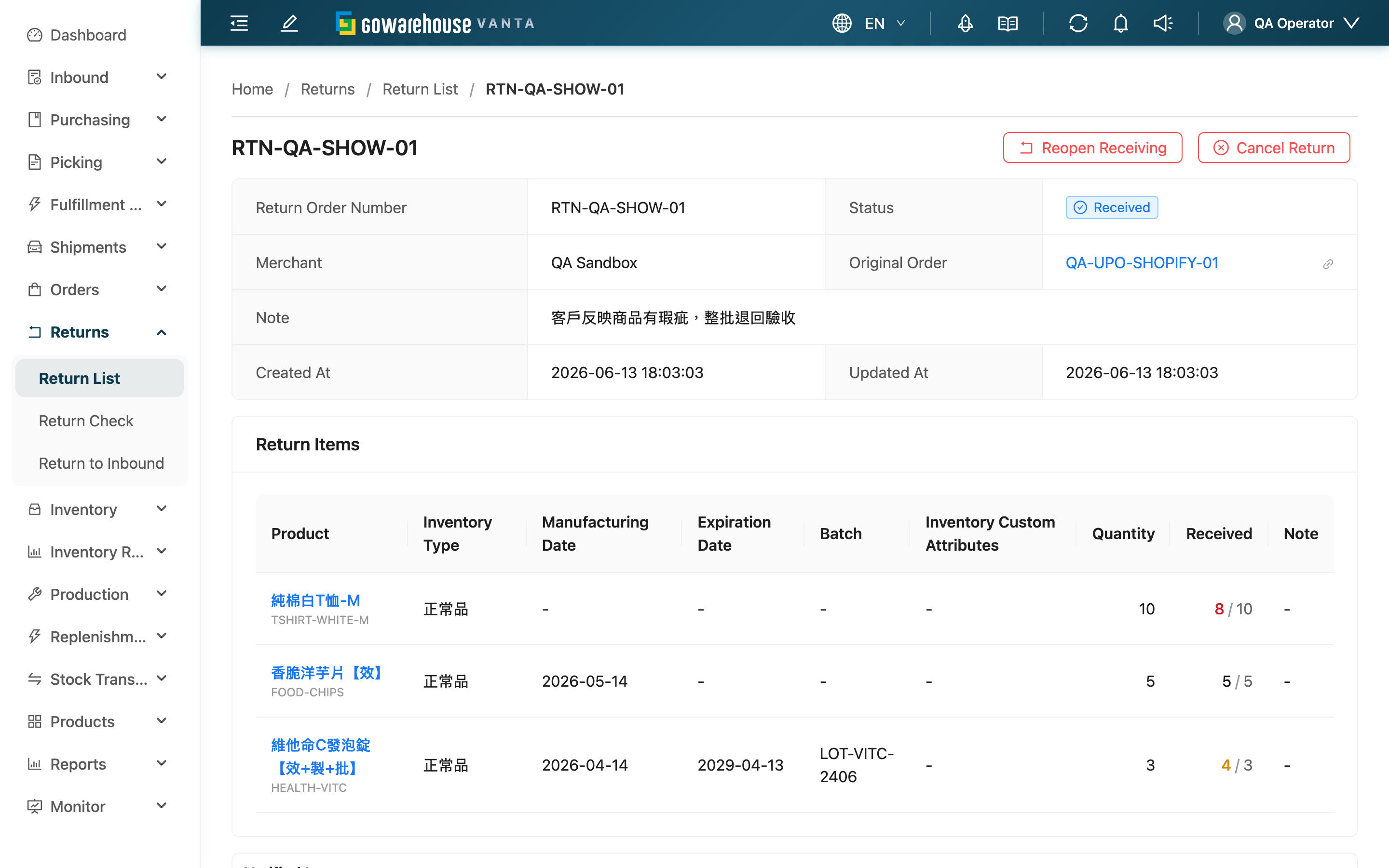
The top of the page shows the overall information for this return order:
| Field | Description |
|---|---|
| Return Order Number | The unique number of the return order; scan this barcode during check-in to pull up this order |
| Status | Current progress; see the status flow in 1.5 Status Actions |
| Merchant | The 貨主 this return order belongs to |
| Original Order | The linked original order; click to jump to its detail to trace where the return came from |
| Note | The return reason or any special handling notes |
When a merchant has a Shopline store connected, a return order may also be created automatically from the platform: its Return Order Number reuses the platform's return order number and its Original Order is filled in from the platform order, while every other field, status and action is the same as for one created by hand. To tell whether an order came in this way, check "History" at the bottom of the page — the creation entry shows an EC account name instead of a person.
1.2 Returned Items
"Return Items" lists the items this return order expects back — the baseline you check against during check-in:
| Field | Description |
|---|---|
| Product | Product name and code; click to open the product detail |
| Inventory Type | Which inventory type the item is expected to go into |
| Manufacturing Date/Expiration Date/Batch | Batch and date attributes entered when the order was created |
| Inventory Custom Attributes | Inventory attributes defined by the 貨主 |
| Quantity | The expected return quantity |
| Received | Shown as "received / expected", totaled across all verification receipts. When the two differ, color marks over received (amber) or short received (red) |
| Note | Special notes for this item |
💡 Tip: The received column sums the actual received quantity across every verification receipt under this return order, so when a return arrives in multiple batches you do not need to add it up yourself — this column tells you the running total for each item.
1.3 Verified Actual Inventory
Each check-in produces one verification receipt. The "Verified Inventory" section lists every non-voided verification receipt under this return order in chronological order, one card each:
- The card title shows the Receipt Number (click to open the verification receipt detail), verification status, Verifier, Verified At, and the carrier tracking number
- The card body lists the items actually received in that batch, their inventory attributes, and the received quantity
- An item received but not on the expected list is tagged "Unplanned" — for example, the customer returned an extra item that was not registered
The top-right of each receipt card offers two actions depending on status (both require return order management permission):
| Action | When it appears | Effect |
|---|---|---|
| Continue Verification | The receipt is "Verified" and not yet put away | The receipt returns to "Pending", its verifier and verified time are cleared, and you can re-check it; if it is the last verified receipt on this return order, the whole return order also returns to "Pending" |
| Void Receipt | The receipt is "Pending", "In Progress", or "Verified" and not yet put away | Voids this receipt; voiding cannot be undone; if it is the last non-voided receipt, the return order returns to "Pending" |
📌 Note: Once a receipt is converted into an inbound (put away), it can no longer be re-checked or voided, because the items have physically returned to stock and that fact cannot be erased by an action.
1.4 Verification Videos & Serial Numbers
- Videos: Videos recorded during check-in, arranged by time, ready to play or download. When handling a return dispute (e.g. the customer says three items were returned but only two were received), this is the most direct evidence
- Serial Numbers: Lists every product serial number received on this return order; search by serial number, product code, or product name. Serial-tracked items are scanned one by one when returned, and you can look up which serial numbers were received here
1.5 Status Actions
The return order status flows "Pending" → "Partial Received" → "Received" → "Done", and can be "Canceled" and then resumed along the way. The top-right of the page shows the matching button based on the current status (all require return order management permission):
| Button | When it appears (status) | What it does | Reversible |
|---|---|---|---|
| Edit | Pending | Opens the edit page to modify the return order content | No edits once check-in begins |
| Finalize Receiving | Partial Received (disabled when receipts are still incomplete; a banner at the top of the page names each blocking receipt and links straight to it — past ten it lists the first ten and reports how many are left) | Declares no more arrivals; status moves to "Received" and no new receipts can be added afterward. If every receipt on this order is already put away, it jumps straight to "Done" | Yes (see unfinalize below) |
| Reopen Receiving | Received, with no receipt yet put away | Reverses the close, returning to "Partial Received" so new receipts can be added | Yes (finalize again) |
| Cancel Return | "Pending", "Partial Received", or "Received", with no receipt yet put away | Marks the whole return order as "Canceled"; any not-yet-put-away receipts under it are voided too. No effect on inventory (nothing was put away) | Yes (see resume below) |
| Resume Return | Canceled | Returns the return order to "Pending" so it can be edited and verified again | Yes (cancel again) |
📌 Note: Return orders created automatically from a platform have one status change that no button triggers — when the merchant cancels the return on Shopline, the platform notifies the system and the order moves straight to "Canceled" (or the 30-minute sync does it, if that notification was missed), voiding any receipt not yet put away. Orders with a receipt already put away are unaffected; see The order canceled itself.
Most actions marked under "Reversible" can be undone, but there are two hard limits: once any receipt on this return order is put away, it can no longer be canceled or unfinalized — because the items have physically returned to stock. When all items are fully received and put away, the status advances automatically to "Done", and a "Done" return order no longer offers any status buttons.
2. FAQ
2.1 FAQ
▪ Why don't I see the "Edit" button?
The edit button only shows on a return order in "Pending" status. Once check-in begins, the return order content locks so the baseline you check against cannot be changed midway.
▪ The received and expected quantities don't match — what do I do?
Received more than expected is over received (amber); less is short received (red). The difference is recorded as-is on the return order and is not auto-corrected; follow your company process and confirm the next steps with the 貨主. When you close the order with a shortage, the system specifically prompts you to confirm there really won't be more parcels.
▪ What does "Finalize Receiving" do, and when should I press it?
A return may arrive in several batches, and the system cannot decide on its own that "there are no more parcels". Finalizing is you declaring check-in is over; afterward no new receipts can be added and the status moves to "Received". If all items are fully received, the system finalizes automatically when the last receipt completes, so you don't have to press it.
▪ I closed the order, then found one more parcel coming — can I still add it?
As long as no receipt on this return order has been put away, pressing "Reopen Receiving" in the top-right returns it to "Partial Received" so you can keep adding receipts. If a receipt has already been put away, it cannot be reversed.
▪ One receipt was scanned with the wrong quantity — how do I fix it?
Go to "Verified Inventory" and find that receipt. If the whole batch was wrong, press "Void Receipt" to void it and redo; if you just need to add or correct scans, press "Continue Verification" to send it back to pending, then re-check it under "Return Verification". Both are only available while the receipt is not yet put away.
▪ Does canceling a return order affect inventory?
No. You can only cancel while no receipt has been put away, so the items haven't returned to stock yet and canceling doesn't touch inventory. Any not-yet-put-away receipts under it are voided too. If you canceled by mistake, press "Resume Return" to return it to "Pending" and start over.
▪ Can a "Done" return order still be changed?
No. "Done" means the items have been put away and inventory has been updated, and the page no longer offers any status buttons. If you find an error, contact your supervisor to handle it through the inventory adjustment process.
▪ This order turned "Canceled" on its own — nobody pressed cancel
If the order was created automatically from a platform, the merchant most likely canceled the return on the platform side, and the platform's notification canceled it here too (or the 30-minute sync did, if that notification was missed), voiding any receipt not yet put away. Check the cancellation entry in "History" at the bottom of the page: an EC account name as the actor means the cancellation came from the platform. Do not create a replacement order — check with the merchant first about what to do with the parcel that physically came back. Orders with a receipt already put away are never canceled this way.
▪ Does the platform update automatically once verification is done?
No. The system only pulls platform return orders in; your verification and put-away results are never written back, and refunds and store credit are handled by the merchant in their own store admin. When a merchant asks about a refund, point them to the received quantities on this page.
▪ Where do I watch the check-in videos, and how long are they kept?
Play or download them in the "Videos" section; videos are recorded automatically during check-in. Videos from voided receipts do not appear here.
2.2 Notices
⚠️ Important Reminders
- Only a "Pending" return order can have its content edited
- "Void Receipt" cannot be undone; confirm before pressing
- As soon as any receipt has been put away, this return order cannot be canceled or unfinalized
- Before closing, confirm every parcel has arrived and been checked in; the system prompts you about short-received items at close
- Verification complete does not mean the items are back in stock — inventory only updates after the receipt is put away, so don't forget the final step under "Return to Inbound"
- A return order created automatically from a platform is voided when the merchant cancels the return there, without anyone pressing cancel; if an order you are verifying changes status, check "History" first
3. Related Features
| Feature | Description | Link |
|---|---|---|
| Return List | View all return orders | Go |
| New Return Order | Manually create a new return order | Go |
| Edit Return Order | Modify a return order in "Pending" status | Go |
| Return Verification | Scan and check returned items, generate verification receipts | Go |
| Return to Inbound | Convert verified receipts into inbounds so items return to stock | Go |
| EC Integrations | Check an EC account's return order sync results and failure reasons | Go |