
Dashboard
Table of Contents
1. Use Cases
Quick links: Triage the morning shift | A board tailored to each station | Supervisors watch the day's pace
Use Case 1: Starting the morning shift, see where it's hottest first
Situation: You walk into the warehouse for the morning shift. Yesterday's backlog of orders, this morning's arrivals, and half-finished picking lists are scattered across separate lists — it's hard to tell what to tackle first.
Use this feature: Treat the dashboard as the first screen of your day — the count widgets put the to-do numbers right in front of you: "Overdue shipments", "Due today", "Inbounds pending acceptance", "Pending fulfillment QC". The biggest number is today's fire; click it to jump straight to that work list.
Result: Instead of opening the orders, inbound, and picking lists one by one, you decide today's order of work at a glance.
Use Case 2: Different stations need different numbers
Situation: The receiving station only cares about arrivals and acceptance, the shipping station watches picking, labels and pending shipments, and the returns station follows return acceptance — one shared dashboard for everyone forces each person to dig their few numbers out of a pile of irrelevant ones.
Use this feature: Each operator builds their own station board in edit mode: open the Add Widget dialog, pick the relevant count and chart widgets by category, drag them into order and save. From then on, opening the page shows exactly the numbers you watch every day.
Result: Every station sees only the metrics directly tied to its own work, saving the daily hunt for numbers.
Use Case 3: Supervisors want a feel for the day's pace and distribution
Situation: A warehouse supervisor wants to know whether shipping is keeping up with incoming orders, whether putaway and picking speed has dropped, and which carrier or channel today's shipments are concentrated in — so they can reassign staff in time.
Use this feature: Add chart widgets to the dashboard — "Inbound putaway pace", "Picking pace" and "Shipping pace" show today's hourly completion, "Orders in vs out" shows the last 14 days' inbound/outbound trend, and "Today's shipments × carrier / × channel" show today's distribution. Click a chart title to open the matching monitor or report for detail.
Result: Without waiting for an end-of-shift report, you can see from the trends and distribution which step needs more hands or adjustment that same day.
2. Feature Guide
The dashboard is the first screen you see after entering the warehouse system. It brings together, in real time, how many to-dos each step currently has — orders, inbound, picking & shipping, returns and stock takes — on a single page. You can freely choose which widgets to show and rearrange them into the board that best fits your work, instead of opening each list to check progress.
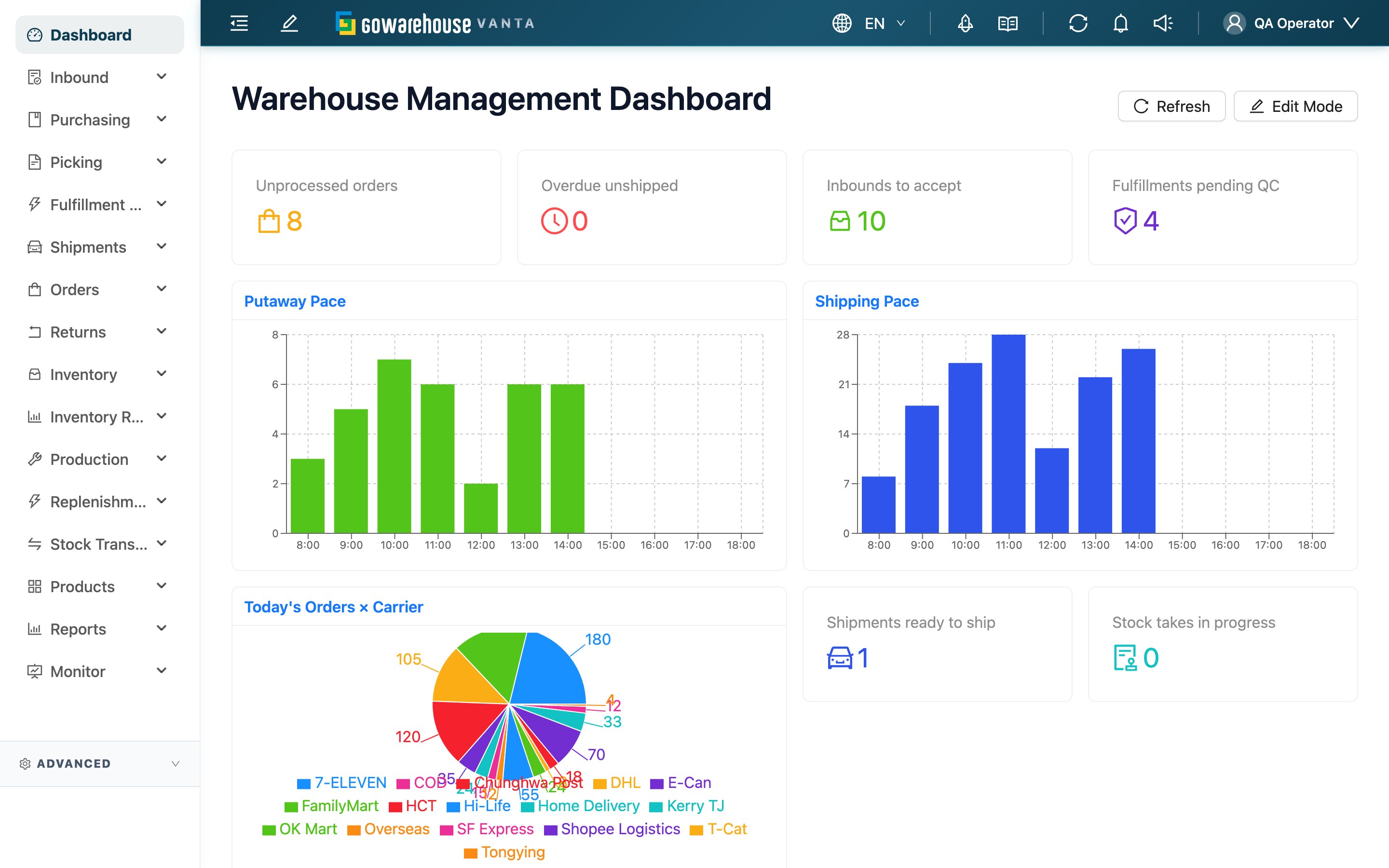
Jump to: Count widgets | Chart widgets | Editing & layout | Number scope & refresh
2.1 Count widgets
A count widget shows the current to-do count for one kind of work; clicking the card jumps to the matching work list. The available count widgets are:
| Category | Widget | What the number means |
|---|---|---|
| Orders | Pending orders | Orders from the past month still pending, awaiting payment, or out of stock |
| Orders | Out-of-stock orders | Orders containing out-of-stock items |
| Orders | Overdue | Orders past their expected ship date and still not shipped |
| Orders | Due today | Orders expected to ship today and not yet shipped |
| Inbound | Inbounds to accept | Inbounds whose acceptance hasn't started |
| Inbound | Today's inbounds | Inbounds created today |
| Inbound | Open POs | Purchase orders approved or partially received and not yet closed |
| Picking & Shipping | Picking in progress | Picking lists currently being picked |
| Picking & Shipping | Residual totes | Totes still holding un-returned stock after picking is done or terminated |
| Picking & Shipping | Pending QC | Fulfillments in progress, pending QC |
| Picking & Shipping | Ready to ship | Shipments created and waiting to ship |
| Picking & Shipping | Missing labels | Shipments waiting to ship but with no carrier label yet |
| Returns | Returns to verify | Return orders whose acceptance isn't complete |
| Returns | Returns to convert | Return receipts accepted and waiting to convert to inbound |
| Stock | Stock takes in progress | Stock takes currently in progress |
2.2 Chart widgets
Chart widgets show the trend and distribution of work, and are about twice as wide as a count widget. Clicking the chart title jumps to the matching monitor (or a related list or report) for the full data.
| Widget | What it shows | Chart type |
|---|---|---|
| Putaway Pace | Today's hourly putaway completion | Bar chart |
| Picking Pace | Today's hourly picking completion | Bar chart |
| Shipping Pace | Today's hourly shipping volume | Bar chart |
| Orders In vs Out | New and shipped orders per day over the last 14 days | Line chart |
| Today's Orders × Carrier | Today's related shipments by carrier | Pie chart |
| Today's Orders × Channel | Today's shipped orders by sales channel | Pie chart |
"Orders In vs Out" requires the report-viewing permission to add; if you can't see it in the add list, contact your supervisor to confirm your permissions.
2.3 Editing & layout
The dashboard ships with a few common count widgets in place, and you can adjust it into your own layout anytime.
▸ Enter editing
Click "Edit Mode" at the top right to enter edit mode, where you can add, remove and drag widgets.
▸ Add a widget
Click "Add Widget" to open the picker: browse by category on the left (All / Orders / Inbound / Picking & Shipping / Returns / Stock), and use the search box at the top to find widgets by name or description keyword. Widgets already added are marked "Added" and can't be added twice.
▸ Reorder & remove
Drag a card to change its display order (the front ones are seen first); the close button at the top-left corner of a card removes that widget.
▸ Save
When done, click "Save" to save; click "Cancel" to discard this round of changes. A dashboard can hold at most 12 widgets.
2.4 Number scope & refresh
- All numbers count only the data for merchants you have access to and your current warehouse; switching warehouse, or having access to different merchants, changes the numbers you see.
- "Today" follows the time zone configured for your organization.
- Numbers are fetched once when the page opens; when you need the latest, click "Refresh" at the top right — the numbers do not update on their own.
- Each account's dashboard is independent; your widget set and ordering don't affect your colleagues.
3. FAQ
Jump to: FAQ | Important notes
3.1 FAQ
▪ Why do my colleague and I see different numbers?
The dashboard counts numbers by your permission scope and current warehouse. If you can access different merchants or are in different warehouses, the numbers naturally differ.
▪ I added a widget, but it's gone after refreshing?
Adding, removing and reordering only persist if you click "Save" in edit mode. If you leave the page or click "Cancel", this round of changes won't take effect.
▪ How many widgets can I have?
Up to 12 per dashboard. Once you hit the limit, the picker warns you've reached it, and you must remove other widgets before adding more.
▪ I can't find the widget I want in the add list?
Two possibilities: it's already added (marked "Added") so it won't appear again; or some widgets (such as "Orders In vs Out") require the report-viewing permission and won't appear without it — contact your supervisor to confirm.
▪ Are the dashboard numbers updated in real time?
Numbers are fetched once when the page opens and don't update on their own. Click "Refresh" when you need the latest.
▪ What happens when I click a widget?
Clicking a count card jumps to the matching work list (for example "Ready to ship" opens the shipment list); for a chart, clicking the title jumps to the matching monitor, or a related list or report page.
3.2 Important notes
⚠️ Important reminders
- Always click "Save" after editing. If you leave or cancel without saving, this round of adds, removals and reordering won't be kept.
- A dashboard holds at most 12 widgets; at the limit you must remove one before adding more.
💡 Tips:
- Drag the numbers you watch most (such as overdue shipments, due today) to the front so you see them the moment the page opens.
- Build a combination per station: put inbound widgets on the receiving station, picking & shipping widgets on the shipping station, returns widgets on the returns station.
- Click a number to jump straight to its work list, saving you from hunting through the menu page by page.
4. Related Features
| Feature | Description | Link |
|---|---|---|
| Monitor | Track work progress across every warehouse step in real time | Go |
| Order List | View and process all orders | Go |
| Inbound List | Manage arrivals and acceptance | Go |
| Picking Lists | View and execute lists waiting to be picked | Go |