
Edit Work Order
Table of Contents
1. Features
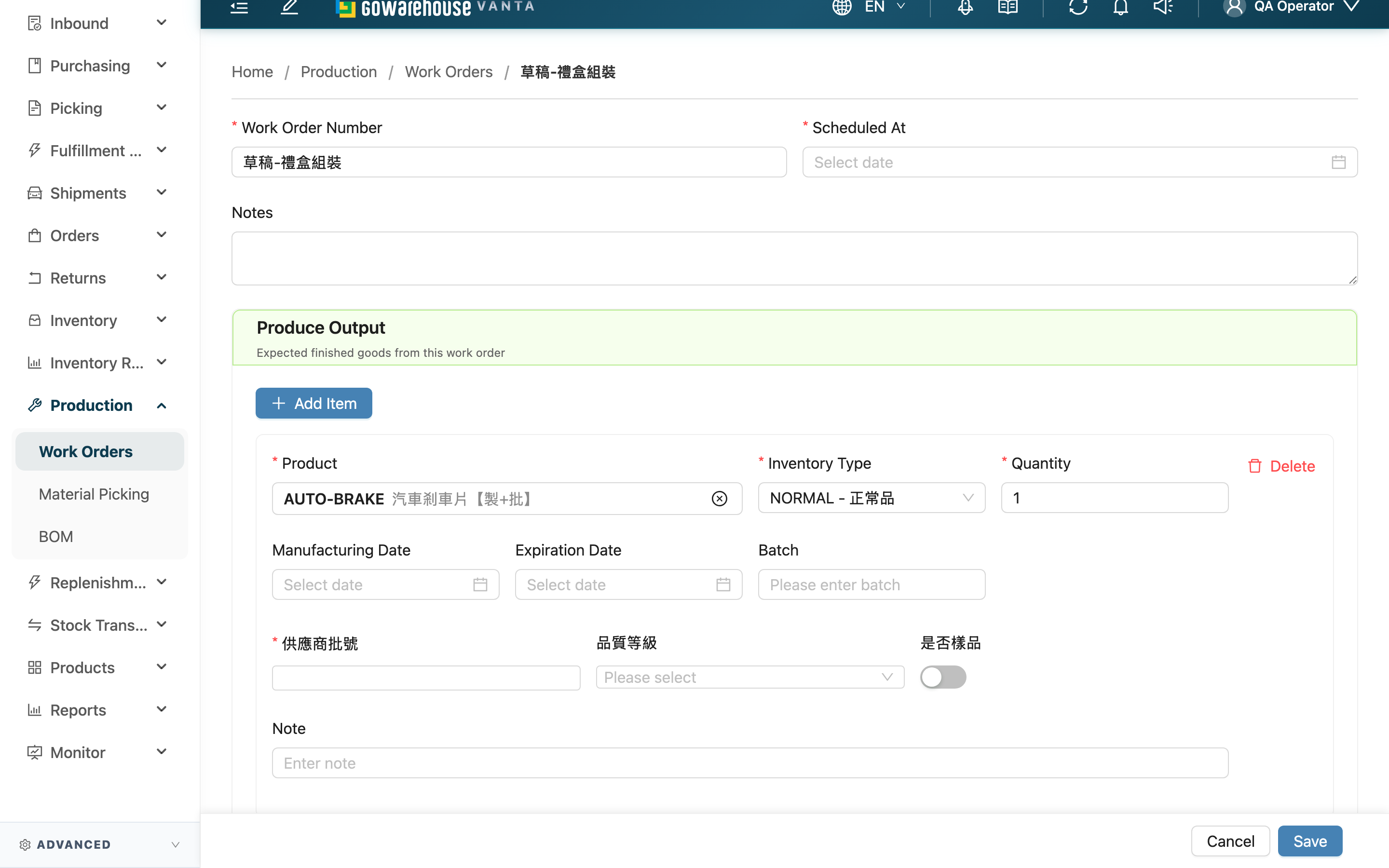
This page is for changing an existing work order: adjust the products and quantities of materials and goods, or update the name, scheduled date, and note. Only work orders that haven't entered the picking stage can be edited. The layout is the same as New Work Order; the difference is that here you're changing an existing order rather than building one from scratch.
Quick jump: Editable Range | Editable Fields | Effect of Saving
1.1 Editable Range
A work order can only be edited in the following statuses:
| Status | Editable | Description |
|---|---|---|
| Draft | Yes | A draft holds no stock and can be freely changed |
| Out of Stock | Yes | On save, the system automatically re-allocates by the new contents |
| Allocated | Yes | The reserved materials are put back first, then re-allocated by the new contents |
| Processing | No | Already in the picking stage; materials can no longer be changed |
| Completed | No | Already completed; contents are finalized |
| Canceled | No | Already voided |
The merchant a work order belongs to is fixed at creation; the edit page cannot change it to a different merchant.
1.2 Editable Fields
Fields marked with * are required.
Basic info:
| Field | How to fill | Notes |
|---|---|---|
| *Work Order Number | Change the work order number or name | Required; must be unique within the same merchant |
| *Scheduled At | Adjust the planned work date | Required |
| Notes | Update the note | Optional |
The "Produce Output" and "Consume Materials" line-item cards are edited the same way as on New Work Order: you can add or remove items, or adjust each one's product, Inventory Type, Quantity, Batch, Expiration Date, and Note. Materials and goods must still each keep at least one item.
1.3 Effect of Saving
The effect of saving depends on the work order's current status:
- "Draft": only the contents are updated, stock is untouched, and the manual confirm flow is kept.
- "Out of Stock" or "Allocated": the system first puts back the materials this order previously reserved, then tries to reserve again by your revised material list. All in full → moves to "Allocated"; any item short → everything reserved is put back and the whole order lands in "Out of Stock" (the save itself still succeeds).
After a successful save, you return to this work order's Detail page.
2. FAQ
2.1 FAQ
▪ Why can't I press "Edit" on some work orders, or why is editing blocked?
Only "Draft", "Out of Stock", and "Allocated" work orders can be edited. Once a picking list has been created and the order has entered "Processing" or beyond (including completed and canceled), materials can no longer be changed, because the materials are about to be or have already been picked out, and changing them would not match the picking on the floor.
▪ When I edit an "Allocated" work order, what happens to the materials already reserved?
The system first puts back all the materials this order previously reserved, then reserves again by your revised list. So after editing, this order ties up the materials matching the new contents, with no leftover reservation for the old items.
▪ After editing an out-of-stock work order, do I have to press confirm again manually?
No. When you save an "Out of Stock" work order, the system automatically re-allocates by the new contents: if the materials are now in full it moves straight to "Allocated", otherwise it stays out of stock. You don't need to press "Confirm" again.
▪ Why doesn't the edit page have "Apply BOM" or "Suggest number"?
These two are conveniences for creating a new work order: applying a BOM replaces items in bulk, and Suggest number generates a number for a new order — neither suits changing an existing order. When editing, adjust the materials and goods item by item.
▪ Can I change a work order to another merchant?
No. The merchant a work order belongs to is fixed at creation, and the edit page does not offer changing it. If you need a different merchant, cancel this order and create a new work order under the correct merchant.
2.2 Notes
⚠️ Important Reminders
- When editing an "Allocated" or "Out of Stock" work order, saving first puts back the previously reserved materials and re-allocates by the new contents; if the revised materials don't all come in full, the whole order falls back to "Out of Stock".
- Work orders that have entered "Processing" (including completed and canceled) cannot be edited; for such changes, cancel and rebuild instead.
- Materials and goods must each keep at least one item; deleting all of them prevents saving.
💡 Tip: If you just notice a wrong material quantity, it's simplest to fix while the work order is still "Draft" or "Out of Stock"; once a picking list is created you can only cancel and start over, so double-check the quantities before confirming allocation.
3. Related Features
| Feature | Description | Link |
|---|---|---|
| Work Orders | Back to the list of all work orders | Go |
| Work Order Detail | View line items and picking progress, and run confirm, pick, complete, cancel | Go |
| New Work Order | Build a new work order from scratch | Go |