
Inventory Transformations
Table of Contents
1. Use Cases
Quick links: Reclassify normal stock as near-expiry | Correct a wrong batch or expiry date | Approve and track pending transformations
Scenario 1: A batch is about to expire and needs reclassifying from normal to near-expiry
Situation: While checking expiry dates you find a batch with only a few days left, and you need to reclassify it from "normal stock" to "near-expiry stock" so it can later be cleared through near-expiry pricing or channels. It is the same batch, same quantity, in the same shelf location — only its "identity" needs to change.
Use this feature: Go to New Inventory Transformation, pick out this inventory, set the target inventory type to near-expiry, and submit. After approval the system deducts these quantities from the normal type and adds them to the near-expiry type in place, with no change in total. Why transform instead of just editing the value? Because the inventory type decides whether this stock can be sold and through which channel, so the identity change must leave a complete audit trail rather than being changed silently.
Result: This batch officially becomes near-expiry stock in the system, so subsequent picking and reports treat it as near-expiry, and a transformation record documents "when, by whom, and why" it was reclassified.
Scenario 2: A batch or expiry date was entered wrong at receiving and needs correcting
Situation: For a received batch, the batch number or expiry date was entered incorrectly, so the label in the system no longer matches the physical goods. Editing the quantity is wrong (the quantity is correct) and moving the shelf is wrong (the goods did not move) — what needs correcting is the batch / expiry / manufacturing date attributes of this inventory itself.
Use this feature: Use a transformation to convert the wrong attribute to the correct value — select the inventory, fill in the correct batch or expiry under target attributes, and submit for approval. The system transforms the goods from the wrong identity to the correct one, with quantity and location untouched.
Result: The batch and expiry on the inventory are back to the correct values, and the correction is backed by a document rather than an untraceable edit.
Scenario 3: Approve transformations others created and track which stage each one is at
Situation: As someone with approval permission, you gatekeep the transformations warehouse staff create — these affect how inventory is classified and must be confirmed before they take effect. You also need to see which ones are still awaiting approval, which have taken effect, and which partially failed during execution.
Use this feature: The list lays out all transformations for your merchants on one page — whether created manually by warehouse staff, self-created by the seller, or generated automatically by the system each day, they all land here. Use the status filter to isolate Pending entries, approve or reject right on the row, or click the number to open the details and confirm item by item before deciding.
Result: Pending transformations only take effect after someone gatekeeps them, and applied versus partially-failed entries are easy to tell apart, so no entry goes unreviewed and no failure goes unnoticed.
2. Feature Overview
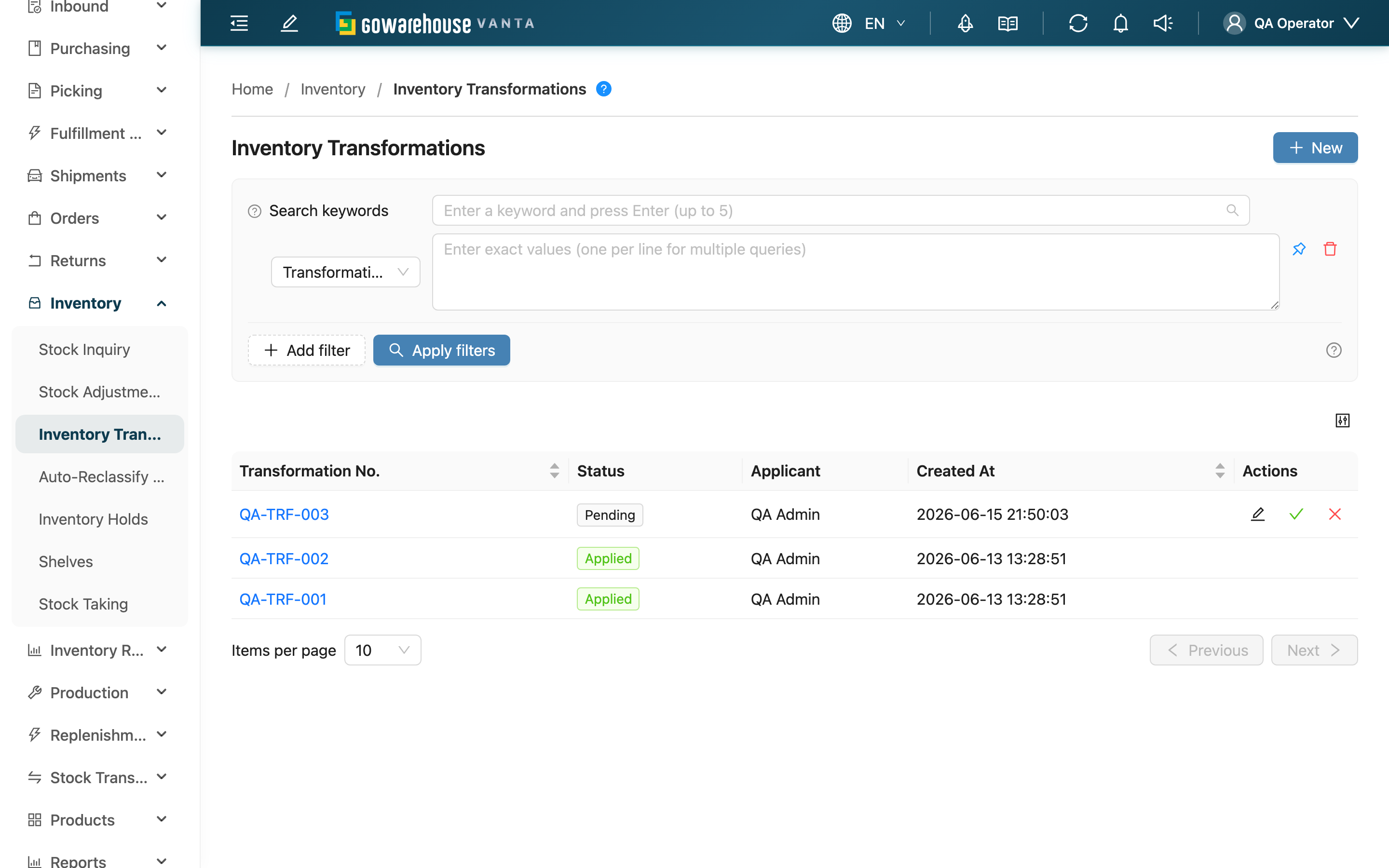
This is the entry point for managing inventory "identity changes". When a batch needs reclassifying from one inventory type to another (normal to near-expiry), or you need to correct a mistyped batch, expiry, manufacturing date, or custom attribute, you create and track transformations here. A transformation does not change quantity and does not move the shelf — it only changes the inventory's attributes. Transformations created manually by warehouse staff, self-created by sellers, and generated automatically by the system all gather into this list, where you can approve pending entries and track which stage each one is at.
Quick jump: Search & Filter | List Columns | Action Buttons
2.1 Search & Filter
Search box: Enter a keyword to match a transformation's Transformation No. and Note.
Filters (multi-value / multi-select, combine as needed):
| Filter | How to use |
|---|---|
| Transformation No. | One number per line to find several entries at once |
| Status | Tick the six statuses to narrow down; isolating Pending or Partially Applied entries is the most common use |
| Created At | Pick a date range to find entries created in a given period |
2.2 List Columns
| Column | Content |
|---|---|
| Transformation No. | The transformation number; click to open the details |
| Status | The current stage of this entry, one of six, the basis for deciding the next action (see table below) |
| Applicant | Who created this entry — warehouse staff, seller self-service, or the system |
| Created At | Created time |
Status meanings (the six statuses run through the whole transformation flow):
| Status | What it means |
|---|---|
| Pending | Created, not yet approved. Only this status can be edited, approved, or rejected |
| Processing | A brief transitional status while items are being executed after approval |
| Applied | All items transformed successfully and have taken effect |
| Partially Applied | Some items succeeded, some failed; failed items show a reason |
| Failed | All items failed to execute |
| Rejected | Rejected at review, never executed, no effect on inventory |
2.3 Action Buttons
Top right: "New" opens New Inventory Transformation. The blue question mark opens an illustrated "What is an inventory transformation?" guide.
Each row (shown only for entries in Pending status):
| Button | What it does |
|---|---|
| Edit | Open the edit page to modify this pending entry |
| Approve | Approve and immediately execute the transformation, formally changing inventory attributes |
| Reject | Reject this entry; nothing is executed and inventory is unaffected |
For the preconditions and inventory effects of approve and reject, see the explanation on the details page.
3. FAQ
3.1 FAQ
▪ How does an inventory transformation differ from a stock adjustment or a relocation?
The three change different things: to change "quantity" (stock gains/losses, scrapping) use a Stock Adjustment; to change "shelf" (goods moved to another location) use a relocation; to change "identity / attributes" (inventory type, batch, expiry) is what an inventory transformation does. A transformation moves no quantity and no goods — it only changes the inventory's label.
▪ Why are some entries in the list not created by me?
Transformations come from three sources, all landing in the same list and distinguished by kind: "Attribute Change" created manually by warehouse staff, "Purpose Reallocation" created by sellers in their own back office, and "System auto reclassify" generated automatically when the system's daily scan runs once an inventory auto-reclassify rule is set. You only see entries for the merchants you are responsible for.
▪ Why do some entries take effect without my approval?
Whether approval is needed depends on whether the entry actually affects how goods are classified. Attribute changes created manually by warehouse staff affect real inventory and must be approved before taking effect; sellers' self-service purpose reallocations and system auto-reclassifications only change classification — the goods are not really moved — so they take effect on submission without further warehouse review.
▪ What does "Partially Applied" mean for an entry?
It means some items in this entry transformed successfully and some failed. The system executes item by item, so one failure does not block the others. The most common failure reason is "the quantity to transform exceeds what is currently available". Failed items show a reason, and you can create a new entry to handle only the part that did not succeed.
▪ Can an applied transformation be undone or reversed?
No. Once a transformation is approved and takes effect it cannot be reversed and cannot be edited again. If you transformed in the wrong direction, create a new transformation to convert it back to the original identity. Only entries in Pending status can be edited or rejected before taking effect.
▪ Why is the list empty?
It means there are currently no inventory transformations for the merchants you are responsible for. Check that the filters above (status, date) are not hiding the data; if you cannot see this feature, contact your administrator to confirm permissions.
3.2 Notes
⚠️ Important Reminders
- Once a transformation is approved and takes effect it cannot be reversed; a wrong direction can only be fixed by creating a new entry to convert it back
- Only entries in Pending status can be edited, approved, or rejected
- The list only shows transformations for your merchants and within your current warehouse
💡 Tip: When first using this feature, click the blue question mark next to the list title for an illustrated overview of "what an inventory transformation is, where it comes from, and how inventory changes after approval".
4. Related Features
| Feature | Description | Link |
|---|---|---|
| New Inventory Transformation | Pick inventory, set target attributes, create a transformation | Go |
| Inventory Transformation Details | Review each item, approve or reject a pending entry | Go |
| Stock Adjustments | Increase or decrease inventory "quantity" (stock gains/losses, scrapping) | Go |
| Auto-Reclassify Rules | Set rules for the system to auto-reclassify expiring stock as near-expiry daily | Go |
| Stock Inquiry | View each inventory's type, batch, expiry, and available quantity | Go |