
Return Check
Table of Contents
1. Use Cases
Quick links: Return order ready, package arrives for checking | Package returned directly, no return order yet
Scenario 1: Return order ready, package arrives for checking
Situation: The morning shift begins and the receiving area is stacked with packages customers returned today. The client has already created a "Return Order" in the system listing which products are expected back and how many of each. You need to open the packages, check the actual returned contents one by one, and get the items ready to go back into inventory.
Use this feature: On this page, scan the return order number to load the expected list of returned products, then scan each product's barcode in the package to check quantities. When everything is checked, press "Confirm Check". See 2.1 Scan a document to start checking and 2.2 Scan and check items one by one for how scanning and checking work.
Result: The return order status changes to "Received", meaning this return has been checked. To get the items back into inventory, you still need to convert them to inbound on the "Return to Inbound" page — see Return to Inbound.
Scenario 2: Package returned directly, no return order yet
Situation: A return package shows up at the warehouse, but the client never created a return order — only the original "Fulfillment" number is stuck on the box. You don't need to go create a return order by hand before checking.
Use this feature: On this page, scan the "Fulfillment" number directly. The system automatically creates a return order from the original fulfillment contents, and you can start scanning items to check right away. See 2.1 Scan a document to start checking for how the scan is matched and auto-created.
Result: The system builds the return order from the fulfillment contents and loads the expected list. You finish checking as usual, the return order status becomes "Received", and you convert to inbound on the "Return to Inbound" page afterwards just the same.
2. Features
This is your workstation for handling returns that arrive. When a return package reaches the warehouse, you scan a document number here to load which products to receive, scan each item to check the actual returned contents, and the system records the received quantities automatically. Once you confirm the check, the return order is marked as received. The whole process can be recorded on video, so if there is any dispute about the returned contents later, the footage serves as evidence.
Quick jump: Scan a document | Scan and check items | Confirm check | Save progress and leave | Video recording
2.1 Scan a document to start checking
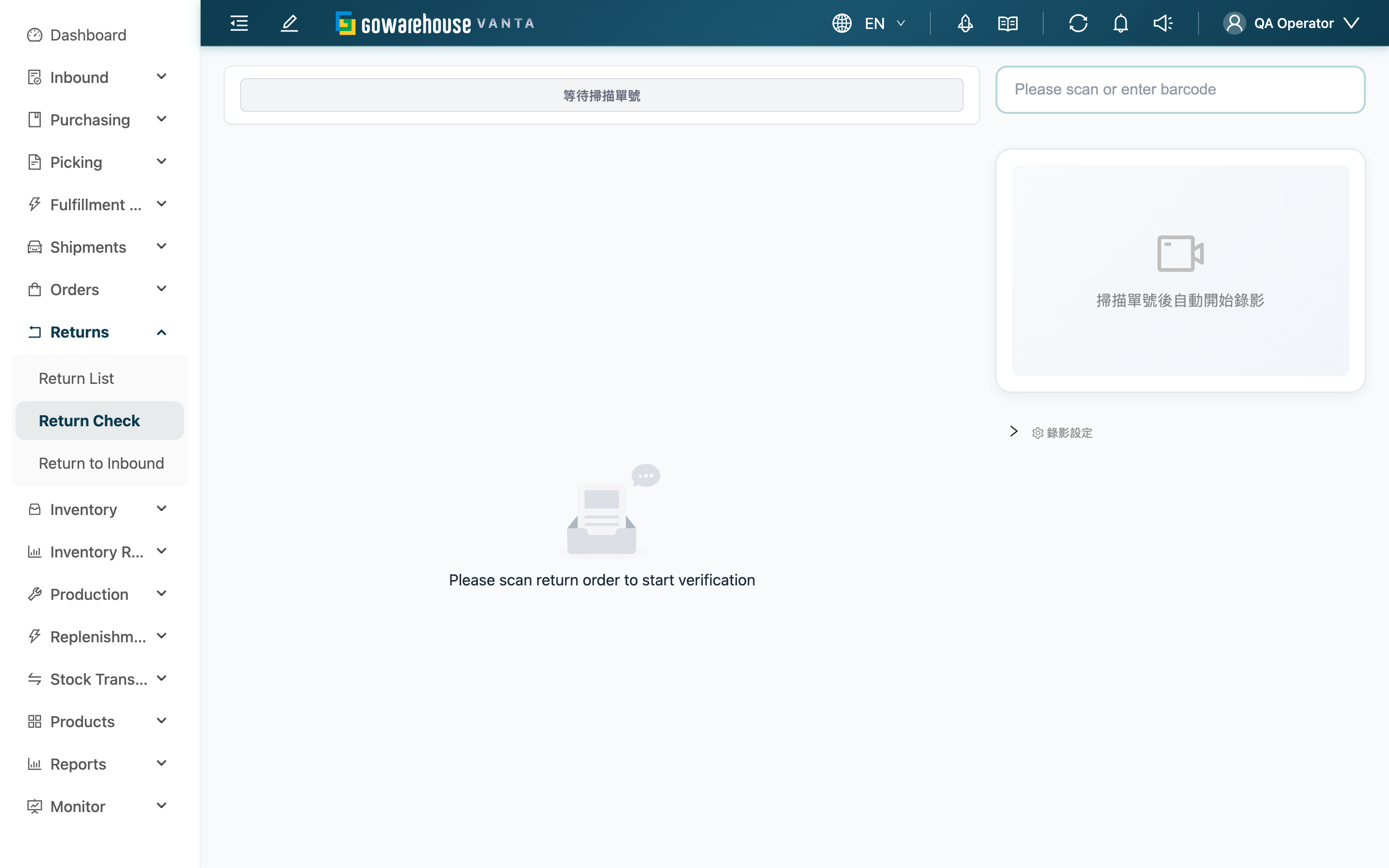
The page is split into two areas: the left shows the list of returned products to check, and the right has the barcode input and the recording preview. When you enter the page the status is "operator.return_verification.state.awaiting_order" — first scan or enter a document number to load what needs to be received.
The input box on this page recognizes three kinds of barcodes, which the system matches in order:
| Barcode scanned | What the system does | Notes |
|---|---|---|
| "Return Order" number | Loads that return order's expected list of returned products for checking | If a return order that was already checked once is scanned again, the list shows the "remaining quantity not yet received" rather than the original plan, to avoid over-receiving |
| "Fulfillment" number | If that fulfillment has no matching return order yet, the system opens a dialog for you to confirm the number and auto-creates a return order from the fulfillment contents; if a matching return order already exists, it loads the list directly | Use this when the package was returned directly with no return order created in advance |
| Tracking number | Looks up the fulfillment, then handles it the same as "Fulfillment" | Only matches tracking numbers from the last six months that are not yet canceled or closed |
If the number you scan matches more than one result, the system opens a dialog so you can choose which one to handle.
▸ The same return order already has an unfinished check
If someone previously checked this return order halfway and saved progress before leaving (see 2.4 Save progress and leave), scanning it again opens the "Choose Verification Sheet" dialog listing the in-progress checks. You can resume the previous progress and keep receiving, or start a fresh one.
▸ Someone else is checking this return order right now
If the return order you scan is currently being checked by a colleague, the system opens the "This return order is being verified" dialog naming who has it and since when. The flow stops here until you decide:
| Choice | Result |
|---|---|
| Leave | Don't take over; the screen returns to waiting for a scan and their work is untouched |
| Take over verification | Move this return order to you and continue the check yourself |
"Currently being checked" is judged from who is recorded on the return order itself; it has nothing to do with the recording. The hold is released immediately when the other person presses "Reset", "Discard and leave", or "Save progress and leave", or navigates away from this page — scan again and this dialog won't appear.
Closing the tab, losing the network, or a crashed machine does NOT release the hold, and there is no timeout that clears it. In that case taking over is the only way forward — waiting will not change anything.
⚠️ Make sure they have really left before taking over. The scans still sitting on their screen are not carried over to you — you start from the progress currently saved on this return order — and their recording for that round will not become a retrievable video (later segments are rejected). Progress they already saved with "Save progress and leave", and checks they already completed, are unaffected and still appear in the resumable list after you take over.
2.2 Scan and check items one by one
After the list is loaded, the status changes to "Scanning return items", and the left list shows each item's "Product" and the quantity to receive. Open the package and scan each returned item's barcode one by one — the system automatically adds to that product's "Received Qty", so you don't type any numbers. The scanned product also briefly appears above the recording preview on the right for easy checking.
The actual returned contents may not match the plan — just record what you see:
| Situation | How to handle |
|---|---|
| Quantity matches the plan | Just scan through; quantities line up automatically |
| Extra (more returned than planned) | Keep scanning; the extra pieces are recorded too |
| Short (less returned than planned) | Only scan what you actually received; leave the rest unscanned |
| Unplanned products (not on the list) | Scan an item not on the list and the system records it as a separate "unplanned returned product" with its quantity |
For items on the list with no barcode or that won't scan, you can click the item row directly and enter the received quantity by hand.
Each item must be assigned an "Inventory Type", which represents the condition the returned item goes back into inventory as (for example, normal stock or defective). If a product has batch, manufacturing date, or serial number management set up, you also fill those in or scan them while checking — these are verified when you confirm the check.
▸ Report anomaly
If an item comes back defective, damaged, or otherwise needs special marking, click the "Report Anomaly" button (or scan the anomaly barcode) to enter anomaly mode, then scan that item to open the anomaly-handling window to record it.
2.3 Confirm check
Once every item on the list is checked and every "Inventory Type" is selected, press "Confirm Check" in the top right. The system opens a confirmation dialog for a final review of the plan-vs-actual differences (extra, short), and submits after you confirm.
Confirming the check does several things — understand them before you operate:
| Item | Description |
|---|---|
| Precondition | Every scanned item must have an "Inventory Type" selected; if a product requires a batch, manufacturing date, or serial number, any missing one is blocked with a prompt and must be filled in before you can submit |
| Return order status | When the received quantities fully match the planned quantities, the return order automatically becomes "Received"; if only part was received, the return order stays at "Partial Received" awaiting the rest |
| Inventory impact | Confirming the check does not add the items back into inventory directly. Items return to inventory only at the later convert-to-inbound step on the "Return to Inbound" page |
| Reversibility | If you find a mistake after checking, as long as it has not been converted to inbound, you can reopen the check on the return order detail page and recheck; once converted to inbound it cannot be reopened |
Some warehouses are configured for automatic convert-to-inbound: when the received quantities are fully satisfied, the system completes the conversion automatically right after you confirm, and the return order becomes "Done" directly — you don't need to go to the convert page.
2.4 Save progress and leave
If a return order has many items you can't finish at once, or you need to step away for something else, you can leave midway. When you leave this page after scanning at least one item, the system opens a dialog with two choices, "Save progress and leave" and "Discard and leave":
| Choice | Result |
|---|---|
| Save progress and leave | Saves the items you've scanned; next time you scan the same return order you can choose to resume this progress and keep receiving |
| Discard and leave | Discards this round's scanned data without keeping it |
Saving only stores the progress — the return order is not yet received. You must finish receiving and press "Confirm Check" for the check to be complete.
2.5 Video recording
The moment you scan a document number and the list loads, recording starts automatically on the right as a video record of this return-check process — if the client later disputes the returned contents, quantities, or item condition, the footage is the evidence. While recording, you can enable "Magnify Document" so the system automatically zooms in when it detects a document in the frame, making it easier to capture the number clearly.
Once you confirm the check, this video is saved and attached to this return-check record; you can later view and replay it on the return order detail page. The recording is fully automatic — you just scan the returned items and document in front of the camera.
3. FAQ
3.1 FAQ
▪ The package only has a fulfillment number, no return order — can I receive it?
Yes. Scan the fulfillment number directly and the system auto-creates a return order from the original fulfillment contents and loads the expected list, so you scan items to check as usual without creating a return order by hand. See 2.1 Scan a document to start checking.
▪ What if the returned quantity doesn't match the return order?
Just receive what you actually got. Keep scanning if extra, only scan what arrived if short, and items not on the list are recorded separately by the system. The dialog before you confirm lists the extra and short differences for a final review. See 2.2 Scan and check items one by one for each situation.
▪ Why aren't the items back in inventory after I confirm the check?
The check only "confirms what and how many were received" — items are actually added back to inventory at the later convert-to-inbound step. Go to "Return to Inbound" to convert the checked returns to inbound — see Return to Inbound. The few warehouses set to auto-convert don't need this step.
▪ I scanned a return order and got "This return order is being verified" — what should I do?
It means a colleague is checking that return order right now. If they are still working on it, press "Leave" and handle another package instead. Press "Take over verification" only when you are sure they have left (end of shift, or someone taking over the same batch), because their unsubmitted scans are not carried over and their recording for that round will not become a retrievable video. See 2.1 Scan a document to start checking.
▪ I have to step away mid-check — will my scanned items be lost?
No. Choose "Save progress and leave" when leaving and your scanned items are saved; next time you scan the same return order you can resume. See 2.4 Save progress and leave.
▪ I finished checking but found I received it wrong — can I recheck?
Yes, as long as this return has not been converted to inbound. Go to the return order detail page to reopen the check (the return order reverts to an unreceived status) and recheck. Once converted to inbound it cannot be reopened. For the return order detail, see Return Detail.
▪ Why does pressing "Confirm Check" do nothing and prompt me to select an inventory type?
Every returned item must have an "Inventory Type" selected for how it goes back into inventory (for example, normal stock or defective). The system lists the products not yet selected, and you can submit only after filling them in. If a product requires a batch, manufacturing date, or serial number, missing those also blocks submission.
▪ Is recording required? Can I turn it off?
Recording is an automatic video record of the check process. It starts when you scan a document number and serves as the basis for any future dispute, so let it run normally. After the check is complete the video is attached to the return order detail page for replay — see 2.5 Video recording.
▪ If the same return order is received in two passes, will the second pass double-count?
No. When you scan the same return order again, the list shows the "remaining quantity not yet received" rather than the original plan, so you only see what's left and won't receive what was already received again.
3.2 Notices
⚠️ Important reminders
- Confirming the check does not add items back to inventory; to return them to inventory you must convert to inbound on the "Return to Inbound" page.
- Once a return is converted to inbound, the check cannot be reopened and rechecked; handle any mistakes before converting.
- Every returned item must have an "Inventory Type" selected before you can confirm the check; products requiring a batch, manufacturing date, or serial number must also have those filled in or scanned, or they will be blocked.
- On the second check of the same return order, the list shows the remaining quantity to receive; don't receive the original planned quantity again, or you'll over-receive.
- After "Take over verification", the other person's unsubmitted scans are not carried over and their recording for that round will not become a retrievable video; confirm they have left before pressing it.
💡 Tip: When a package is returned directly and you only have the fulfillment number or tracking number, don't create a return order first — just scan it and the system handles creation. Enabling "Magnify Document" while recording captures the number more clearly for later verification.
4. Related Features
| Feature | Description | Link |
|---|---|---|
| Return List | View all return orders with their status and progress | Go |
| Return Detail | View a single return order's details, check records, and video replay | Go |
| Return to Inbound | Convert checked returns to inbound to get items back into inventory | Go |