
New Bundle
Table of Contents
1. Feature Overview
This page is for creating a new bundle one at a time: first fill in the bundle's own name, SKU, and barcode, then list which single items it contains and how many of each per set. Once created, whenever an order carries this bundle's SKU, the system automatically expands it into the single items inside for picking, shipping, and stock deduction — the bundle itself holds no physical stock. It is ideal for setting up fixed combinations of single items (gift sets, kits) once.
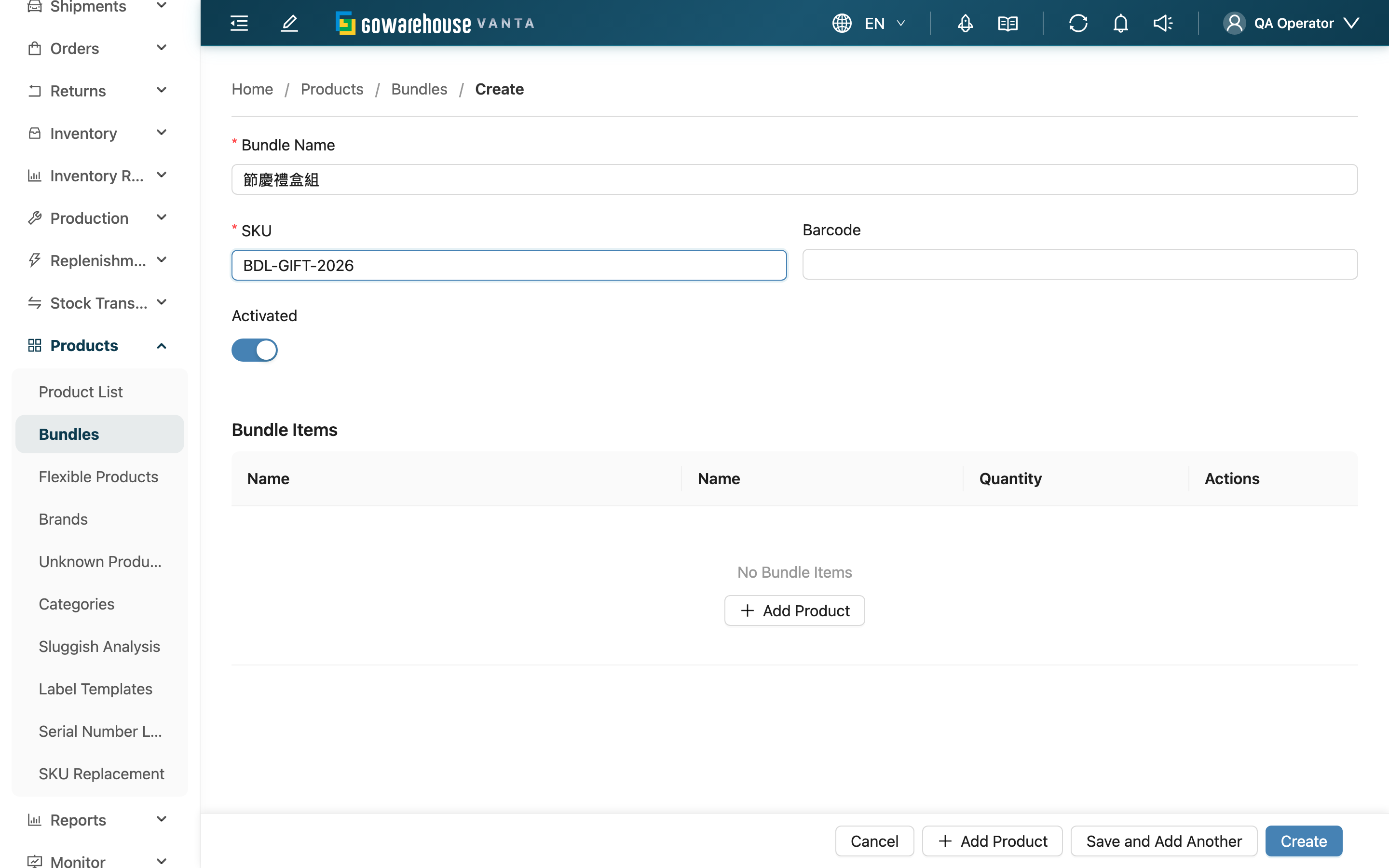
Fields marked with * are required.
Jump to: Bundle basics | Setting bundle contents
1.1 Bundle basics
Before creating, you must choose which merchant this bundle belongs to; the single items you add afterwards can only be chosen from that same merchant.
| Field | How to fill | Notes |
|---|---|---|
| *Bundle Name | Enter the bundle's public name, e.g. "Bath Gift Set" | Required |
| *SKU | Enter the bundle's SKU; it must match this bundle's SKU on the marketplace | Required; orders rely on this SKU to match the bundle and auto-expand it |
| Barcode | Enter the bundle's barcode | Optional |
| Activated | On means it can be sold normally; off means this bundle's operations are suspended | On by default |
1.2 Setting bundle contents
Click "Add Product" to add the single items in the bundle row by row; each row is configured as follows:
| Field | How to fill | Notes |
|---|---|---|
| *Name | Search and select the single item to include | Required; only items under the same merchant can be chosen |
| Inventory Type | Assign which inventory type this item should be picked from (e.g. good stock, near-expiry); leave blank for the normal flow | If the option is missing, enable it first in the merchant's inventory type settings |
| *Quantity | Enter how many of this item each set needs | Required; must be greater than 0 |
After filling in all items, click "Create" to save. To create several bundles in a row, use "Save and Add Another" instead — after saving, the form clears and stays on this page.
2. FAQ
2.1 FAQ
▪ What should the bundle's SKU be?
Use the SKU under which this bundle is sold on the marketplace. When orders are imported, the system matches the order item's SKU against the bundle's SKU — only on a match does it auto-expand the bundle into its single items.
▪ Do I have to fill in the inventory type?
No. Leaving the inventory type blank follows the normal picking flow. Fill it in only when this item in the bundle must be picked from a specific inventory type (e.g. good stock or near-expiry); the picking list will then mark it.
▪ What happens if I add the same single item twice?
If two rows have the same single item and the same inventory type, the system merges them into one row by summing quantities on save; if the inventory types differ, they are kept as two separate rows.
▪ Do single items need to exist before I build a bundle?
Yes. Bundle contents can only be chosen from items already on file. If you cannot find the item you want to add, create it in the Product List first, then come back and configure the bundle.
▪ Can the quantity be 0?
No. Each item's per-set quantity must be greater than 0, otherwise it cannot be saved.
2.2 Notes
⚠️ Important reminders
- The single items and the assigned inventory type in a bundle must all belong to the same merchant and be enabled, otherwise it cannot be saved.
- A bundle must contain at least one single item to be created.
💡 Tip: When creating many bundles at once, Import Bundles is much faster than adding them one by one.
3. Related Features
| Feature | Description | Link |
|---|---|---|
| Bundles | Back to the bundle list | Go |
| Import Bundles | Create or update many bundles at once with Excel | Go |
| Product List | Create the single items a bundle will use | Go |