
Edit EC Account
Table of Contents
1. Feature Overview
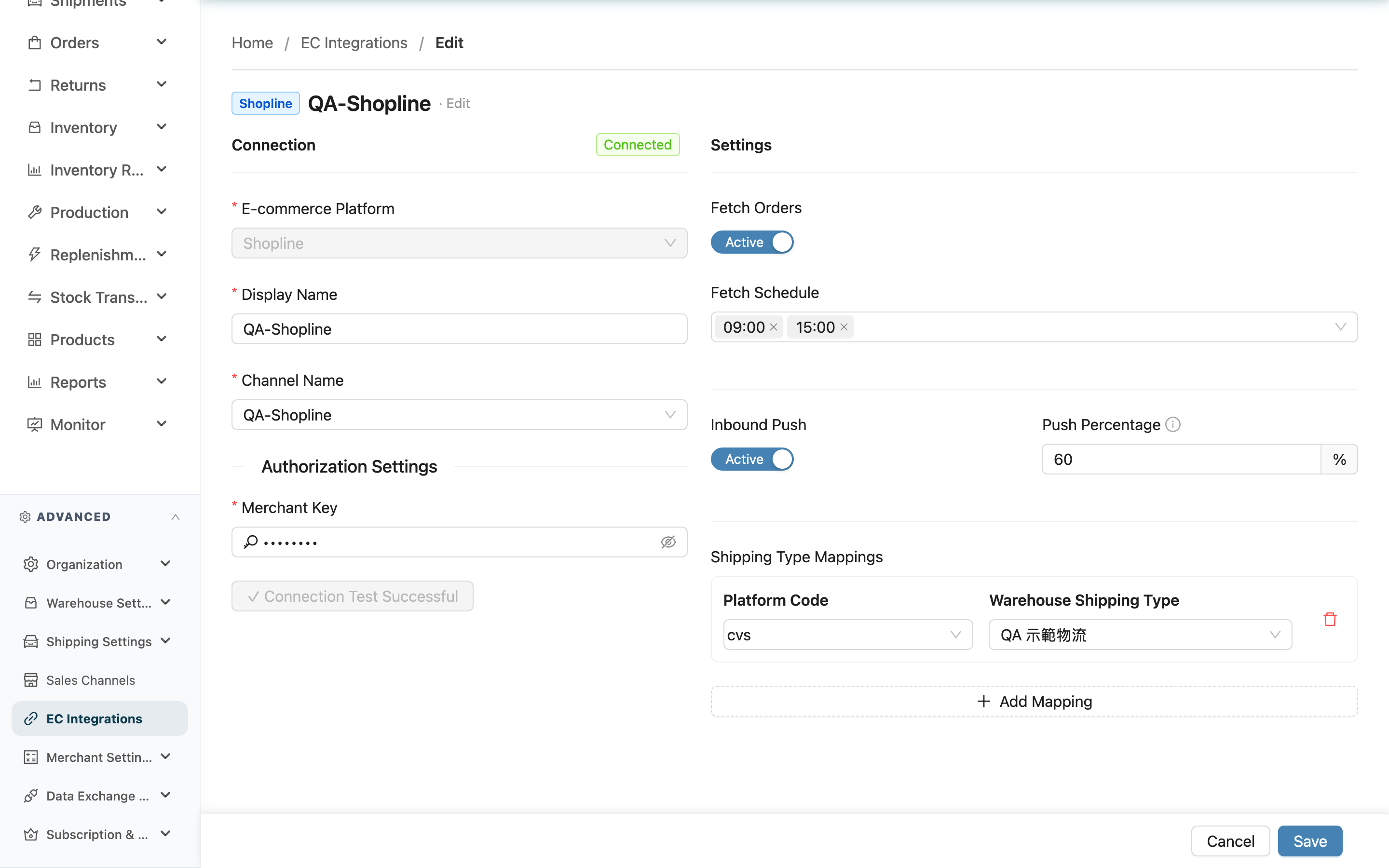
When you need to adjust an existing EC account, this is where you do it: change the display name, switch the linked sales channel, update authorization settings (keys, account credentials, etc.), or fine-tune order fetching and stock push. The edit page has the same layout as the create page—connection info on the left, feature settings on the right—but there are a few differences you only encounter when editing. Each is explained below.
Quick jump: Key differences when editing | Field reference | Changing authorization settings and reconnecting | Feature settings
1.1 Key differences when editing
Compared with creating a new account, editing an existing one differs in four ways—be sure to keep these in mind:
- The e-commerce platform cannot be changed: The platform field is locked and cannot be selected when editing. An account is bound to its platform at creation; to switch platforms you must create a new account.
- Automatically locked to the account's merchant: When you open the edit page, the system switches the working context back to the merchant this account belongs to. As a result, the sales channel and shipping type dropdowns show that merchant's options. Even if you switched to a different merchant in the header earlier, this account is unaffected—this prevents another merchant's channels from being saved onto this account.
- Authorization settings are masked: Sensitive fields such as keys, passwords, and tokens are shown as ********, so you can't see the original values. You only need to fill in the fields you want to change; masked fields you leave untouched keep their original values.
- Changing authorization settings resets the connection status to "Not Verified": See Changing authorization settings and reconnecting.
1.2 Field reference
Fields marked with * are required.
| Field | How to fill it in | Notes |
|---|---|---|
| E-commerce Platform | Read-only; shows the platform this account is bound to | Cannot be changed when editing; to switch platforms, create a new account |
| *Display Name | Enter the name shown in the list so you can identify this account later | For example, multiple shops on the same platform can be labeled "Shopee-Main" / "Shopee-Second" |
| *Channel Name | Select which sales channel this account's orders are attributed to | Only this account's merchant's channels are listed; if not found, add it under "Sales Channels" first |
| Authorization Settings (authorization settings) | Filled sensitive fields show as ********; fill in only the fields you want to change | Changing fields that affect the connection resets the connection status to Not Verified, see 1.3 |
| Fetch Orders | When on, the system automatically imports platform orders by schedule | The account must be connected before this can be set |
| Fetch Schedule | Choose the daily times to auto-fetch orders, up to three | Required when "Fetch Orders" is on; you can't save without selecting a time slot |
| Realtime New Order Fetch | Decides whether new Shopee orders are fetched as soon as the platform notifies us, on by default | Shown for Shopee accounts only; when off, new orders only arrive during the fetch slots, and status sync (cancellation / shipment) for existing orders is unaffected |
| Inbound Push | When on, stock changes are pushed to the platform | The account must be connected before this can be set |
| Push Percentage | Enter the share of stock to allocate to this platform | An integer from 0–100; an excessive combined total across platforms risks overselling, see 3.2 |
| Shipping Type Mappings | Map the platform's shipping methods to your warehouse shipping methods | This section appears only for some platforms; every row must have a warehouse shipping method selected before you can save |
1.3 Changing authorization settings and reconnecting
Authorization settings (keys, account credentials, tokens, etc.) are the "keys" the system uses to connect to your e-commerce platform. Update them here when the platform reissues keys, or when you need to switch to a different set of credentials.
- Fill in only the fields you want to change: Sensitive fields are shown as ********. When you save, the system only sends the values you actually changed; fields left as ******** keep their original authorization settings and are not cleared or overwritten.
- Changing authorization settings disconnects the account and requires reconnecting: When you change an authorization field that actually affects the connection, saving resets the connection status to "Not Verified". Orders will not be imported until the status returns to "Connected".
- Key-based platforms: The "Test Connection" button reappears on the left; the status returns to "Connected" only after a successful test.
- Authorization-based platforms (such as Shopify and Shopee): You need to go through the platform authorization flow again to restore the connection.
- Metadata fields that don't affect the connection won't disconnect: For a few platforms, metadata fields (such as return-center and shipping-origin codes) do not reset the connection status when changed.
1.4 Feature settings (right side)
Whether the right-side feature settings can be adjusted depends on the current connection status:
- Connected (Connected): The right side is unlocked, and you can directly adjust "Fetch Orders", "Fetch Schedule", "Inbound Push", "Push Percentage", and "Shipping Type Mappings".
- Not connected (Not Verified or Disconnected): The right side is locked; complete the connection on the left first (test connection or re-authorize) to unlock it.
When you're done, click "Save" at the bottom of the page to save; click "Cancel" to discard your changes and go back.
2. FAQ
Quick jump: FAQ | Important notes
2.1 FAQ
▪ Why can't I change the e-commerce platform field?
The platform is bound when the account is created, and the integration logic, credential format, and shipping mappings all depend on it, so it can't be switched midway. To use a different platform, go to the "EC Integration List" and create a new account.
▪ I updated the authorization settings—what do I do next?
After updating and saving, the connection status returns to "Not Verified". Restore the connection according to your platform type: for key-based platforms, click "Test Connection" on the left; for authorization-based platforms, go through authorization again. Orders won't be imported until the status returns to "Connected". See Changing authorization settings and reconnecting.
▪ The authorization settings all show ********—what happens if I only want to change one field?
Just fill in the field you want to change and leave the rest as ********. When you save, the system updates only the fields you actually changed; fields shown as ******** keep their original values and are not cleared.
▪ What happens when I revoke authorization (for authorization-based platforms)?
Revoking authorization removes the authorized connection between this account and the platform, and the account immediately becomes disconnected. Until you re-authorize, this account will no longer import orders.
▪ If I switched to a different merchant in the header, will it set this account's channel incorrectly?
No. When the edit page opens, it automatically locks to the merchant this account originally belongs to, and the sales channel and shipping type dropdowns come from that merchant—independent of the merchant you selected in the header.
▪ I turned on "Fetch Orders" but can't save?
When order fetching is on, "Fetch Schedule" is required. Select at least one time slot (up to three) before saving.
▪ Why are the right-side feature settings locked and not editable?
Feature settings unlock only when the account is "Connected". If it's currently disconnected, first complete the test connection or re-authorize on the left, and the right side will become editable.
2.2 Important notes
⚠️ Important reminders
- Changing authorization settings disconnects the account: After changing authorization fields that affect the connection, the status resets to "Not Verified", and orders stop importing until you reconnect.
- The e-commerce platform cannot be changed: It's bound at creation; to switch platforms you must recreate the account.
- Revoking authorization stops order imports: Once you revoke authorization on an authorization-based platform, the account becomes disconnected and orders stop importing; you must re-authorize to restore it.
💡 Tip: When multiple platforms each have "Inbound Push" turned on and their "Push Percentage" values combined reach or exceed 100%, the system warns you of overselling risk after saving—meaning the same stock is allocated to multiple platforms for sale at once. Review each platform's push percentage to confirm the total matches your actual allocation strategy.
3. Related Features
| Feature | Description | Link |
|---|---|---|
| EC Account Detail | View this account's connection status, fetch, and push settings overview | Go |
| EC Integration List | View all EC accounts, or create a new one | Go |
| Sales Channel Detail | View the sales channel settings linked to the account | Go |