
Edit BOM
Table of Contents
1. Features
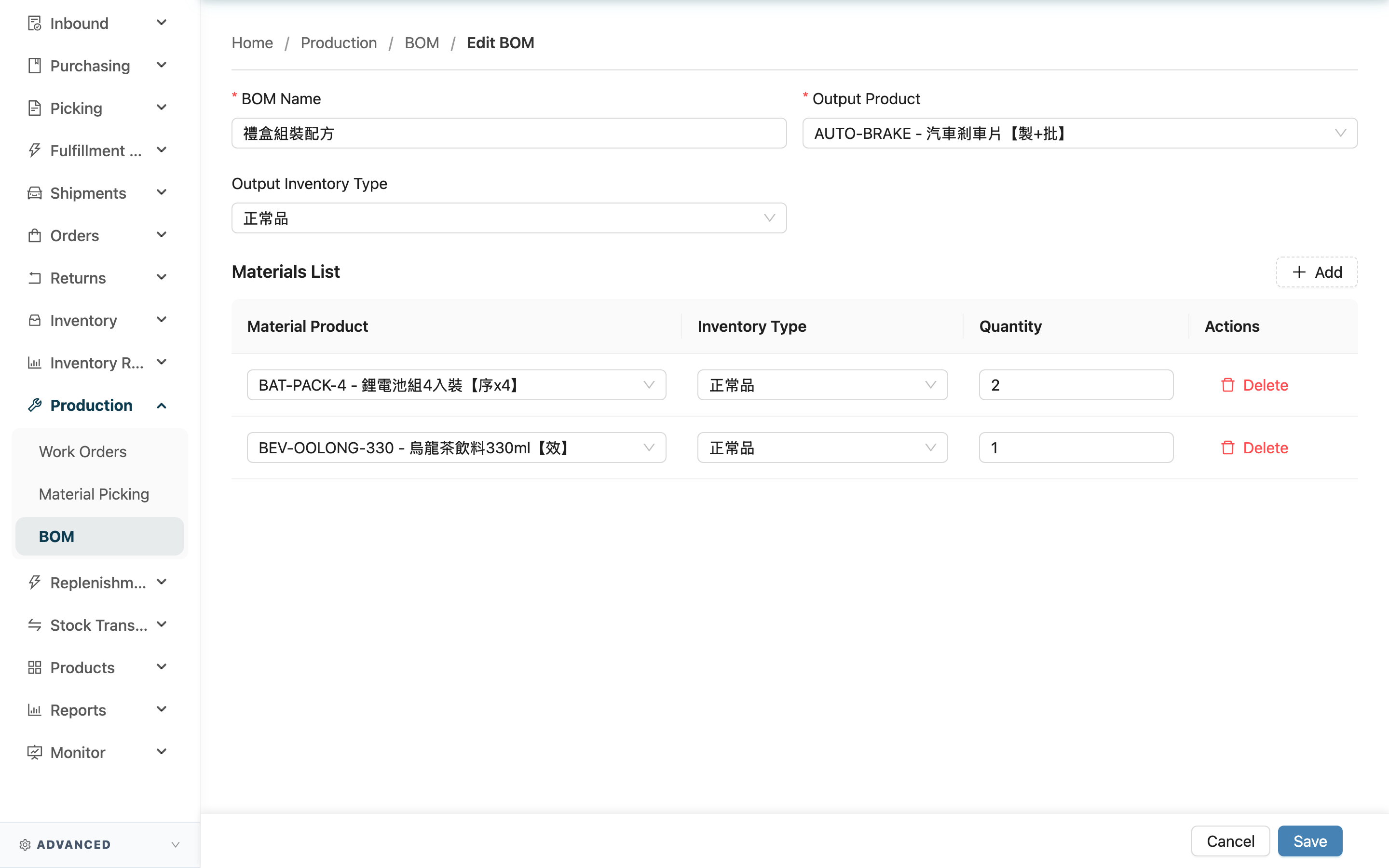
This page is for modifying an existing BOM recipe. When opened, it brings in the current recipe name, output product, and the whole ingredient list, and you can change the finished good, add or remove ingredient items, or change quantities. Edits only update the template itself — they never touch any inventory, and they do not retroactively change work orders that already applied this recipe.
Quick Jump: Basic Fields | Ingredient List | Saving
1.1 Basic Fields
Fields marked with * are required.
| Field | How to fill | Notes |
|---|---|---|
| *Recipe Name | Change the recipe's identifying name | Must not match another recipe under the same merchant |
| *Output Product | Search again and select the finished good to produce | Can only choose products belonging to the recipe's merchant |
| Output Inventory Type | Pick from the list the inventory type the finished good is stocked under | Leave blank to use the default |
1.2 Ingredient List
The "Materials List" brings in all current ingredient items. You can change quantities, change inventory types, press "Add" to add a new ingredient, or press "Delete" on a row to remove an ingredient:
Fields marked with * are required.
| Field | How to fill | Notes |
|---|---|---|
| *Material Product | Search by product name or SKU, then select the ingredient | Can only choose products of the recipe's merchant; the same ingredient and inventory type combination cannot repeat |
| Inventory Type | Pick from the list which inventory type this ingredient is taken from | Leave blank to use the default |
| *Quantity | Enter how many are consumed to make one set of the finished good | Must be greater than 0 |
On save, the list on your screen replaces the old list in full, so any ingredient item you removed no longer belongs to the recipe after saving. At least one ingredient must remain to save.
1.3 Saving
After editing, press "Save"; on success you return to that recipe's detail page and can immediately see the updated content.
2. FAQ
Quick Jump: FAQ | Important Notes
2.1 FAQ
▪ If I edit the recipe, will work orders created earlier change too?
No. When a work order applies a recipe, it copies the content at that moment, so existing work orders keep the ingredient data from when they applied it. Editing the recipe only affects work orders created and applied afterward.
▪ I removed an ingredient and saved, then regretted it — can I undo?
There is no automatic undo. On save, the system replaces the list in full with what is on screen, so a removed ingredient no longer belongs to the recipe; to restore it you must add it back manually. Confirm the list is correct before saving.
▪ Can I switch the output product to another product?
Yes, search again and select a new finished good, but the new product must also belong to the recipe's merchant. Switching the output product does not affect work orders that already applied the old recipe.
▪ Why can't I find a particular product?
Product search only lists products belonging to the recipe's merchant. If the product is not created yet, add it in "Product List" first, then come back to select it.
▪ Can I change the recipe name to match another recipe?
No. Recipe names must be unique under the same merchant; saving with a name matching another recipe is blocked.
▪ Can I delete the whole recipe from the edit page?
The edit page has no button to delete the whole recipe (the "Delete" here only removes a single ingredient row). To delete the whole recipe, go to the Recipe Details page and press "Delete" at the top right; once confirmed it is removed and cannot be undone, but existing work orders are unaffected.
2.2 Important Notes
⚠️ Important Reminders
- Saving replaces the ingredient list in full: It uses what is on screen, so any removed ingredient item is gone after saving and cannot be restored automatically.
- Recipe names cannot repeat another recipe under the same merchant: A duplicate name is blocked and cannot be saved.
- At least one ingredient must remain: It cannot be saved with all ingredients cleared, or with an ingredient row that has no product selected.
💡 Tip: When ingredients or quantities change, come back and update the recipe so every work order applied afterward picks up the correct combination.
3. Related Features
| Feature | Description | Link |
|---|---|---|
| Recipe Details | View this recipe's full content | Go |
| BOM | Return to the recipe list to find other recipes | Go |
| Work Orders | Apply the edited recipe to run the actual processing job | Go |