
EC Integrations
Table of Contents
1. Use Cases
Quick links: Connecting a merchant's newly opened platform to the warehouse | Selling the same product on multiple platforms while keeping stock in sync without overselling
Scenario 1: Connecting a merchant's newly opened platform to the warehouse
Situation: A merchant you handle used to ship only through their own website, and recently opened a flagship store on Shopee, so from now on orders from both sides need to be fulfilled from your warehouse. Manually copying each Shopee order into the system every day is slow and prone to missed orders; after shipping you would also have to go back to the Shopee admin to fill in tracking numbers and update statuses before the buyer gets notified.
Use this feature: Create an EC account on Shopee for this merchant to connect your warehouse system directly to Shopee — orders are imported automatically, and after shipping, tracking numbers and shipment statuses are reported back to the platform automatically. Before adding the account you need a matching sales channel, so first go to Create Sales Channel to set up a channel for this merchant, then use Create EC Account at the top right of this page to bind the channel, fill in the integration details, and finally test the connection — once the light turns green you can start fetching orders.
Result: New Shopee orders come into the warehouse automatically on schedule, statuses are reported back after shipping, and the whole order-to-shipment flow no longer requires manually moving data between two systems.
Scenario 2: Selling the same product on multiple platforms while keeping stock in sync without overselling
Situation: The same merchant lists the same product on both Shopee and Momo. Every time 100 units arrive and are received into the warehouse, if each platform adds 100 units, the books show 200 units while only 100 actually arrived — making it easy to oversell and fail to ship.
Use this feature: Enable Inbound Push for each of these two platform accounts and set a push percentage (for example Shopee 60%, Momo 40%, totaling 100%). After each inbound shelving, the system distributes the inbound quantity back to each platform by percentage, so the combined stock on both sides matches the actual quantity received. The "Inbound Push" column on the list shows at a glance whether push is on or off for each account and what the percentage is.
Result: One inbound automatically syncs stock to each platform by the configured percentage, without logging into each platform's admin to change numbers one by one, and avoids overselling caused by both sides adding quantity redundantly.
2. Feature Overview
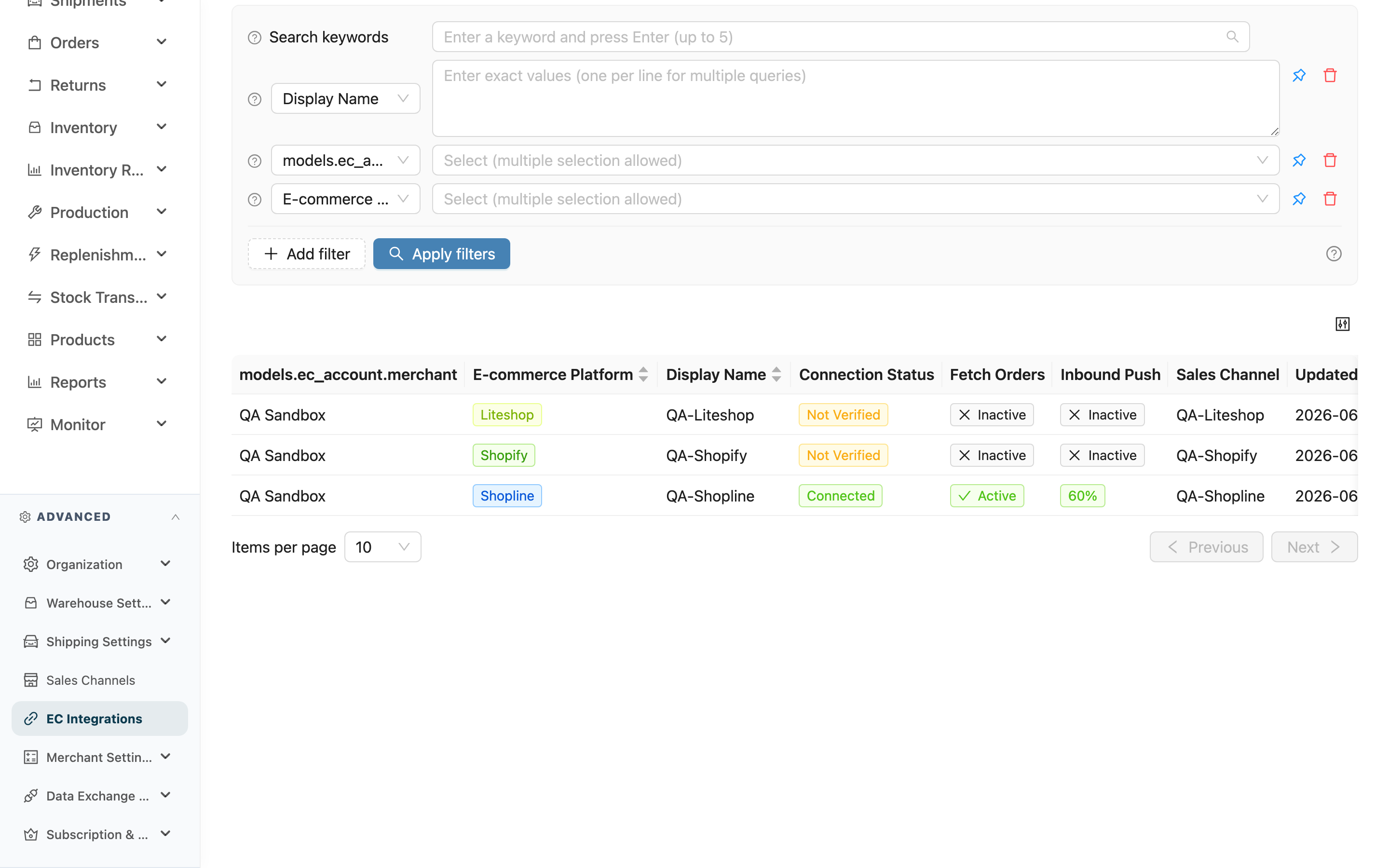
EC Integrations connect your warehouse system directly to a merchant's various e-commerce platforms (Shopee, Momo, website…): orders are imported into the warehouse automatically, stock is pushed back to the platform automatically after inbound shelving, and shipment statuses are reported back to buyers automatically after shipping — no manual data shuffling between the two sides. Each merchant and each platform account is a single "EC account", and this page is your entry point for managing all EC accounts — here you can look up each merchant's accounts, see whether each account's connection is healthy and whether order fetching and inbound push are on, click into the detail to adjust settings, or add an account to connect a new platform.
Quick jump: Search & Filter | List Columns | Create & Help
2.1 Search & Filter
The search box at the top matches against "Display Name" and "E-commerce Platform" name; enter a keyword to quickly find an account.
Advanced filters offer the following conditions (multi-select, stackable):
| Filter | Description |
|---|---|
| Display Name | Filter by the display name you gave the account; multiple values allowed |
| Merchant | Filter to a specific merchant's EC accounts (shown only when you can manage more than one merchant) |
| E-commerce Platform | Filter by platform (Shopee, Momo, Shopify…); all supported platforms are in the dropdown |
| Connection Status | Filter by connection status, so you can pull out all disconnected or not-yet-verified accounts to handle together |
2.2 List Columns
The list is sorted by "Updated At" from newest to oldest by default; click a column header to toggle sorting.
| Column | Description |
|---|---|
| Merchant | Which merchant this account belongs to (shown only when you can manage more than one merchant; this column and the merchant filter are hidden in single-merchant mode) |
| E-commerce Platform | The platform this account integrates with, shown as a colored tag |
| Display Name | The name you gave this account, used to distinguish multiple accounts on the same platform |
| Connection Status | Connection status with the platform, with three lights: Connected (green, last test succeeded), Disconnected (red, last test failed or marked disconnected by the system), Not Verified (yellow, just created or credentials changed and connection not yet tested) |
| Fetch Orders | Whether platform orders are imported automatically (Active/Inactive) |
| Inbound Push | Whether quantity is pushed back to the platform on inbound shelving; when on, the push percentage is shown directly (e.g. 60%); when off, shows Inactive |
| Channel Name | The sales channel this account is bound to, which determines which inventory type orders ship from and which expiration and logistics rules apply |
| Updated At | The last time this account's settings were changed |
| Actions | Click View to enter the account detail and see integration info and more settings |
2.3 Create & Help
Click the New button at the top right to connect a new platform for a merchant; see Create EC Account. Before creating, make sure the merchant already has a matching sales channel, because every EC account must be bound to a channel when created.
The blue question-mark button next to the title bar opens the "EC Integration Concept Guide", which uses diagrams to walk you through what integration is, how inbound push and push percentage work, and why you must create a sales channel first — worth reading once when you first encounter integration.
3. FAQ
3.1 FAQ
▪ What do the three connection-status lights mean?
Green "Connected" means the last connection test succeeded and the integration is working normally; red "Disconnected" means the last test failed, or the system was rejected by the platform when attempting to connect and marked it disconnected; yellow "Not Verified" means the account was just created, or the integration details (credentials, keys, etc.) were changed and not re-tested yet.
▪ What happens when an account is disconnected?
While in the red disconnected state, the system will not import that account's orders, and automatic fetching stalls. Go into the account detail, re-check the integration details, and test the connection; once the test succeeds the light turns back green and fetching resumes.
▪ Why does a just-created account show "Not Verified" on the list?
When an EC account is just created and the connection has not been tested yet, its connection status is the yellow "Not Verified". This list shows not-yet-verified accounts together with the others, so you can see which new accounts still need their connection tested. Once you test the connection successfully in the account detail, the light turns green.
▪ What does the percentage in the "Inbound Push" column mean?
That is the account's "push percentage". After inbound push is enabled, on each inbound shelving the system pushes the inbound quantity back to the platform by this percentage. For example, 60% means that for an inbound of 100 units, only 60 are pushed to this platform. When the same product is sold on multiple platforms, distributing stock by percentage avoids each platform adding the full amount and causing overselling.
▪ What needs to be ready before creating an EC account?
Every EC account must be bound to a sales channel when created, so before adding an account, first set up the matching sales channel for that merchant (which determines which inventory type that platform ships from and which expiration and logistics rules apply). The correct order is: create the Sales Channel → create the EC account and bind the channel → test the connection → start fetching orders.
▪ Can display names repeat, and how should I name them?
The display name is used to distinguish multiple accounts on the same platform; we recommend a name that makes it instantly clear which merchant and which store it is (e.g. "X Website", "X Shopee Flagship"). When you open multiple accounts on the same platform, a clear display name lets you tell them apart quickly on the list.
3.2 Notices
⚠️ Important Reminders
- While an account is in the red disconnected state, that account's orders will not be imported. When you see a red light, go into the detail and re-test the connection as soon as possible to avoid missed orders.
- After integration, do not manually ship or change order statuses in the e-commerce platform's admin, otherwise orders will fail to be fetched into the warehouse system and the statuses on the two sides will not match.
- If a product code on the e-commerce platform has no matching product in the warehouse system, the imported order will be classified as an "unknown product" and needs manual mapping before it can ship. We recommend correcting the platform's product data early to avoid stuck orders.
💡 Tip: The push percentages do not have to add up to 100% — leaving some flexibility absorbs returns and shrinkage. Before fully opening up order fetching, we recommend running the full flow with a small batch of orders first (order import → picking and shipping → status reporting), and only going live across the board once every step is confirmed working.
4. Related Features
| Feature | Description | Link |
|---|---|---|
| Sales Channel List | A channel must exist before creating an EC account; manage each merchant's sales channels here | Go |
| Create EC Account | Connect a new e-commerce platform for a merchant | Go |
| EC Account Detail | View and adjust a single account's integration info, fetch and push settings | Go |
| Order Management | View orders imported automatically from each platform | Go |