
Stock Adjustments
Table of Contents
1. Features
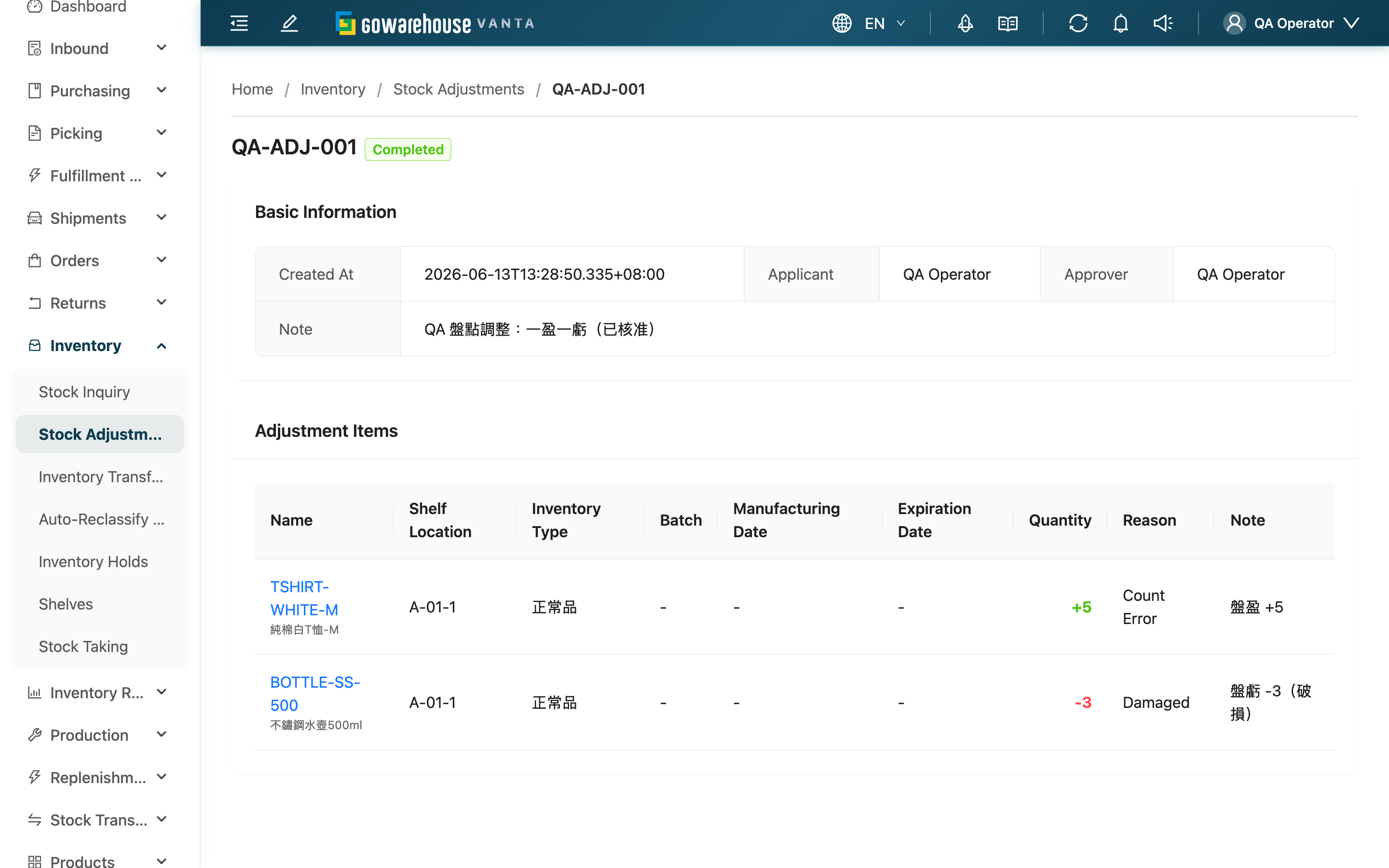
This shows the full content of a stock adjustment: who applied for it, which items were adjusted, by how much, and why. A pending adjustment is approved or rejected here — approving truly changes stock and cannot be undone, so this page is where you verify each line during review.
Quick jump: Basic Info | Adjustment Items | Review | Effects After Approval
1.1 Basic Info
The top of the page shows the adjustment number and status tag, with the created time, Applicant, Approver, and the whole-adjustment Note listed below. The approver is empty until it has been reviewed.
1.2 Adjustment Items
Lists, line by line, the content this adjustment will change:
| Column | Description |
|---|---|
| Product | Product code and name; click to open the product |
| Location | The storage location this line targets |
| Inventory Type, Batch, Manufacturing Date, Expiry Date | The identifying attributes of the locked inventory, so you confirm you're adjusting the correct batch |
| Adjustment Quantity | Green +N is a gain (stock increases after approval); red −N is a loss (stock decreases after approval) |
| Adjustment Reason | Why this line was adjusted |
| Note | A note for this individual item |
1.3 Review
When an adjustment is "Pending", those with permission see action buttons at the top right:
- Edit (needs stock-edit permission): modify content before approval, see Edit Stock Adjustment.
- Reject (needs review permission): after confirming, the adjustment becomes "Rejected" and stock does not change at all.
- Approve (needs review permission): after confirming, the adjustment is executed and stock officially changes. Editing and reviewing are two separate permissions, so with only one you'll see only its button.
When you open a pending adjustment, the page automatically checks whether "the loss quantity would exceed the stock currently free to use." If some goods are already held by orders not yet shipped, leaving too little free for this deduction, the page lists which orders are holding the goods and temporarily locks the "Approve" button. You must first release the hold in Inventory Holds or on the relevant orders to free up enough quantity before you can approve. This prevents a single adjustment from deducting away goods someone else is about to ship.
1.4 Effects After Approval
After you approve, the system adds to or deducts from stock line by line, leaving a movement record for each one — that record is the basis for reconciliation later. In addition:
- For the gain portion (stock increases), the system automatically syncs the extra sellable quantity to the e-commerce platforms you've connected with stock sync enabled (such as Shopee or Momo), so more can be sold online right away.
- Losses (stock decreases) are not automatically synced back to platforms — deductions have many causes, and auto-deducting risks oversubtracting platform stock, so handle this part yourself as needed.
- If this adjustment was opened from an inbound receiving discrepancy, approving it writes the discrepancy back to the corresponding inbound and, when needed, automatically closes the inbound.
Once approved, the adjustment is locked and cannot be undone; to correct it, you can only create a separate reversing adjustment.
2. FAQ
2.1 FAQ
▪ Why is the "Approve" button grayed out and unclickable?
It means this loss exceeds the stock currently free to use — some goods are already held by orders not yet shipped. The page lists which orders are holding the goods; release those orders' holds first, then approve.
▪ I already released the orders, but I get an "insufficient quantity" error on approve?
Another task may have taken the stock while you were reviewing. Refresh the conflict list, confirm the latest state, and try again.
▪ I found an error after approving — can I undo it?
No. Stock truly changes the moment you approve and cannot be undone. To correct it, create a new adjustment that reverses it (increase back what you deducted, or vice versa).
▪ Where do I confirm stock actually changed after approval?
Check the latest quantities in Inventory List, or look up the movement records sourced from stock adjustments in Inventory Movements.
▪ Does rejecting change stock?
No. Rejecting only marks the adjustment as "Rejected"; stock does not change at all.
▪ I can't see the approve or reject buttons?
Approving and rejecting need review permission, while editing needs stock-edit permission — the two are separate. If you can't see the relevant button, ask your administrator to confirm your permissions.
2.2 Notes
⚠️ Important
- Approval is irreversible: stock changes immediately after approval and cannot be undone, so verify quantities and reasons line by line before you press it.
- Losses can affect orders awaiting shipment: when a loss exceeds the free quantity, you must first release the orders holding the stock; once released, those orders revert to out-of-stock or canceled, so confirm the impact before proceeding.
- Only gains auto-sync to platforms: gains automatically push the sellable quantity to connected platforms, losses do not — confirm platform-side deductions yourself.
3. Related Features
| Feature | Description | Link |
|---|---|---|
| Stock Adjustments | Back to the adjustment list | Go |
| Inventory List | Confirm the latest stock quantities after approval | Go |
| Inventory Movements | View the stock movement records produced after approval | Go |
| Inventory Holds | Release orders holding stock to clear the approval block | Go |