
New Warehouses
Table of Contents
1. Features
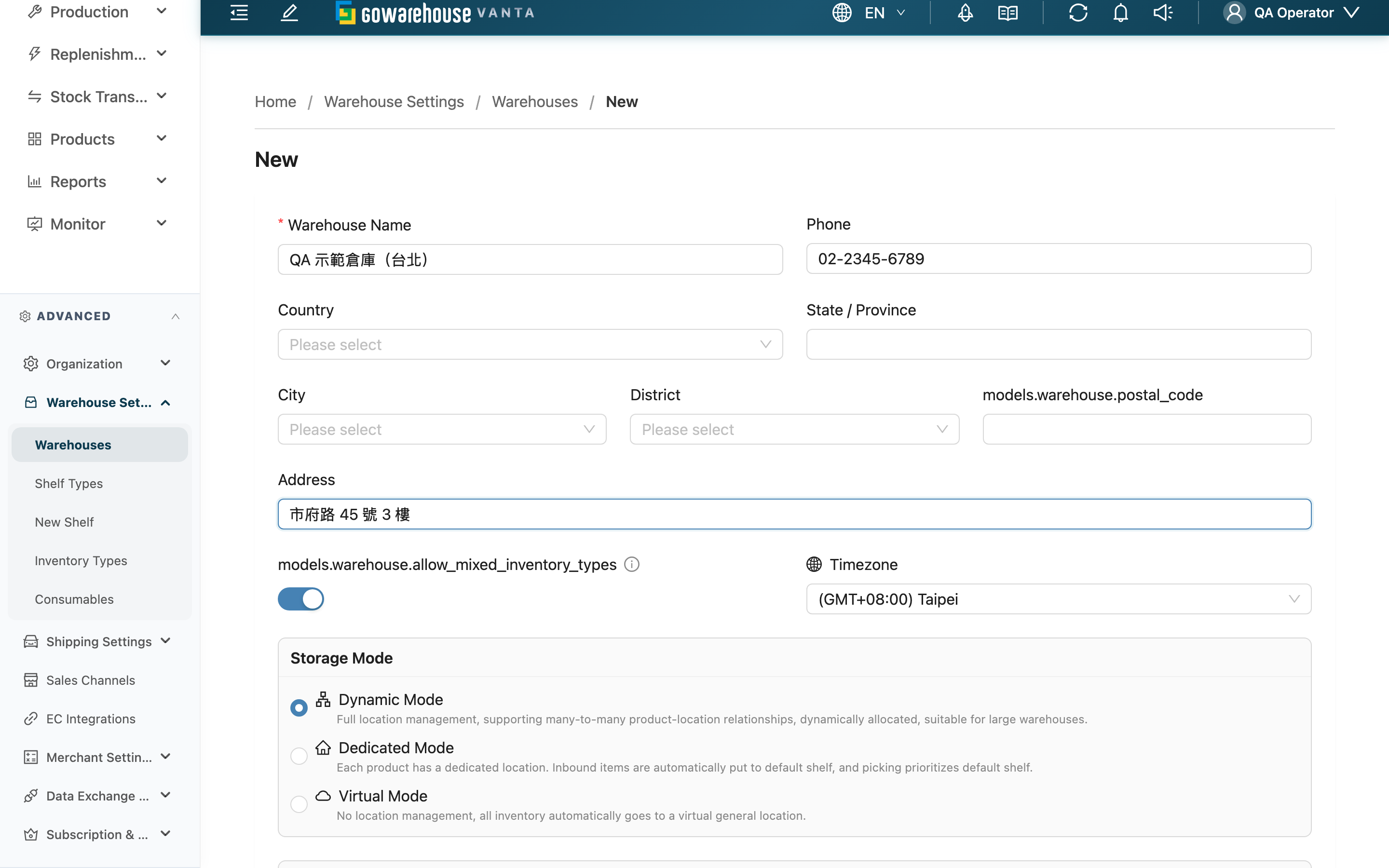
Adding a warehouse is where you create a new warehouse for your organization. Fill in the basic profile, pick a Storage Mode, and create it — the warehouse can then start receiving, putting away, and picking. The most critical choice is the storage mode: it determines how the entire warehouse manages locations, and it cannot be changed once the warehouse starts operating, so confirm you picked the right one before creating.
Quick jump: Basic Profile | Storage Mode | Shelf Location Template
1.1 Basic Profile
Fields marked with * are required
| Field | How to fill | Notes |
|---|---|---|
| *Warehouse Name | Enter this warehouse's name | Required; cannot duplicate another warehouse's name within the same organization |
| Phone | Enter the warehouse contact phone | Used for logistics integration and shipping labels |
| Country | Pick a country from the list | For Taiwan or blank, city and district become dropdowns and the postal code auto-fills |
| State / Province | Enter the state / province | Optional; commonly used for overseas warehouses |
| City | Select or enter the city | Pick from a dropdown for Taiwan warehouses |
| District | Select or enter the district | Pick from a dropdown for Taiwan warehouses; select a city first |
| Postal Code | Enter the postal code | For Taiwan warehouses it auto-fills after picking city and district, and cannot be edited manually |
| Address | Enter the detailed address (street and number) | Combined with the fields above into a full pickup address |
| Timezone | Pick a timezone from the list | Affects how this warehouse's business hours are read; defaults to Taipei timezone |
1.2 Storage Mode
Pick a Storage Mode — it determines how this warehouse manages locations:
| Mode | Description |
|---|---|
| Dynamic Mode | Full location management, supporting many-to-many product-location relationships, dynamically allocated, suitable for large warehouses. |
| Dedicated Mode | Each product has a dedicated location. Inbound items are automatically put to default shelf, and picking prioritizes default shelf. |
| Virtual Mode | No location management, all inventory automatically goes to a virtual general location. |
When you pick Dynamic Mode, an extra Allow Mixed Inventory Types switch appears below, controlling whether the same location can hold different inventory states of the same product (e.g. good and defective stock together); with the other two modes the system always allows mixing and the switch does not appear.
1.3 Shelf Location Template
A non-virtual warehouse can set a Default Shelf Location Template as the default code format when batch-creating locations later (e.g. {row}-{column}-{layer}). If left unset, the standard format is used. A Virtual Mode warehouse has no location list, so this setting does not appear.
Once everything is filled in, click Create to finish.
2. FAQ
2.1 Questions
▪ Can a warehouse have the same name as an existing one?
No. Within the same organization, warehouse names cannot be duplicated. If submitting shows the name already exists, choose a different name.
▪ Can the storage mode still be changed after creation?
Only while this warehouse has not started operating — you can change it on the detail page. Once any real warehouse activity occurs (inbound, receiving, picking, stock take, stock adjustment, shelf movement, inventory transformation, or it holds actual inventory or non-system locations have been created), the storage mode is permanently locked and you can only create a new warehouse. So confirm you picked the right mode before creating.
▪ Which storage mode should I pick?
Choose by warehouse scale and workflow: a large warehouse with many products needing full location management picks Dynamic Mode; a fixed location per product picks Dedicated Mode; no location management with all stock in one place picks Virtual Mode. The full differences between the three modes are in the storage modes section of warehouse management.
▪ Do I have to fill in the postal code for a Taiwan warehouse?
No. When the country is Taiwan (or left blank), after you select City and District the system auto-fills the matching Postal Code, which cannot be edited manually.
▪ What happens after I create a warehouse?
On success you are taken to the new warehouse's detail page. If you don't yet have an assigned working warehouse, the system automatically binds you to this newly created warehouse.
▪ Do I have to fill in the address and phone?
Only Warehouse Name is required. Address, phone, timezone, etc. can be filled in later on the detail page. But before integrating with logistics or printing shipping labels, it's best to complete the full address first.
2.2 Notices
⚠️ Important
- The storage mode is permanently locked and cannot be reverted once this warehouse starts operating — confirm it before creating.
- Warehouse names cannot be duplicated within the same organization.
💡 Tip: Decide this warehouse's role (main, transit, returns) before picking the mode, to avoid finding the mode unsuitable after operations begin and needing to rebuild.
3. Related Features
| Feature | Description | Link |
|---|---|---|
| Warehouses | Back to the warehouse list to see all warehouses | Go |
| Warehouses (Detail) | View and edit this warehouse and manage its zones | Go |
| Shelf List | Create and manage the actual locations under a warehouse | Go |