
New Stock Adjustment
Table of Contents
1. Features
When you've confirmed that an inventory's book quantity doesn't match the physical count on the shelf, create an adjustment here to correct it. One adjustment can hold several items to adjust; once filled in and submitted, it goes to pending and stock only changes after the adjustment is approved.
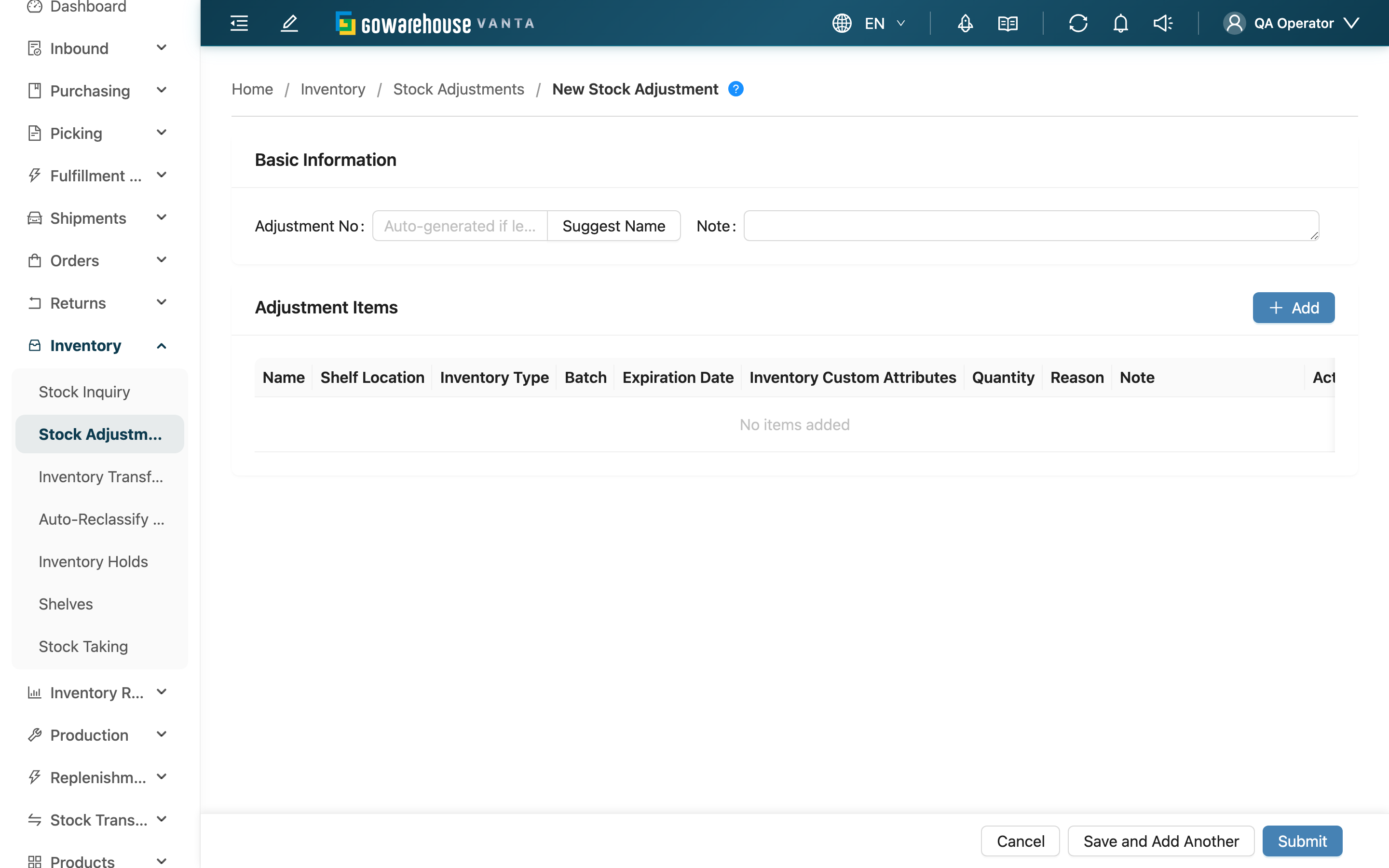
Quick jump: Basic Info | Add Adjustment Items | Submit
1.1 Basic Info
Fields marked with * are required
| Field | How to fill | Notes |
|---|---|---|
| Adjustment No. | Leave blank to have the system generate one on submit; or click "Suggest Name" to fill in a serial number for the day | The number must not duplicate an existing adjustment |
| Note | A note for the whole adjustment, e.g. "Damage claim batch" | Optional |
1.2 Add Adjustment Items
Click "Add" in the items area to open the picker, first selecting the inventory to adjust (searching by product). The system then lists the quantities that inventory currently has across each location.
| Field | How to fill | Notes |
|---|---|---|
| System Quantity | Filled by the system; the location's current book quantity, not editable | — |
| *Actual Quantity | Enter the quantity you actually counted; the system works out the "Difference" | Locations with no change are not added |
| *Adjustment Reason | Pick a reason from the list (Damaged, Expired, Count Error, etc.); every item must have a reason before approval | — |
| Note | A note for this individual item | Optional |
A positive "Difference" means a gain (actual is more than the book; stock increases after approval); a negative one means a loss (actual is less than the book; stock decreases after approval). Locations with a difference of 0 are not included. After confirming, the items from the picker are added to the list below, and you can add more lines repeatedly; each line in the list can have its note edited inline or be removed.
1.3 Submit
Clicking "Submit" at the bottom puts the adjustment in "Pending" status and opens its detail page; stock only changes after someone with approval rights approves it. To create several in a row, click "Save and Add Another" instead — after a successful submit the form clears and stays on this page to create the next one.
2. FAQ
2.1 FAQ
▪ Why is there no location to fill in after I pick an inventory?
If every location that inventory currently sits in has already been added to this adjustment, none will be listed; in that case, remove items already added in the list, or confirm the inventory still has locations not yet added. Inventory on system-reserved locations such as picking carts and staging areas is locked and cannot be adjusted here.
▪ What happens if I enter the same "Actual Quantity" as the system?
That location's difference is 0, the system treats it as no change, and it isn't included in the adjustment. An adjustment must have at least one item with a difference before it can be submitted.
▪ Can I still edit it after submitting?
Yes. Right after submitting it is in "Pending" status and can be edited as long as it hasn't been approved. Once approved, stock has truly changed and it can no longer be edited.
▪ Can one adjustment include products from different merchants?
No. All items in a single adjustment must belong to the same merchant. If you pick inventory from a different merchant, the system blocks it on submit.
▪ Do I have to enter the number myself?
No. If you leave it blank on submit, the system generates one automatically; if you want to see the number first, click "Suggest Name" to fill it in.
2.2 Notes
⚠️ Important
- Every item needs a reason: an item missing a reason will block the reviewer at the approval step, so choose it at creation.
- Creating is not taking effect: submitting only sends it to pending; stock hasn't changed yet. It truly changes stock only after approval.
💡 Tip: Actual quantity is "the final quantity you counted," not "how much to add or subtract" — the system subtracts the book quantity itself to work out the difference, so just enter what you actually counted.
3. Related Features
| Feature | Description | Link |
|---|---|---|
| Stock Adjustments | Back to the adjustment list to view all records | Go |
| Inventory List | View a product's current stock across locations | Go |
| Shelves | View and manage warehouse locations | Go |