
Stock Transfer Order List
Table of Contents
1. Use Cases
Quick links: Replenish a chain store from the central warehouse | Rebalance stock between two warehouses | Seed a new warehouse
Case 1: A chain store is running low — replenish it from the central warehouse
Situation: You run a chain of retail stores, and each store is a separate stock location (warehouse) in the system. The central warehouse holds bulk stock; each store only keeps what it sells on the shelf. One store's best-seller is almost gone, but the central warehouse still has plenty of the same item.
How this helps: On the list, click "New" to open a transfer from the central warehouse to that store (see Create Stock Transfer Order). The system immediately locks that batch of stock for this transfer so no shipping order can grab it.
Result: The central warehouse picks and ships, the store receives and shelves — all tracked on one transfer order. The store gets restocked and the central warehouse's books stay accurate.
Case 2: One warehouse is overstocked while another runs dry — rebalance
Situation: An item is piling up in the Taipei warehouse while the same item is nearly sold out in Kaohsiung. Rather than make Kaohsiung wait for a new supplier delivery, move some of Taipei's surplus straight over.
How this helps: Open a transfer from Taipei to Kaohsiung on the list, listing the items and quantities; then use the status filter to track where the goods are.
Result: Kaohsiung keeps fulfilling orders without waiting for new stock, and Taipei clears its surplus — the sellable stock is more evenly spread.
Case 3: A new warehouse goes live — seed it with starting stock
Situation: The company opens a new warehouse, or adds a new store location about to go live, and needs a starting batch of popular items moved over from an existing warehouse.
How this helps: Open a transfer from the old warehouse to the new one, listing all the items and quantities to seed in one go.
Result: As soon as the new warehouse receives the goods it has sellable stock — no need to run a full external inbound process just to stock it.
2. Feature Overview
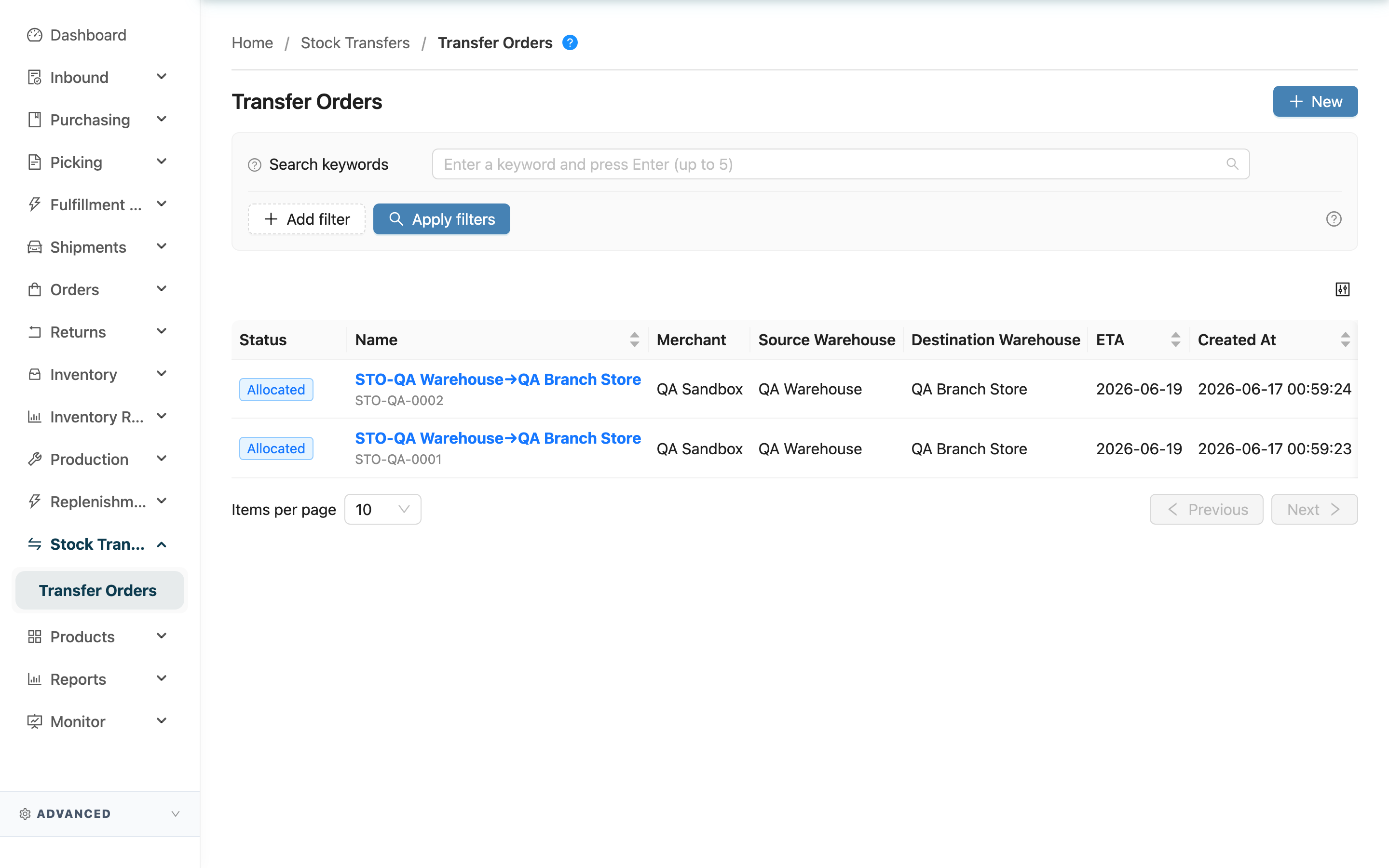
A stock transfer order moves goods between your own warehouses — not shipped to a customer, but carried from one warehouse to another. Once created, the system automatically opens a fulfillment at the source warehouse for picking, and after the goods ship, an inbound at the destination warehouse for receiving — you just follow your usual picking and receiving steps, and the two ends connect. This list is the entry point for all transfer orders: see where each one stands, open a new one, or click in to handle it. The question-mark icon next to the title opens an illustrated "What is a stock transfer order?" guide.
Jump to: List columns | Transfer order status | Search & filter | Creating a transfer order
2.1 List columns
| Column | Description |
|---|---|
| Status | Where this transfer order currently stands; see Transfer order status for each value |
| Name | The bold top line is the name the system auto-generates as "source→destination"; the small grey line below is the transfer order number. Click either to open the detail |
| Merchant | Only appears when you manage multiple merchants; hidden with a single merchant |
The remaining columns (Source Warehouse, Destination Warehouse, ETA, Created At) are self-explanatory by name. The list is sorted by creation time, newest first, by default.
2.2 Transfer order status
| Status | Meaning |
|---|---|
| Allocated | The transfer order was just created; source-warehouse stock is locked, waiting to be picked |
| Out of Stock | The locked stock was changed by another operation (stock take, stock adjustment) and is no longer enough; once stock is replenished it returns to "Allocated" automatically |
| Picking | The source warehouse is picking and packing the goods to transfer out |
| In Transit | The goods have left the source warehouse and are on their way; the destination warehouse now automatically receives an inbound |
| Receiving | The destination warehouse is counting and shelving the received goods |
| Done | The destination warehouse has received and shelved everything; the transfer is complete |
| Canceled | This transfer order was canceled and the locked stock has been released |
You never switch status by hand — the system advances it based on actual picking, shipping, and receiving progress. You only act on the hands-on steps (picking, completing shipment, receiving).
2.3 Search & filter
- Search: enter the transfer order number or name; a partial match is enough.
- Filter by status: select any of the statuses above (multiple allowed) to see only orders at a certain stage.
- Filter by merchant: only appears when you manage multiple merchants.
2.4 Creating a transfer order
Click "New" at the top right to open a new transfer order. For how to choose the source and destination warehouses and list the items, see Create Stock Transfer Order.
3. FAQ
3.1 FAQ
▪ Why does source-warehouse stock get locked the moment I create a transfer order?
As soon as a transfer order is created, the system reserves that batch of stock for this transfer (status becomes "Allocated"), so no shipping order can use it — guaranteeing the goods can be transferred. The only way to release the stock is to cancel the transfer order.
▪ Why can I only see some transfer orders in the list?
You only see transfer orders where the source or destination warehouse is your warehouse. Transfers unrelated to your warehouse (both ends are other warehouses) do not appear here.
▪ What does the "Out of Stock" status mean, and how does it recover?
It means the locked stock was changed by another operation (stock take, stock adjustment) and is no longer enough. This is not an error — once the source warehouse has enough stock again, the system automatically returns it to "Allocated".
▪ Do I have to create the transfer's fulfillment and inbound myself?
No. When you create the transfer order, the system automatically opens a fulfillment at the source warehouse; after the goods ship, it automatically opens an inbound at the destination warehouse. You just handle the usual picking and receiving.
▪ Can a transfer order be canceled?
Yes, but it depends on the current status — orders already being received or completed cannot be canceled. For the conditions and what happens afterward, see the cancel section in Stock Transfer Order Detail.
▪ Can I change the source or destination warehouse after creating?
No. The source and destination warehouses cannot be changed once created; only the items and quantities can be changed while in the "Allocated" stage (see Edit Stock Transfer Order). To change warehouses, cancel the order and create a new one.
3.2 Notes
⚠️ Important
- Creating a transfer order immediately locks source-warehouse stock; no shipping order can use that stock until the transfer completes or is canceled.
- The source and destination warehouses cannot be changed once created — to change them, cancel and create a new order.
- A transfer order already in "Receiving" or "Done" cannot be canceled.
💡 Tip: To adjust items or quantities, you can only edit while in the "Allocated" stage (see Edit Stock Transfer Order).
4. Related Features
| Feature | Description | Link |
|---|---|---|
| Create Stock Transfer Order | Open a new transfer order — choose warehouses and list items | Go |
| Stock Transfer Order Detail | View an order's content and status; cancel, reopen, or complete shipment | Go |
| Fulfillment | The source warehouse's picking-and-shipping work order for the transfer | Go |
| Inbound | The destination warehouse's receiving-and-shelving work order after the goods ship | Go |