
Shipping Types
Table of Contents
1. Use Cases
Quick links: Decide which delivery methods orders can use | Create internal-only delivery methods like warehouse pickup
Case 1: Decide which delivery methods orders can use
Situation: The merchant starts handing orders to the warehouse for fulfillment, and those orders ship via various methods such as T-Cat home delivery, 7-11 store pickup, or Pelican cold-chain. The warehouse first needs to confirm which delivery methods it recognizes and can handle, so the right carrier can be picked later when creating fulfillments and printing shipping labels.
How to use it: Go to Shipping Types to view the currently installed shipping types (see List Columns), and check each entry's Source, Carrier, and whether it supports COD. Common carriers and EC platform shipping methods are installed into this list automatically when you connect a shipping account or an EC platform, so you don't need to create them one by one.
Result: This list is the source of delivery methods that orders and fulfillments can choose from; only what's on the list can be selected at shipping time.
Case 2: Create internal-only delivery methods like warehouse pickup
Situation: Some delivery methods don't use any carrier at all, such as a customer picking up at the warehouse, or a driver delivering directly to a major client. These aren't in the system's built-in carrier catalog, but a selectable shipping name is still needed at shipping time.
How to use it: On the list page, click Create Custom (see Create and Edit Custom Shipping Types), and give it your own code and name, for example "Warehouse Pickup". Once created, it becomes a Custom source shipping type.
Result: This custom delivery method becomes selectable at shipping time, so warehouse pickup, self-operated driver delivery, and other carrier-less cases all have a shipping type to record against.
2. Feature Overview
Shipping types are the master list of every delivery method in the warehouse. Each entry represents one shipping option an order can choose, such as T-Cat home delivery, 7-11 store pickup, HCT cold-chain, or warehouse pickup. When a fulfillment prints a shipping label or an order picks a delivery method, the choice comes from this list; what isn't on the list can't be selected at shipping time. Most shipping types are installed automatically when you connect a shipping account or an EC platform, so here you mainly view the existing list and create custom shipping types for delivery methods that have no carrier.
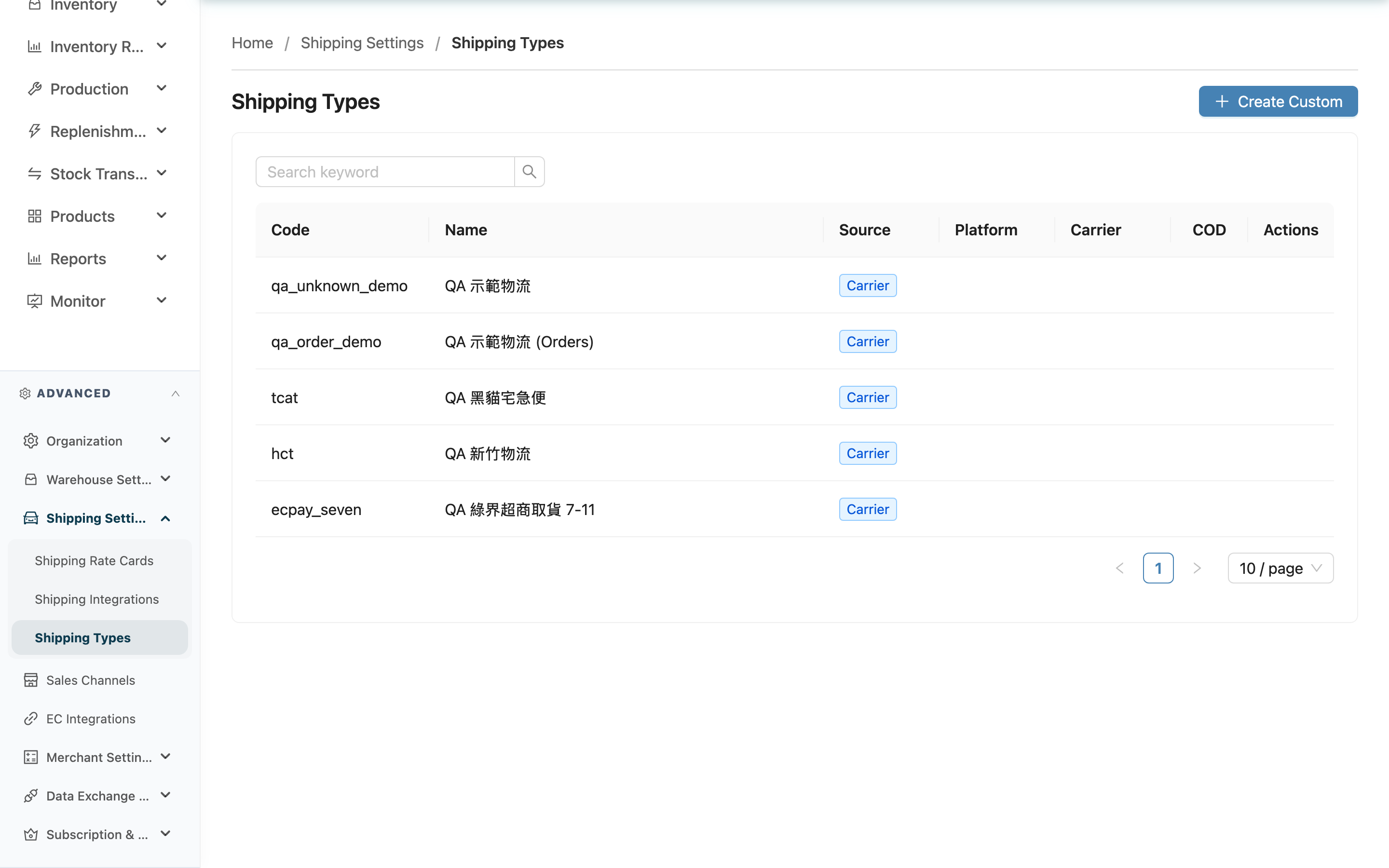
Quick jump: Search | List Columns | Create and Edit Custom Shipping Types
2.1 Search
The search box at the top filters by Name or Code keyword — type and press Enter. When you have many shipping types, use search to quickly locate a specific carrier or delivery method.
2.2 List Columns
The list shows all shipping types currently installed for your organization, with the following columns:
| Column | Description |
|---|---|
| Code | The unique identifier for the shipping type. System types have fixed codes; custom types get a custom_ prefix automatically |
| Name | The display name, for example "T-Cat" or "Warehouse Pickup" |
| Source | The source category of this shipping type — four kinds (see below) |
| Platform | Whose system you place the order through. For example, Shopee store pickup's platform is Shopee; custom types have no platform |
| Carrier | The carrier that actually delivers. For example, "Shopee T-Cat" has Shopee as the platform and T-Cat as the carrier |
| COD | A green check means this shipping type supports COD (cash on delivery). This is a capability of the shipping type itself; whether an order actually collects payment on delivery is decided by the order's settings, not by this column |
| Actions | Custom types show an edit button; system and platform types have no editable fields and show no button |
The four Source categories:
- Carrier: Carriers the system integrates with directly, such as HCT, T-Cat, or Pelican. Installed automatically when you connect that shipping account.
- Marketplace: Shipping methods collected on your behalf through an EC platform (such as Shopee or MoMo). Installed automatically when you connect the EC platform account.
- Custom: Delivery methods you create yourself (see Create and Edit Custom Shipping Types).
- None: Delivery methods with no tracking number, such as warehouse pickup.
2.3 Create and Edit Custom Shipping Types
When a delivery method isn't in the system carrier catalog (for example warehouse pickup or self-operated driver delivery), you can create it yourself. This is an advanced-plan feature; if the Create Custom button is not in the top-right of the list page, your current plan does not include it — contact your administrator to confirm.
Fields marked with * are required.
Create a custom shipping type: Click Create Custom in the top-right, fill in the fields below, and submit.
| Field | How to fill | Notes |
|---|---|---|
| *Code | Enter an identifier, for example pickup | A custom_ prefix will be added automatically to avoid conflicts with system codes. Cannot be changed after creation |
| *Name | Enter the display name, for example "Warehouse Pickup" | The name must be unique within your organization |
Edit a custom shipping type: Click the edit button in the Actions column of that row to change the Name. The code cannot be changed after creation. System and platform types have no editable fields, so no edit button appears for them.
3. FAQ
3.1 FAQ
▪ Why are there already many shipping types I never created manually?
System and EC platform shipping types are installed into this list automatically when you connect a shipping account or an EC platform. You usually only need to view them here, not create them one by one. The only ones you create manually are custom shipping types for carrier-less methods (see Create and Edit Custom Shipping Types).
▪ Where do I add carriers like T-Cat or 7-11?
These carriers are not created manually on this page; they are installed automatically when you connect the matching shipping account or EC platform. Set up the carrier in the shipping integration settings, and after it's installed it will appear in this list.
▪ What if I don't see the Create Custom button?
Custom shipping types are an advanced-plan feature. If there's no button in the top-right, your current plan does not include it — contact your administrator to confirm permissions and plan.
▪ If the COD column is checked, does that mean this order will definitely collect payment on delivery?
No. The COD column shows that this shipping type supports cash on delivery; it does not mean every order using it will collect payment. Whether a specific order actually collects payment on delivery is decided by the order's own settings.
▪ Can I change a system shipping type's name or code?
No. System and platform types have no editable fields, and no edit button is shown for them. Only custom types can be edited, and only the name can be changed — the code can never be changed.
▪ Why does my custom shipping type's code start with custom_?
A custom_ prefix will be added automatically to avoid conflicts with system codes, so it won't clash with system codes. You don't need to add it yourself; the system adds it automatically.
▪ Can shipping types be deleted?
The list page has no delete function; once created, shipping types are kept. Shipping types already used by a fulfillment especially need to be kept to preserve the integrity of historical records.
3.2 Notes
⚠️ Important
- A custom shipping type's Code cannot be changed after creation, so decide on it before creating.
- Within one organization, both the Name and Code must be unique; duplicates cannot be saved.
- A custom shipping type's code cannot use a system reserved code, otherwise it cannot be saved.
💡 Tip: When you have many shipping types, use the search box at the top to locate one by name or code instead of paging through the whole list.
4. Related Features
| Feature | Description | Link |
|---|---|---|
| Orders | Orders pick their delivery method from this shipping type list at shipping time | Go |