
Address Details
Contents
1. Feature Guide
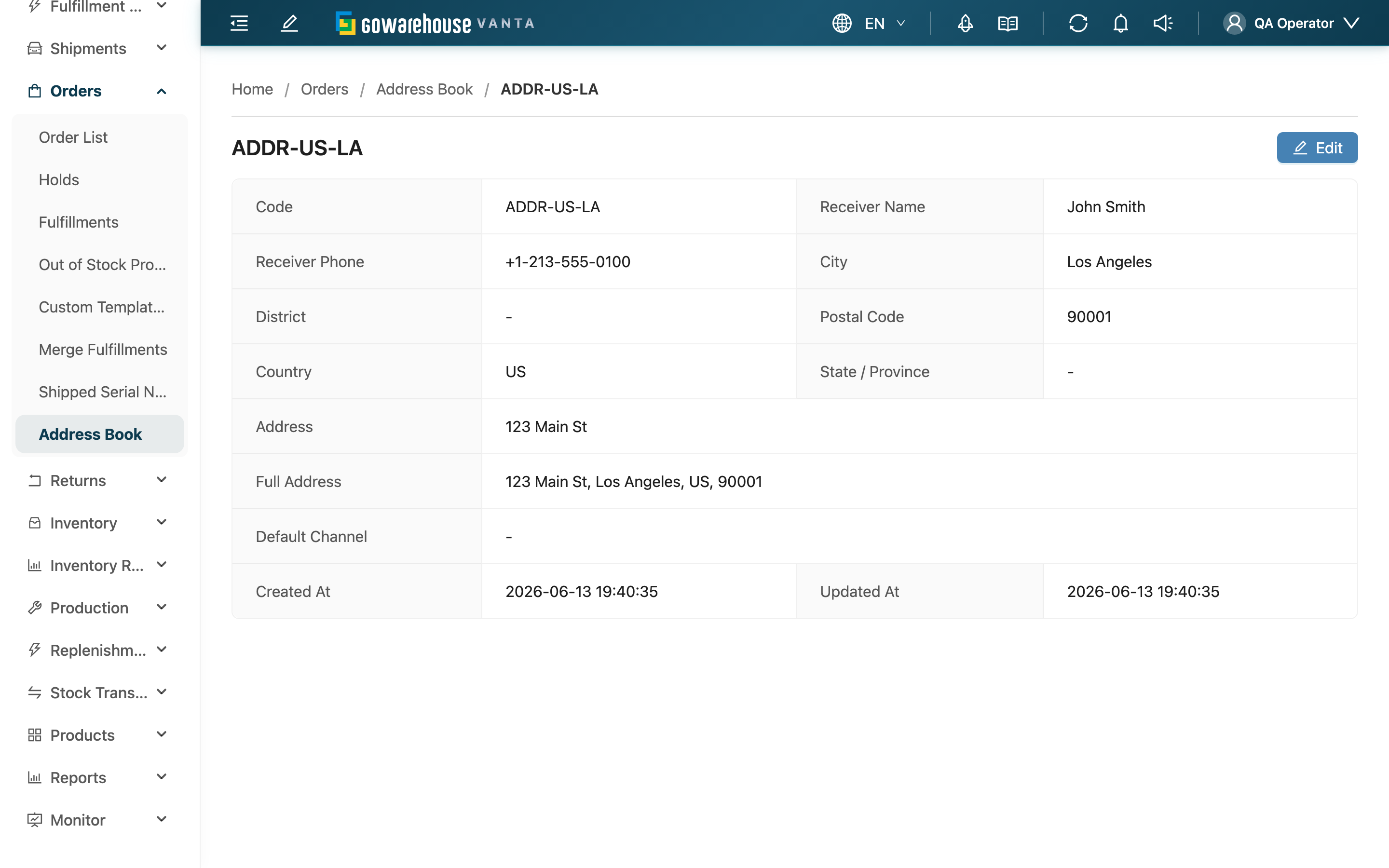
When you need to verify the receiver, phone, or full address of an entry, view it here. This page lists every field of the address, including the system-assembled Full Address that's ready to copy for a colleague or carrier. If anything is wrong, click "Edit" at the top right to fix it.
Quick Jump: Field Notes | Action Buttons
1.1 Field Notes
Most fields are self-explanatory from their names; only the less obvious ones are explained below:
| Field | Description |
|---|---|
| Full Address | Assembled by the system from Country, city, district, Postal Code, and Address; Chinese addresses run largest-to-smallest, English addresses smallest-to-largest, and it's ready to copy as-is |
| Default Merchant Channel | When set, picking this address while creating an order for that channel also fills in this channel; shows "-" when not set |
| Country | When not set, this address is treated as a Taiwan address |
1.2 Action Buttons
| Button | Function | Description |
|---|---|---|
| Edit | Modify this address | Located at the top right; hidden if you don't have edit permission |
2. FAQ
2.1 FAQ
▪ Why don't I see the "Edit" button?
It means you don't have permission to edit addresses. You can still view the details here; if you need to make changes, contact your administrator to confirm your permission.
▪ If I change this address, do already-created orders change too?
No. An order copies the address contents in at creation time, so editing here only affects new orders created with this address afterward; existing orders stay as they were.
▪ What's the difference between Full Address and Address?
Address is the street-and-number content you filled in; Full Address is the system stitching country, city, district, Postal Code, and the address into one line so you can copy the whole thing without assembling it yourself.
▪ Can I change this address's Merchant on the detail page?
No. The merchant an address belongs to is fixed at creation and can't be changed even on the edit page. To move it to a different merchant, create a new entry under that merchant.
▪ Why do some fields show "-"?
It means that field was left empty for this address. Optional fields such as State / Province, District, and Default Merchant Channel show "-" on the detail page when blank — it's not an error. To fill one in, click "Edit".
2.2 Notices
⚠️ Important Reminders
- Edits only affect future orders: Changing an address here or on the edit page never goes back and alters already-created orders.
- Merchant cannot be changed: The owning merchant is fixed after creation, on both the detail and edit pages.
3. Related Features
| Feature | Description | Link |
|---|---|---|
| Address Book | View and manage all addresses | Go |
| Edit Address | Modify the contents of this address | Go |
| New Address | Create a new frequently used recipient address | Go |