
Unassigned Tasks
Table of Contents
1. Use Cases
Quick Links: Assign today's work at shift start | Adjust staffing when inbound volume surges
Scenario 1: Assign today's work at shift start
Situation: Before the morning shift starts, the warehouse supervisor needs to distribute picking, receiving, and putaway work that is ready to process, avoiding two people working on the same document.
Use this feature: Review the unassigned volume in the three work tabs, select tasks, and use batch assignment to choose an operator.
Result: Every task has a clear owner, and operators can handle their assigned work in Vanta App.
Scenario 2: Adjust staffing when inbound volume surges
Situation: Several suppliers arrive at once, increasing receiving and putaway work at the same time. The supervisor needs separate staffing for inspection and shelving.
Use this feature: Compare the Receiving and Putaway tab counts, then assign work in batches by merchant, status, and created date.
Result: Receiving and putaway for the same inbound can go to different operators, making it easier to match the actual division of work on the floor.
2. Features
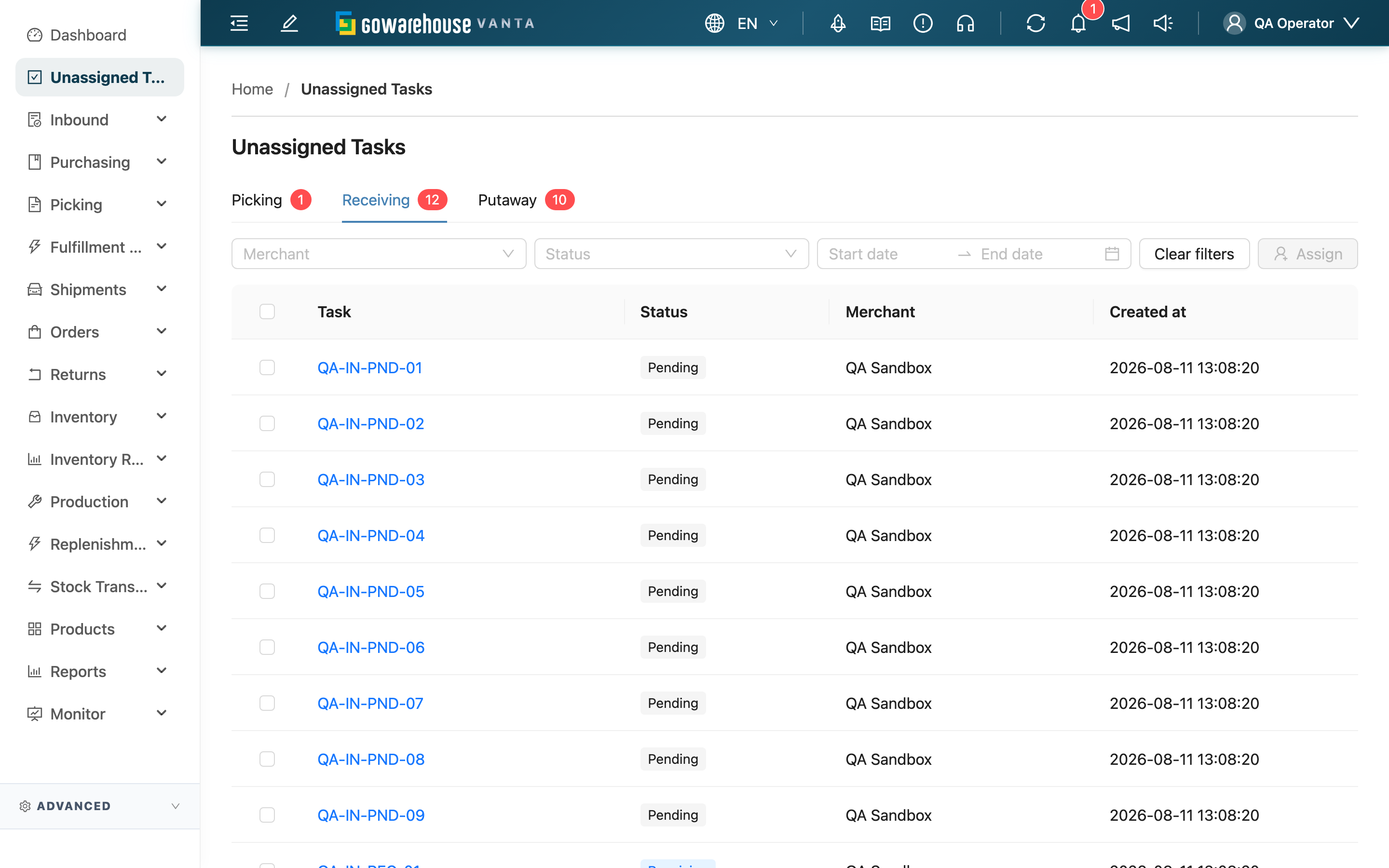
The Unassigned Tasks workbench brings together picking, receiving, and putaway tasks that are ready in Vanta App but do not yet have an owner. Supervisors can review the workload in each stage, narrow it by merchant, status, or created date, and assign the selected tasks to the appropriate shift operator.
Quick Navigation: Work Tabs | Filters | List Columns | Batch Assignment
2.1 Work Tabs
| Tab | What it shows |
|---|---|
| Picking | Processing App picking lists that have not been assigned |
| Receiving | Inbounds that are waiting for or undergoing receiving and have not been assigned |
| Putaway | Inbounds with received items still waiting for putaway and no assigned operator |
The number beside each tab is the complete unassigned volume for your current warehouse and accessible merchants. It does not change with the filters below.
2.2 Filters
You can combine merchant, current status, and created-date range filters. Select "Clear filters" to remove every condition. The list total reflects the tasks that remain after filtering.
2.3 List Columns
| Column | Description |
|---|---|
| Task | Task document number; opens the source document when you have permission to view it |
| Status | The task's current work stage |
| Merchant | The merchant that owns the task |
| Created at | When the task was created; the oldest tasks appear first by default |
2.4 Batch Assignment
- Open the Picking, Receiving, or Putaway tab you want to work with.
- Select one or more tasks, or choose “Select all records” to include every task matching the current filters, up to 100 at a time.
- Select "Assign", choose an operator, and confirm.
- After a successful assignment, the tasks leave the list and both the tab count and list refresh immediately.
Assignment only sets the owner; it does not change document status or quantities. This workbench does not offer unassignment. To reassign or remove an assignment, use the Picking List or Inbound List.
3. FAQ
Quick Navigation: FAQ | Important Notes
3.1 FAQ
▪ Why can't I see Unassigned Tasks?
This feature is available on Pro plans and above and requires permission to view warehouse operators. If it is missing from the menu, ask your administrator to check both your plan and permissions.
▪ Why can I see the list but not use Assign?
Picking assignment requires permission to manage outbound documents. Receiving and putaway assignment require permission to manage inbound documents. Ask your administrator to check the work type you need to handle.
▪ Why can't I click a document number?
You may be allowed to view unassigned tasks without permission to view the source document. Picking-list and inbound-document access are managed separately, so the page shows plain text when that permission is missing.
▪ Why does the same inbound appear twice?
Receiving and putaway are separate jobs. When an inbound is still being received while some items are already waiting for putaway, it appears in both tabs and can be assigned to different operators.
▪ Why is an inbound missing from the Putaway tab?
Only inbounds with received quantities still awaiting putaway or adjustment appear. Fully handled, assigned, completed, canceled, or not-yet-received inbounds are excluded.
▪ Why is the tab count different from the list total?
The tab count is the complete unassigned volume for the current warehouse. The list total applies your merchant, status, and created-date filters, so it may be smaller.
▪ Can I unassign or reassign a task afterward?
Yes, but not from this workbench. Use the Picking List or Inbound List to choose another operator or select Unassigned.
3.2 Important Notes
⚠️ Important Reminders
- You can select up to 100 tasks at a time. If the filtered result exceeds the limit, narrow the merchant, status, or creation-date filters first.
- Assigned tasks leave this page immediately. If you selected the wrong operator, reassign the task from its source list.
💡 Tip: Use the created-date filter to find work that has waited the longest and distribute older tasks first.
4. Related Features
| Feature | Description | Link |
|---|---|---|
| Picking List | Review picking progress and reassign or remove a picking assignment | Go |
| Inbound List | Review inbound progress and reassign or remove receiving and putaway assignments | Go |