
Shelf Relocation Order Details
Contents
1. Features
Use this page to review the complete relocation plan, confirm execution and print a working copy. Check the source and destination shelves, inventory identity, creator and confirmation record. Printed copies display the order status so warehouse staff can distinguish an unexecuted plan from a completed record.
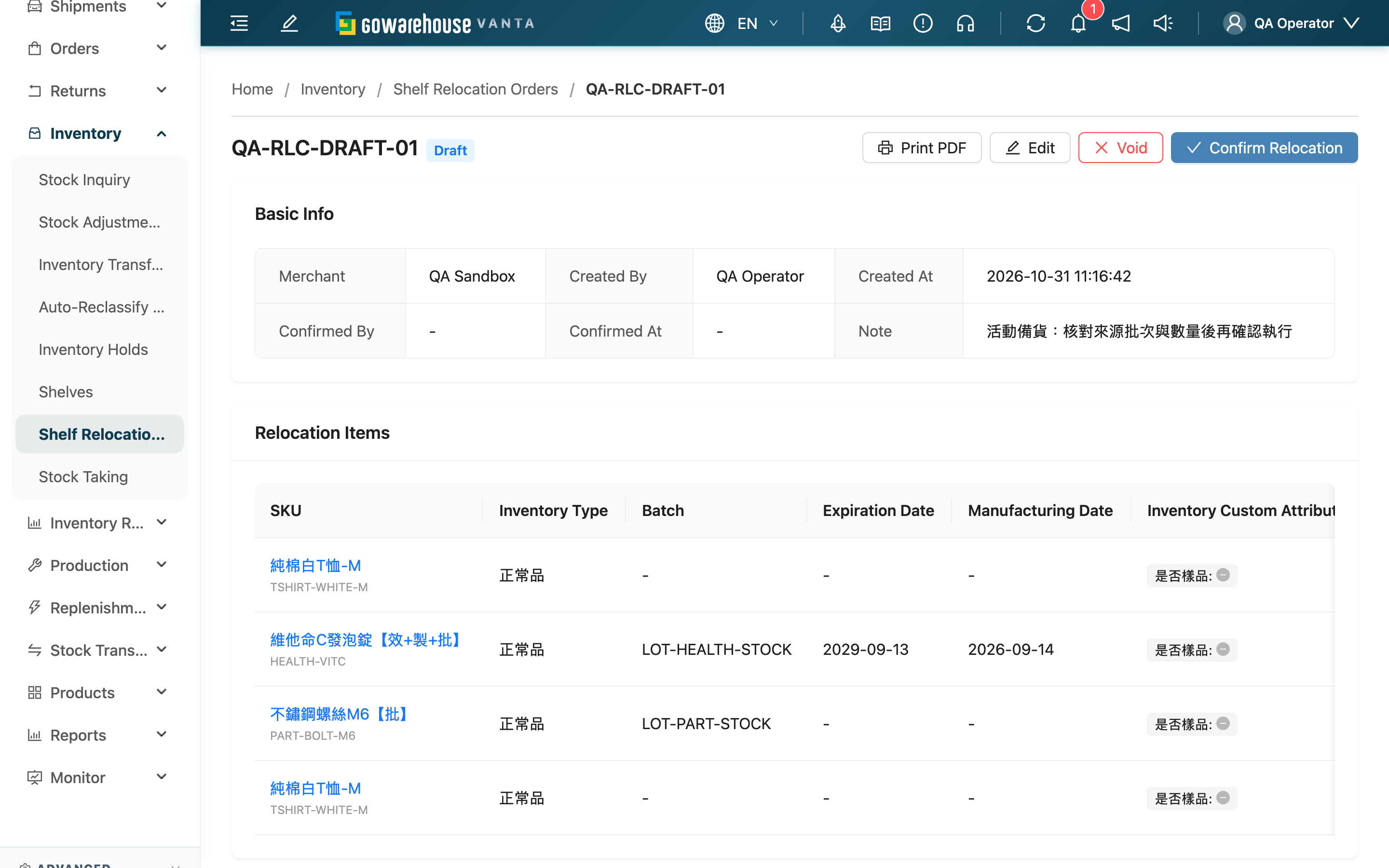
1.1 Review and confirm
Review the source, destination and quantity on every line, then select Confirm Relocation and accept the confirmation. This action applies only to drafts and immediately executes all moves. If any line has insufficient stock or violates placement rules, none of the order’s moves execute.
After success, review Confirmed By and Confirmed At, or follow Execution to the shelf movement history. See the status table for available actions.
1.2 Void a draft
If the plan is canceled, select Void and confirm. This applies only to drafts and does not change inventory. A voided order cannot be edited, confirmed or restored; create a new order if needed.
1.3 Print a PDF
Select Print PDF, find the task in Background Tasks and select Download. Open the PDF and use your reader’s print command with A4 paper.
Draft, completed and voided orders can all be printed. The PDF includes the reference and barcode, merchant, warehouse, status, shelves, product and inventory identity, quantities, note and a check signature field. Each line has an empty checkbox for marking completed checks on the printed copy. Drafts indicate that execution is pending; voided copies warn against moving stock. Printing does not confirm the order or change inventory.
2. FAQ
2.1 Questions
▪ If confirmation fails for insufficient stock, have some lines already moved?
No. The order remains a draft and all its moves roll back. Check the row, shelf and product indicated in the error, then correct the source or quantity.
▪ What if the destination does not allow this inventory type?
Confirmation checks mixed-type storage and zone placement rules. Edit the draft and choose a destination that accepts this inventory type.
▪ Can I undo a completed order?
There is no direct undo. Create a reverse relocation using the current inventory, and check its sources, destinations and movable quantities again.
▪ What should I do if PDF generation fails?
Check the task error and retry printing. If it continues to fail, provide the order reference to support.
▪ Why can I view an order but not confirm or print it?
Confirmation and voiding require shelf write permission; printing requires shelf read permission. Ask an administrator to review your permissions.
2.2 Important notes
⚠️ Before proceeding
A PDF reflects the order when it was generated. Later edits or voiding do not update downloaded copies. Check the latest status in the system before carrying out the plan.