
Edit Shelf Relocation Order
Contents
1. Features
Edit a draft when the relocation plan changes. You can revise its reference, note and lines. Existing lines count toward this order’s planned quantity, so the picker shows only the remaining quantity you can add. Saving edits still requires a separate confirmation before shelf inventory changes.
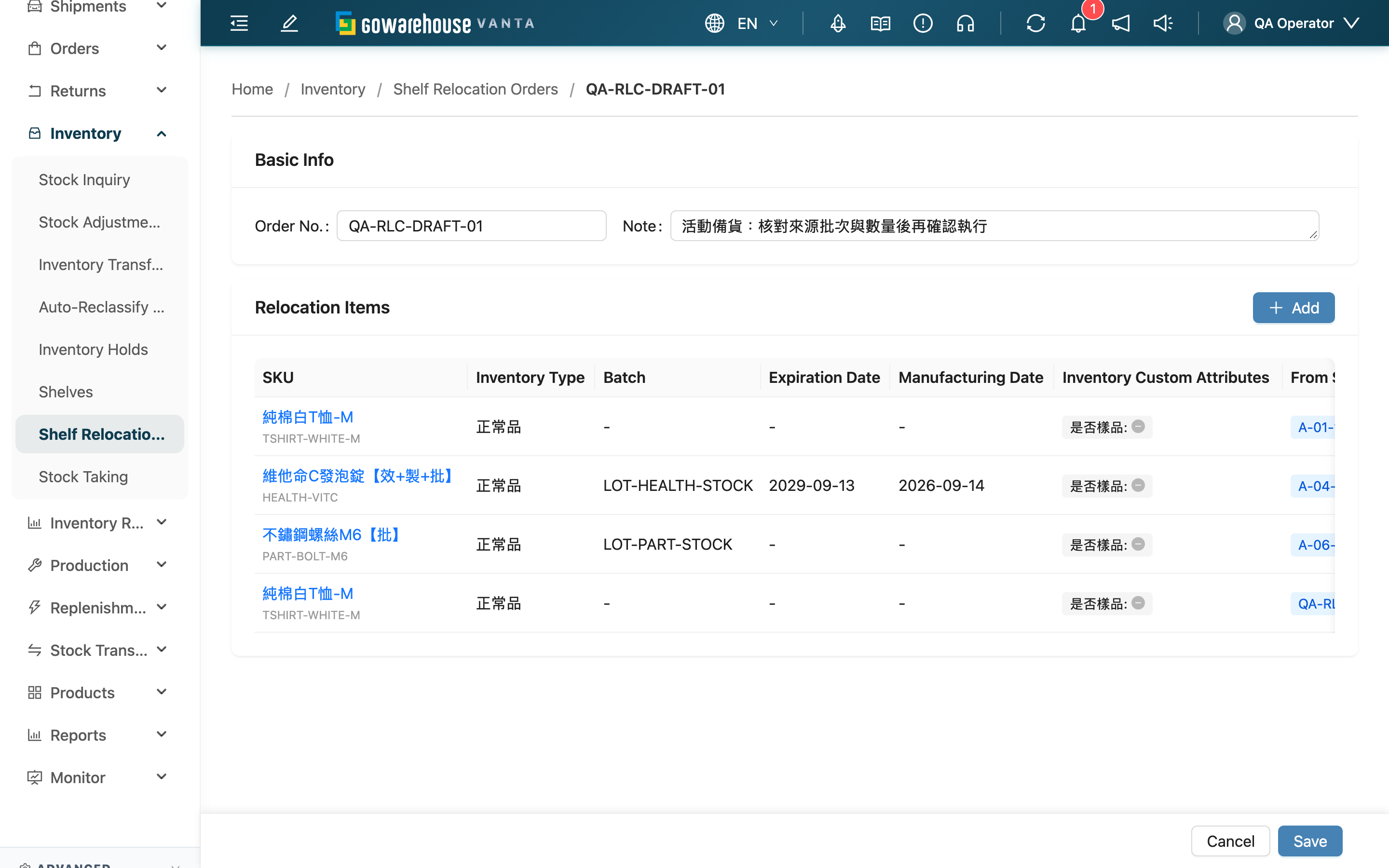
1.1 Revise a draft
Only draft orders can be edited. The merchant remains fixed to the original order. After changing Order No. or Note, review the products, batches, expiry and manufacturing dates, custom attributes and source/destination shelves.
To change a source, destination or quantity, remove that line and add the corrected source. Removing a line changes only the draft plan and does not move inventory.
1.2 Save changes
Keep at least one line and select Save. The order details page opens after saving. You can print a PDF for review before confirming execution.
2. FAQ
2.1 Questions
▪ Why can I not edit the order?
Check that it is still a draft and that you have shelf write permission. See the status table for completed and voided orders.
▪ Why is the movable quantity lower than the shelf quantity?
Picking reservations and quantities already on this order from the same source are deducted to prevent over-planning within the draft.
▪ How do I split one source between two destinations?
Add the first destination and quantity, reopen the source picker, then add the remaining quantity to the second destination.
▪ Does clearing the reference generate a new one?
No. Clearing the reference during editing keeps the original value. Automatic numbering applies only when creating an order with a blank reference.
▪ Why does saving say the order is no longer editable?
Another operator may have confirmed or voided it. Reopen the details to check its current status. Unsaved edits do not overwrite completed work.
2.2 Important notes
⚠️ Before proceeding
Saving changes only the plan and does not mean stock has physically moved. The order cannot be edited after confirmation.