
Print Template Detail
Table of Contents
1. Features
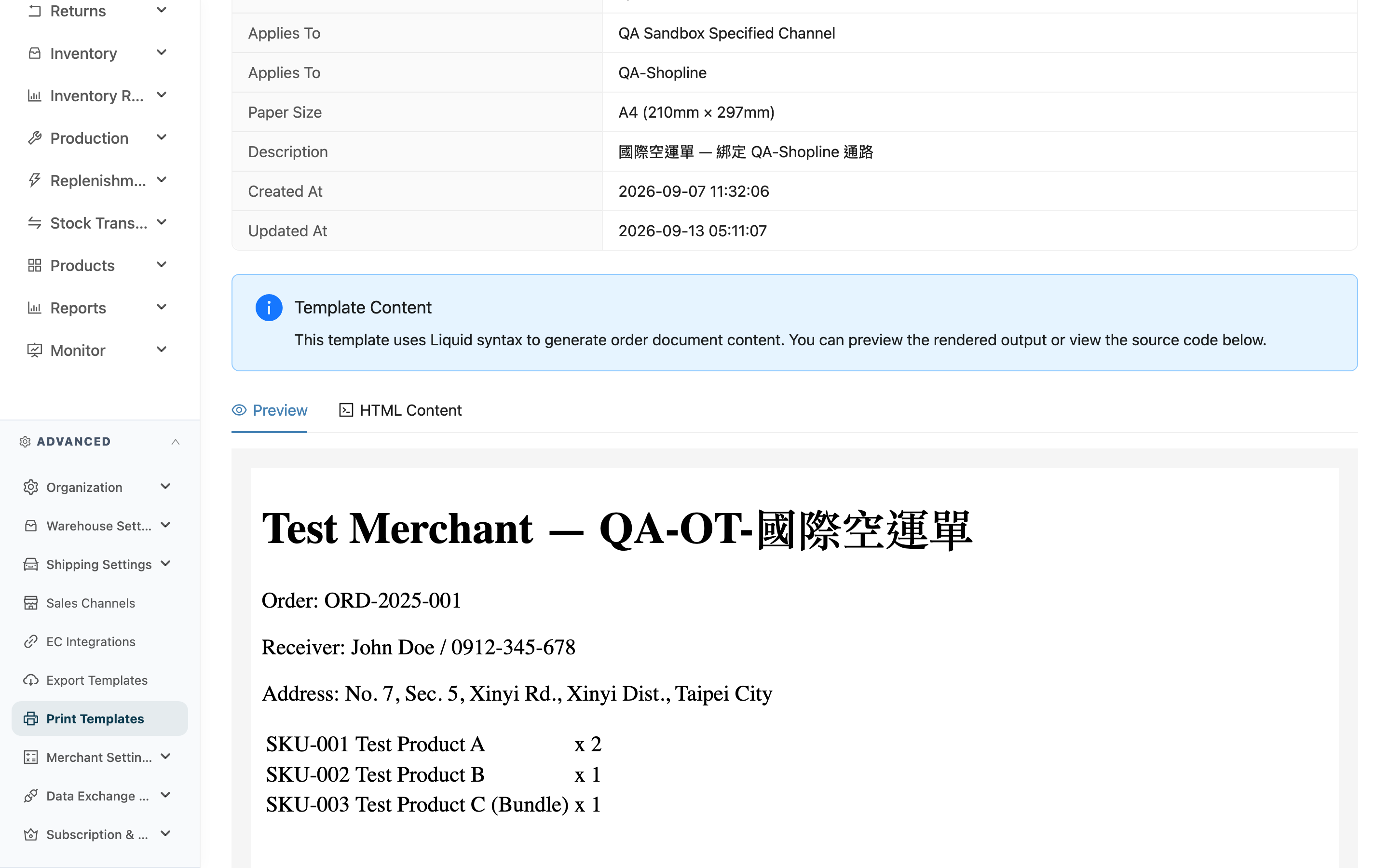
This page answers two questions: what this template looks like when printed, and when it gets used. The top half is a settings summary, and the bottom half lets you switch between the rendered preview and the raw layout content. Editing and deleting are both done from the top right of this page.
Quick jump: Settings Summary | Preview & Layout Content | Edit & Delete
1.1 Settings Summary
| Field | Description |
|---|---|
| Template Type | Which type of document this template prints. Can't be changed after creation |
| Template Name | The template name |
| Owner | Shows the merchant's name if it belongs to a merchant, or Organization Level if it belongs to the whole organization |
| Applies To | Under what conditions this template is picked automatically. Yellow text means it won't be picked automatically (see Which Template Gets Used When Printing) |
| Applies To | Only appears when a target has been specified; lists the actual channel or shipping type names it's bound to |
| Paper Size | The actual output size |
| Description | The usage note entered when it was created |
| Created At / Updated At | When it was created and last modified |
Product Label's target is recorded on the product record and may cover a whole batch of products, so this page doesn't list the products here — to check which template a specific product uses, check that product's detail page instead (see Product Detail).
When the notice about template definitions failing to load appears at the top of the page, Paper Size shows only the numbers, and the Applies To row may not display — the blank you see doesn't mean nothing is bound; just refresh the page.
1.2 Preview & Layout Content
Preview renders the layout using sample data, at the same proportions as the actual output size. HTML Content shows the raw, unrendered layout, so you can check how the fields are written. The preview uses sample data provided by the system — not a real order or product.
1.3 Edit & Delete
Edit in the top right takes you to Edit Print Template. Delete first shows a confirmation dialog.
A template still bound to channels cannot be deleted: confirming shows "This template is still bound to a sales channel and cannot be deleted", and you have to unselect Applicable Channels on the edit page first.
Otherwise it is removed immediately and can't be recovered, and the bindings are cleared. Products lose their assignment and print with the default or the system's built-in layout; but once the binding on a shipping type is cleared, that custom shipping type stops producing shipping labels altogether — Custom Shipping Label has no built-in layout to fall back on.
If you only have view permission, neither button appears.
2. FAQ
2.1 FAQ
▪ Applies To shows "Not Set as Default or Bound" — is something broken?
No, but the consequence is worse than it sounds. Of the five types, only Product Label and Shelf Label can be picked manually at print time; the other three have no selection entry point on their print screens, so for them the yellow text means "it will never be printed".
Go to the edit page and set it as the default, or specify what it applies to, and it will take effect.
▪ Why doesn't the Applies To row appear?
This row only appears when the template actually specifies a channel or shipping type. Product Label bindings live on the product side, so this row never appears for it.
▪ The preview looks fine, but the actual printout looks different?
The preview uses sample data — real documents can have different product name lengths or item counts. For Product Label, you can check again with a real product as the sample on the edit page (see Edit Print Template).
▪ Can I edit the content directly on this page?
No, this page is read-only. All edits are done on the edit page.
▪ Can I recover a template after deleting it?
No. Deletion can't be undone — if you need it again, you'll have to create a new one.
▪ Why can't I see Edit and Delete?
Both actions require edit permission for print templates. Accounts with only view permission can see the content but won't see the buttons — contact your administrator to check permissions.
2.2 Notes
⚠️ Important
- Deletion can't be undone, and it immediately changes which layout is used for future printing.
- A template still bound to channels cannot be deleted; one bound to products can be deleted, and those products fall back to the default or the system's built-in layout. Applies To doesn't list products — for Product Label, check the product side separately to see the blast radius.
- Deleting a Custom Shipping Label that is bound to shipping types makes those custom shipping types stop producing shipping labels altogether — not fall back to a built-in layout.
💡 Tip: HTML Content lets you copy the existing layout directly and paste it on the add page as a starting point for another template — faster than rebuilding from the default layout.
3. Related Features
| Feature | Description | Link |
|---|---|---|
| Print Templates | Return to the list | Go |
| Edit Print Template | Modify this template | Go |
| Product Detail | Check which label template a specific product actually uses | Go |