
New Shelf Relocation Order
Contents
1. Features
Select the merchant in the page header before creating a draft. Find stock by shelf or by product, then select the exact inventory and source shelf. One selection can send several sources to a common destination. Add separate groups of lines when the destinations differ.
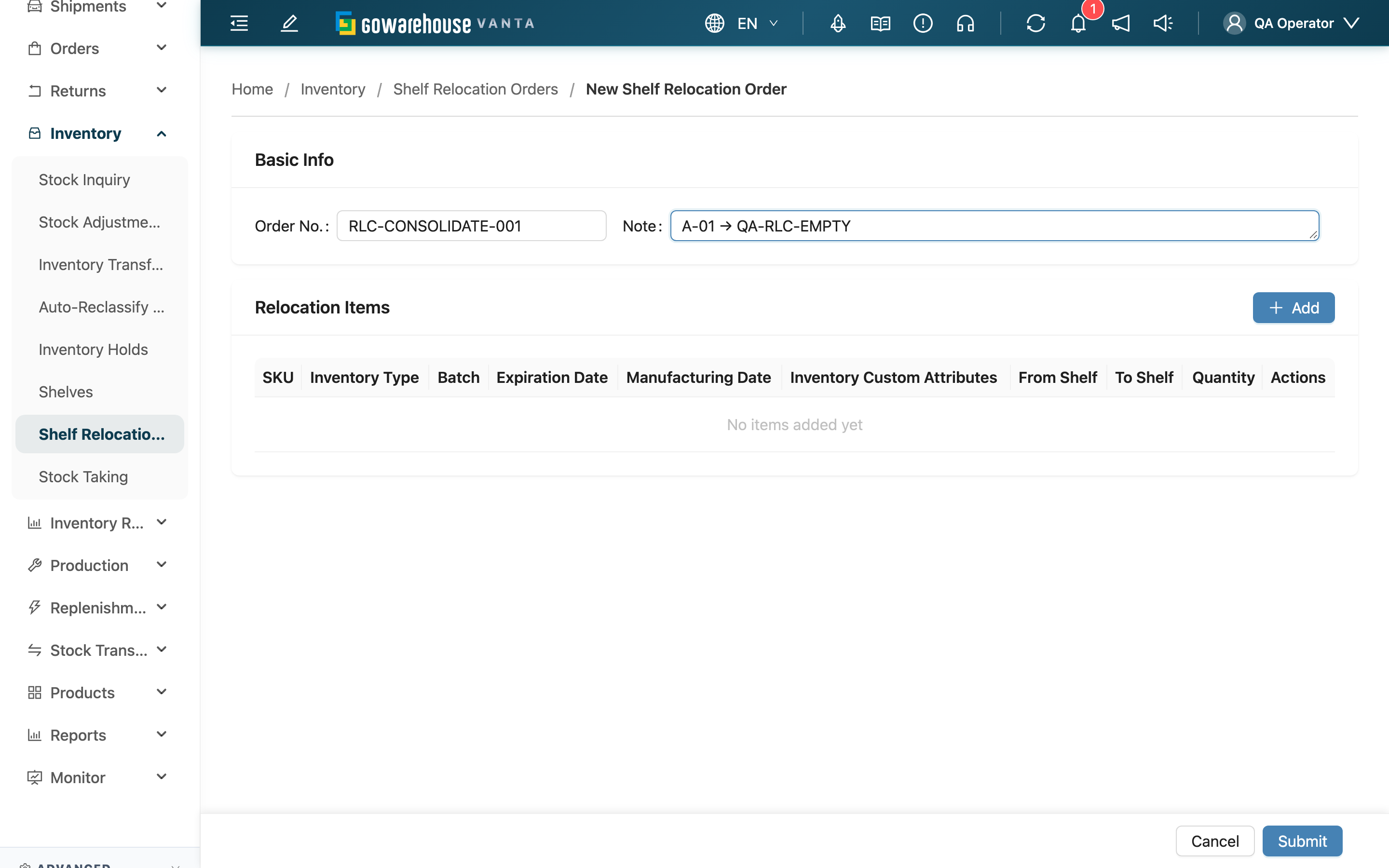
1.1 Basic information
| Field | How to fill it | Notes |
|---|---|---|
| Order No. | Enter your working reference | Leave blank to generate one; it must be unique within the merchant |
| Note | Describe the reason or instructions | Included in the PDF |
1.2 Select sources and a destination
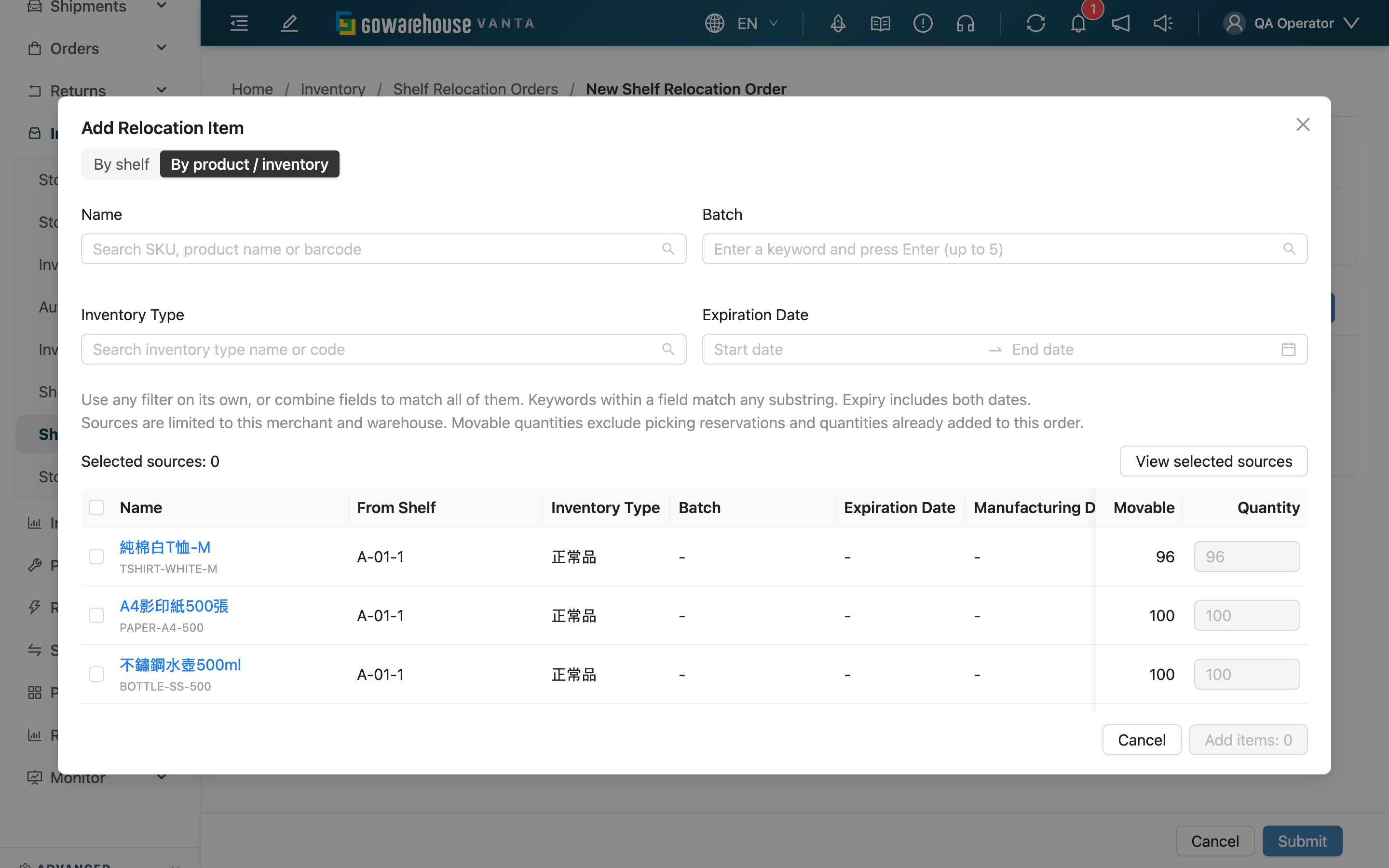
▸ Find sources
- Select Add in Relocation Items.
- Choose By shelf and search the shelf code, or choose By product / inventory, search by product, inventory type, batch or expiry. A product keyword is optional.
- Select the sources to move. Each row represents one inventory record on one shelf. Different shelves or lots remain separate. Sources include only ordinary shelves with movable stock for this merchant and warehouse.
| Filter | How to use it |
|---|---|
| Name | Enter an SKU, product name or barcode, then press Enter |
| Inventory Type | Enter an inventory type name or code, then press Enter |
| Batch | Enter a batch keyword, then press Enter |
| Expiration Date | Select a date range, including both dates; use the same start and end date for an exact expiry date |
Each keyword field accepts up to 5 keywords and matches any of them as a case-insensitive substring. Different fields must all match. For example, use only inventory type and expiry to find that type of stock expiring in a specific period. Clear a filter to broaden the results. Previously selected sources stay selected; use View selected sources to review them.
▸ Review quantities and destination
- Enter Quantity * as a positive whole number no greater than that row’s Movable. The full movable quantity is selected by default.
- Select To Shelf *. Empty shelves are allowed; any selected source shelf is excluded.
- Use the add button at the bottom right of the picker to add the selected lines. Add another group for a different destination.
Movable quantities exclude picking reservations and quantities already added from the same source to this order. Selections and edited quantities remain when you change searches, shelves or pages. Use View selected sources to review them together.
1.3 Save the draft
Add at least one line, then select Submit. The details page opens after saving. Continue with confirmation to execute the moves.
2. FAQ
2.1 Questions
▪ Why is a shelf missing from the source selector?
It must belong to the current warehouse and contain movable stock for this merchant. Empty shelves, fully reserved shelves and shelves whose movable quantity is fully used in this draft are excluded. Staging areas and picking carriers are also excluded.
▪ Why does one product appear on multiple rows?
Each inventory lot and source shelf is separate. Check the type, batch, expiry, manufacturing date and custom attributes to avoid moving the wrong lot.
▪ Why is a destination with stock disabled?
Any selected source shelf is excluded as the destination for this group. Deselect that source or choose another destination.
▪ Will changing the search lose my quantities?
No. Use View selected sources to review them. Closing the picker clears selections that have not been added. Changing the header merchant clears that merchant’s unsaved form.
▪ Does saving a draft reserve inventory?
No. Confirmation checks the movable quantity again. If another operation uses the stock first, you may need to edit the source or quantity.
2.2 Important notes
⚠️ Before proceeding
Changing merchants or leaving an unsaved form loses the current input. Save the draft first.