
Warehouse Overview
Table of Contents
1. Scenarios
Quick links: A store is out — which warehouse can transfer? | Review stock across locations to plan replenishment
Scenario 1: A store is out — which warehouse can transfer?
Situation: You are on shift at a chain brand's Taipei store warehouse. The store manager says a tote bag has been asked for several times today, but this warehouse has sold out. The central warehouse or another store may still have it, but checking one warehouse at a time is too slow.
Use this feature: Add "Out here, available elsewhere" in the filters; the table keeps only products that are out here but available elsewhere, and each column is that warehouse's Available Quantity. Once you know where to pull from, create the transfer in Stock Transfer Orders.
Result: Within seconds you know which warehouse to ask and how much it can give, without calling each warehouse.
Scenario 2: Review stock across locations to plan replenishment
Situation: Before the weekly meeting, the warehouse supervisor needs the stock spread across stores and the central warehouse: which products sit in the central warehouse and which stores are running low, to decide what to send where this week.
Use this feature: Pick the warehouses to compare with "Warehouse", sort by the total or a single warehouse, then select all and export a sheet shaped like the table.
Result: The meeting works from one "product × warehouse" sheet whose numbers match the screen, and transfer orders can be created straight from it afterwards.
2. Features
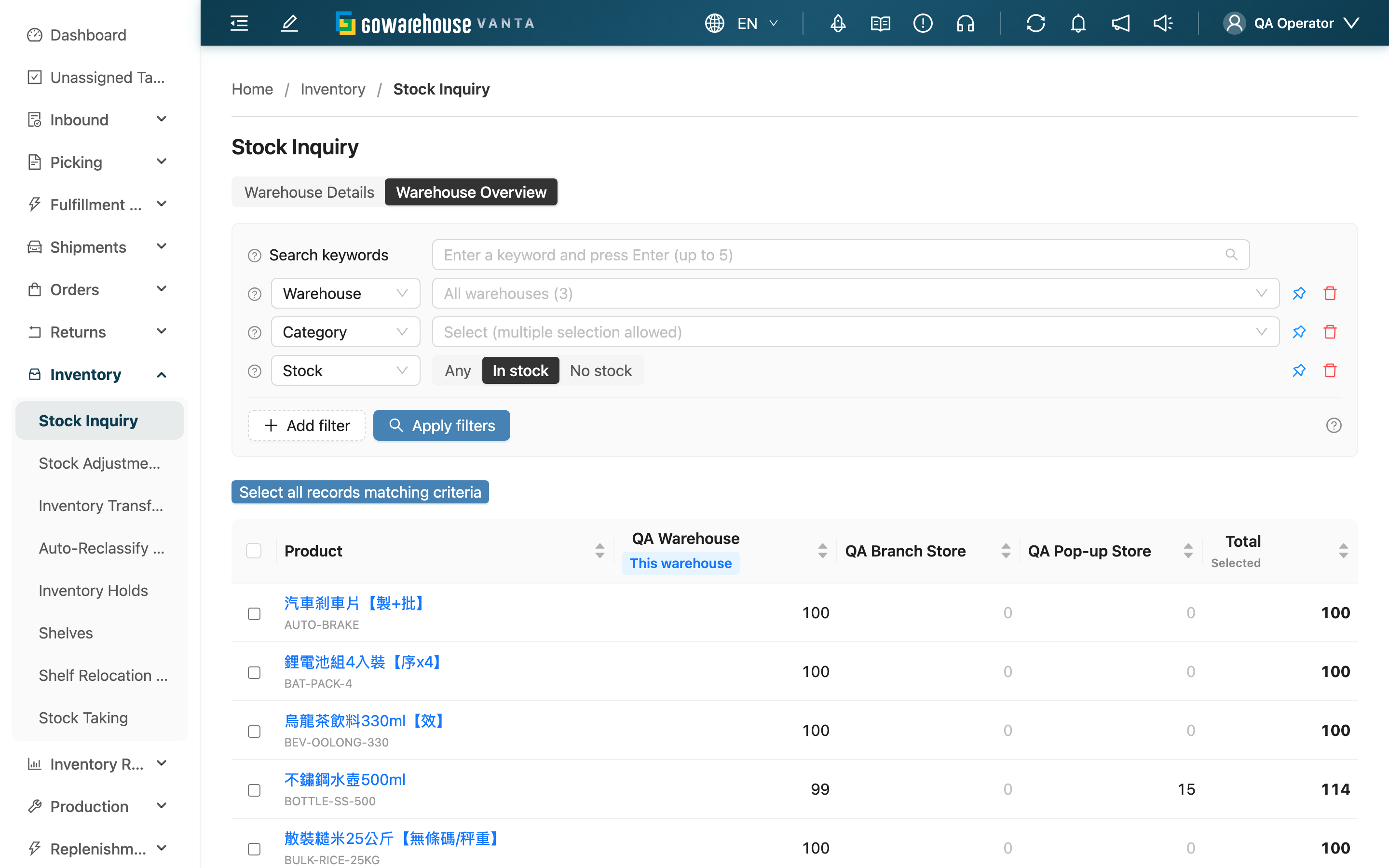
Warehouse Overview puts every warehouse in your organization in one table: one row per product, one column per warehouse, and each cell is that warehouse's Available Quantity. Warehouse Details in the inventory list shows only your own warehouse, so finding where a product is in stock means switching warehouse by warehouse; this page lists them all at once so you can compare locations before a transfer. Quantities only — no batch, expiry or shelf.
Go to "Inventory" → "Stock Inquiry" and click "Warehouse Overview" at the top of the page. With a single warehouse in your organization, the switch is hidden and opening this page directly returns you to Warehouse Details.
Quick jump: Search and filter | Cross table | Export
2.1 Search and filter
Search keywords match SKU and Name (partial match) and barcodes, including additional barcodes (exact match only); enter several keywords to list products matching any of them. Keywords already applied in Warehouse Details are carried over when you switch here.
"Warehouse", "Category" and "Stock" are pinned by default; add the others with "Add filter". Changes apply only after you click "Apply filters".
| Filter | How to use |
|---|---|
| Warehouse | Leave empty for all warehouses; the box shows "All warehouses (count)". The top of the list has "Select All"; after typing a warehouse name to filter, it becomes "Select all results" and ticks only the matching warehouses. To exclude one or two warehouses, select all and untick them. Ticking every warehouse is the same as leaving it empty. The table shows only the selected warehouses and the total counts only them |
| Stock | Defaults to "In stock": a product is listed when its total on-hand quantity across the selected warehouses is above 0 (on-hand includes pending putaway and blocked batches). "No stock" lists only products none of the selected warehouses have; "Any" lists everything |
| Out here, available elsewhere | "Yes" keeps only products whose Available Quantity in this warehouse is 0 or less while at least one other selected warehouse has more than 0. Not applied when this warehouse is not selected; a notice appears above the table |
| Inventory Type | Counts only the selected inventory types, e.g. only good stock when planning a transfer; other types are left out of the cells and the total |
| Merchant | Available only when your account is assigned several merchants; lists only the selected merchants' products. When the merchant selector at the top of the page is set to one merchant, this filter is hidden and the table, select-all and export cover only that merchant's products, as in Warehouse Details; switching the merchant at the top reloads the table |
Pick or enter Category and Product SKU (one per line, exact match). Only products of the merchants assigned to you are listed, and deleted products never appear.
2.2 Cross table
| Column | Description |
|---|---|
| Product | Product name and SKU; stays fixed on the left while scrolling sideways. Click the product name to open Product Inventory on "By Warehouse", which shows the product's pickable, blocked and on-hand quantities in each warehouse |
| Warehouse columns | That warehouse's Available Quantity. This warehouse is always the first column, tagged "This warehouse"; the rest follow by warehouse name. Hover a number to see that warehouse's available, pickable, blocked and on-hand quantities. 0 is shown in light grey; when this warehouse is at 0 or below while another selected warehouse has stock, the cell is highlighted in orange |
| Total | Total Available Quantity across the selected warehouses; stays fixed on the right while scrolling sideways |
Each warehouse column's Available Quantity uses the same calculation as Warehouse Details: pickable minus allocated and held, in-stock batches only, and it can be negative. Click the header of the product column, any warehouse column or the total to sort ascending or descending; the default order is by product SKU. If a warehouse filter change removes the column you are sorting by, the table returns to the default order.
Columns are decided by the warehouse filter, so this page has no column settings; to see fewer warehouses, narrow "Warehouse".
2.3 Export
Tick products, or click "Select all records matching criteria", then click "Export". Check and download the result in the import/export records.
- The file is shaped like the cross table: one row per product, with SKU, name (plus a merchant column when your account has several merchants), one Available Quantity column per selected warehouse (this warehouse first, the rest by name, headed by the warehouse name), and the total last; rows follow the table's current sort order
- Exported products = ticked products that still match the filters when the file is produced: if stock changes after you tick so that a product no longer matches (for example an "In stock" product is sold out), its row is left out; if none match you see "No records to export"
- Numbers reflect stock when the file is produced: if stock does not change between submitting and producing the file, the numbers match the screen
- Export templates are not supported: the columns change with the selected warehouses, so a template cannot map to them
- Requires the inventory export permission; accounts without it do not see "Export"
3. FAQ
3.1 FAQ
▪ Do the cells match what each warehouse sees in Warehouse Details?
Yes. The cell for a product in a warehouse equals the sum of "Available Quantity" that warehouse's staff see for the same product in Warehouse Details; selecting only that warehouse in the warehouse filter leaves the cell unchanged. Only stock of the merchants assigned to you is counted.
▪ Why isn't a product listed?
Most often "Stock" is at its default "In stock", so products none of the selected warehouses have are hidden; switch it to "Any" to see them. Products of merchants not assigned to you and deleted products never appear.
▪ Why can't I see "Warehouse Overview"?
With a single warehouse in your organization the switch is hidden and opening this page returns you to Warehouse Details. If your organization has several warehouses and the page still won't open, your account lacks permission to view inventory — contact your administrator.
▪ I chose "Out here, available elsewhere" — why didn't the table shrink?
When this warehouse is not in the warehouse filter there is nothing to compare against, so the filter is not applied and a notice appears above the table. Add this warehouse back to the warehouse filter.
▪ Why is a cell negative?
Available Quantity is pickable minus allocated and held. If goods already allocated to orders shrink after a stock-take or adjustment, the allocated quantity can exceed pickable and available goes negative, meaning that warehouse can no longer fulfil all its allocated orders; Warehouse Details shows the same negative number.
▪ What's the difference between "Select all" and selecting no warehouse?
There is no difference: ticking every warehouse is the same as leaving it empty — all warehouses, with the total over all of them.
▪ Why does the exported file have fewer rows?
The export recalculates with the current filters and keeps only ticked products that still match; if stock changed after you ticked so that a product no longer matches, its row is left out. See Export.
▪ How do I see a product's blocked or pending-putaway quantity per warehouse?
Hover a cell to see that warehouse's available, pickable, blocked and on-hand quantities; to see all warehouses at once, click the product name to open "By Warehouse".
3.2 Notices
⚠️ Important
- This page shows quantities only; you cannot adjust or transfer another warehouse's stock from here. To bring goods over from another warehouse, create a stock transfer order.
- Each cell counts only stock of the merchants assigned to you; other merchants' goods in the same warehouse are not included.
💡 Tip: With many warehouses, first narrow "Warehouse" to the few you want to compare and the table becomes much narrower; when this warehouse is out, add "Out here, available elsewhere" to go straight to the products you can transfer.
4. Related Features
| Feature | Description | Link |
|---|---|---|
| Stock Inquiry | This warehouse's batch, expiry and shelf details | Go |
| Product Inventory | A single product's shelves, batches and per-warehouse quantities | Go |
| Stock Transfers | Create the transfer once you know which warehouse to pull from | Go |